You are currently working on UAT 

Two functions not working in Studio 2017 after the install of CU 16

I just installed Cumulative update 16 to Studio 2017. Two functions are lost: “Show Whitespace Characters” and “Toggle display of formatting tags”. The whitespace characters are showing in the Translation results window, but not in the editor itself. I cannot see the formatting tags at all, but they are visible when I choose “Edit Translation Unit” in the Translation results window.

The project I am working on was started in CU 15, but it doesn’t help to create a completely new project. I have tried with another file, but it looks like I cannot get these to functions to work at all.

These two functions are important. I really need them back.

Parents Reply Children
  • Thank you, Alison, for your answer and suggestions. I tried to reset the window layout, I ran a repair install and rebooted the computer. Unfortunately, I still lack the possibility to show whitespace characters in the editor and to display formatting tags.

    I can see whitespace characters in the Translation Results window, but I cannot see the formatting tags at all. The latter is a problem as I am working with a file with some segments having heavy formatting. I really need to see all the tags when I edit in order to not make any mistakes.

    MultiTerm is updated as well. Everything else seems to be working except these two issues.

    /Peter

  • Hi 

    Did you try opening a file then clicking into the Editor window then toggling the paragraph symbol off and on here:

    Trados Studio toolbar with paragraph symbol highlighted indicating the toggle function for showing paragraph marks and whitespace characters.

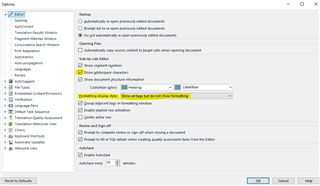
    This worked for me when the reverse scenario happened after an update. I had ticked 'Show whitespace characters' here:

    Trados Studio Options dialog box with 'Editor' settings expanded showing 'Show whitespace characters' option checked.

    But I only had whitespace characters visible in the Editor window. They were not visible in the Translation results window. So I clicked into the translation results window then toggled the Paragraph symbol off and on and that resolved the issue. I've never heard of the reverse happening but maybe that will work?

    Then, see the second item I've highlighted above, how is that set in your profile via File>Options?

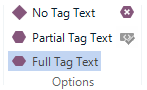
    Also, which of these do you have ticked in your View tab:

    Trados Studio View tab options showing 'No Tag Text', 'Partial Tag Text', and 'Full Tag Text' with corresponding icons.

    Try again clicking into your Editor window then toggling those.

    Let me know what happens,

    All the best,

    Ali Slight smile

    emoji


    Generated Image Alt-Text
    [edited by: Trados AI at 4:56 PM (GMT 0) on 28 Feb 2024]
  • PS: if my screenshot looks different to yours, it's because I took them in Studio 2019 as I don't have a 2017 license... Ali Slight smile

  • Thank you again, Alison, for your efforts. I have now performed a complete reset of Studio to no avail. I have also followed your last advice. I can get the whitespace characters to show permanently and I can also get the formatting tags to show permanently when changing the settings in “Options”, but I seem to have lost the ability to toggle between showing them and not showing them in the editor using the buttons on the Home and View tabs. With the usual settings, I cannot get them to show in any of the columns (source and target text).

    When I choose “Full Tag Text”, it will only affect the Translation Results window, not the editor. The toggling is out of order as it seems.

    I can live without the ability to see whitespace characters in the editor as they are showing in the Translation Results window, but I cannot live without the possibility to toggle between show and hide formatting tags. It makes working very difficult. I have tried to use the setting with formatting tags showing permanently, but that makes all the text in the editor shown in Arial looking strange and difficult to handle. That is no solution.

    The only solution I can think of right now is to leave the office and use my computer at home. That computer has not been updated to CU 16. I will remain here in the office and try to finish this project, but if the next project has the same error, I have to change to my other computer.

    /Peter

  • I can get the whitespace characters to show permanently and I can also get the formatting tags to show permanently when changing the settings in “Options”, but I seem to have lost the ability to toggle between showing them and not showing them in the editor using the buttons on the Home and View tabs

    It has to be set to show them permanently under File>Options before the toggle on and off via the Home and View tabs will work...

    Ali ;-)

  • With the usual settings, I cannot get them to show in any of the columns (source and target text).

    Which usual settings are you referring to?

    Ali

  • If I set the whitespace characters to show permanently, they are shown all the time without the possible to toggle not to show them. Clicking on the button does not give any effect.

  • The usual setting under “Formatting Display Style” is “Show formatting but hide recognized formatting tags”. In CU 15, I was able to toggle between showing and not showing formatting tags, but this does not work in CU 16.

    I thought this was only a routine update, so I decided to get it done on my laptop after lunch today, despite the fact that I have four revision assignments that I have to do in Studio until Thursday. That was obviously a big mistake as I now have lost valuable working time. Frowning2

    New decision: I have to change to my desktop computer with CU 15 at home right away and leave the office. I cannot work on these projects without having these functions working properly, at least not the toggling of formatting tags. It seems that the installation of Studio on my laptop is not possible to use for the time being.

    Alison: One again thank you for your efforts.

    /Peter

  • Hi 

    It is always best to leave updates until after urgent work has been done. Once you've delivered these jobs, I suggest you reinstall Studio on your office machine.

    If that does not solve the problem you can then go to SDL Installation support for help free of charge, here:

    Installation support

    Fill out the form, give them an accurate email address to contact you on and select 'Installation' from the Case Type dropdown. You can explain what you've already tried.

    This is an odd set of behaviour. I'd be interested to hear what SDL Support find to solve it. If you could kindly post it here, it would be useful for future users who experience a similar issue.

    All the best,

    Ali Slight smile

  • Yes, I have learnt a lesson now. This is actually the first time I encounter a severe problem of this kind after the installation of a cumulative update.

    I always have Studio ready on my desktop computer at home if I for one reason or the other cannot use it on my office laptop. All the other software I need to be able to perform my work is also available on my desktop at home. I only need to copy the files. In this business, you always have to be prepared. Wink

    I have not much time to deal with this right now as I am on a journey from Friday until next Monday. I will be working a few days next week, but then I will be gone for two weeks. I will probably have to work from home on my desktop until I can find time to deal with this matter.

    I haven’t seen any comments about this problem from any other Studio 2017 users. Am I the only one with this behaviour from the software?

    I will check this forum again to see if something new comes up. If not, I will contact the SDL support as you suggested.

    /Peter