Force new segment after measurements

Is there a way to force Trados Studio 2024 to split segments after the first one has a measurement in it?

For example:

This mini highchair measures: 26.6cm L x 26.3cm W x 57cm H. Includes fabric cushion for doll to sit on.

After the 57 cm H. there should be a new segment, but I always get as I have written in the example above. It does not automatically split, I have to do it manually each time.

Is there a way to tell the program to split the segments?

Thank you in advance for your help.


word with a mistake
[edited by: Serge Dugas at 5:04 PM (GMT 1) on 11 Jun 2026]
emoji
  • Hello,

    To achieve automatic segmentation after measurements in Trados Studio 2024, you can customize the segmentation rules in your translation project. Here's how you can do it:

    ### Step 1: Open the Project Settings

    1. In Trados Studio, go to your project and click on **Project Settings** from the ribbon or the File menu.

    ### Step 2: Access the Segmentation Rules

    1. Under **Language Pairs**, expand the **Translation Memory and Automated Translation** section.

    2. Select the **Translation Memory** you're using and click on **Settings**.

    3. In the settings window, navigate to **Segmentation Rules**.

    ### Step 3: Edit the Segmentation Rules

    1. Click on **Edit** to open the segmentation rules editor.

    2. Add a new rule by clicking **Add**.

    3. Define the rule to split segments after a measurement. For example:

      - **Before Break**: Add a regular expression to detect measurements (e.g., `\d+(\.\d+)?\s?(cm|mm|in|L|H|W)`).

      - **After Break**: Specify the conditions for the text following the measurement (e.g.,

    emoji
  • That did not work. When I enter all that info, it seems to be ok, then I say ok... and I do see the rule that I called "Measurements"... I go out of there... and go back in to check it out again... it's gone, deleted. Why I don't know.

    emoji
  • Hi ,

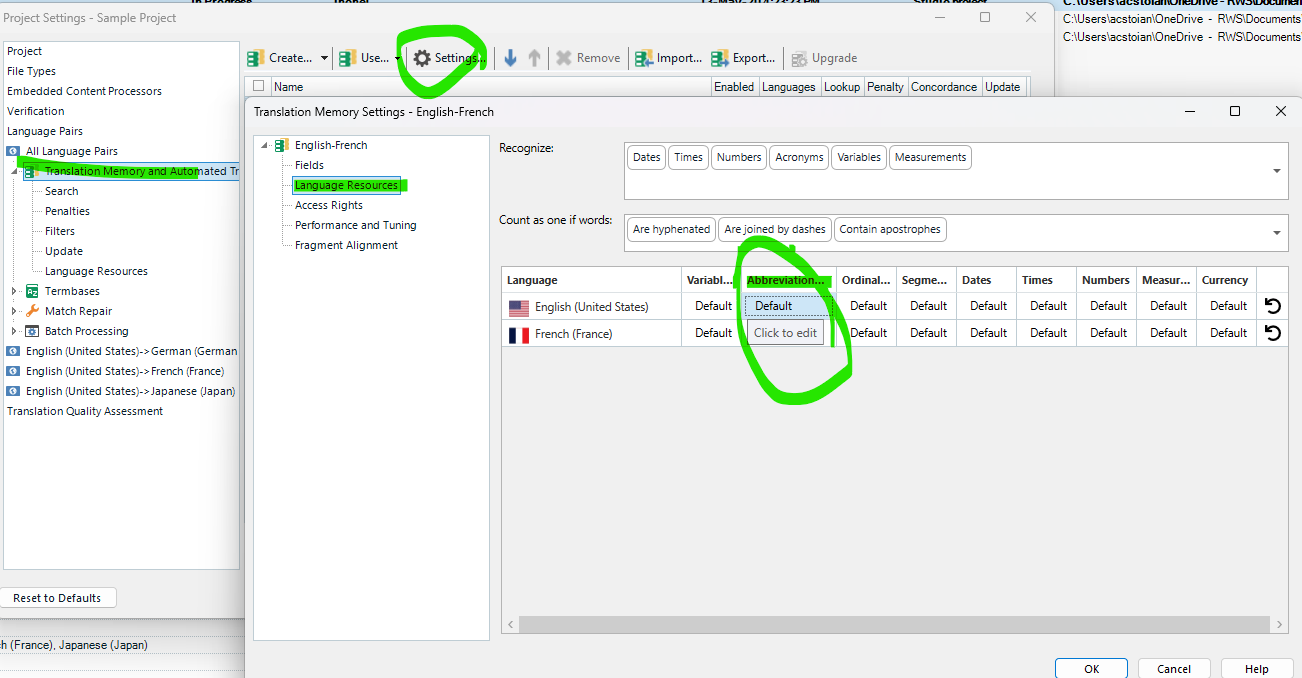
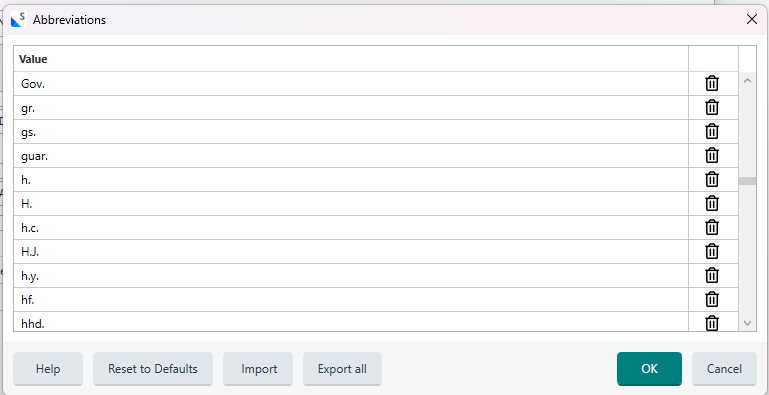
    You can try to remove the H. from Abbreviation list and it should be accepted by the rule then - go to the TM settings in your Project settings - All Language Pairs - and the Translation Memory 

    Trados Studio Project Settings window showing Translation Memory Settings for English-French. Abbreviation settings are highlighted with green circles.

    Abbreviations list window in Trados Studio displaying various abbreviations such as Gov., gr., gs., and H. with options to delete each entry.

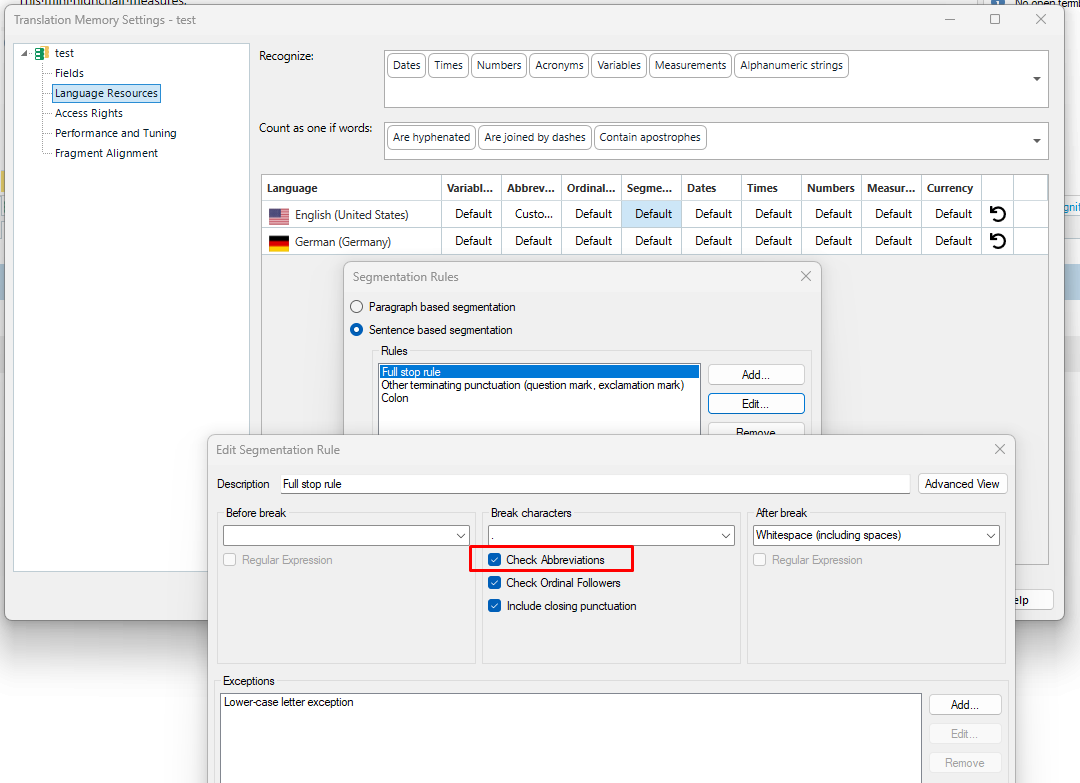
    Or if it won't hinder your translation work, you can uncheck the option for Check Abbreviations.

    Trados Studio Translation Memory Settings window with Segmentation Rules open. The 'Check Abbreviations' option is highlighted in red within the Full Stop Rule settings.

    Best regards,

    Anca

    Anca Stoian RWS Group

    emoji


    Generated Image Alt-Text
    [edited by: RWS Community AI at 1:24 PM (GMT 1) on 12 Jun 2026]