

You are currently working on UAT 

Sentences not recognised

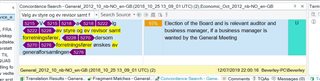
Screenshot of Trados Studio concordance search results showing repeated sentences with hidden tags highlighted in yellow and purple.

Studio 2017 SR1 Build 14.1.6413.8, Windows 10.

I am working on a Word file that has been converted from a pdf.

Repeat sentences are not being recognised. When I use the concordance I get the above - there appear to be hidden tags.

What are they, and is it possible to eliminate them? I very frequently work on converted files, but this is a new experience.


Generated Image Alt-Text
[edited by: Trados AI at 5:19 PM (GMT 0) on 28 Feb 2024]

emoji
Parents
  • Hi 

    I can't read these tags are because you have them set to 'Tag ID' on your View tab. That replaces the tag text with an ID number.

    They are undoubtedly formatting tags created by the process of converting the PDF to Word and there is a simple solution.

    Via File > Advanced Save > Save to Source, you can create a source Word document. Open that document in Word and smooth the text out. I find that if I highlight the whole document and change a common property such as language then change it back, unnecessary tags are removed.

    Text inside text boxes will not be reached by highlighting the whole document, you'll need to click into them to smooth the text.

    There may be a better way to do this but it's how I do it.

    Then create a new project using that Word document. There should only be necessary tags visible now.

    All the best,

    Alison Slight smile

Reply
  • Hi 

    I can't read these tags are because you have them set to 'Tag ID' on your View tab. That replaces the tag text with an ID number.

    They are undoubtedly formatting tags created by the process of converting the PDF to Word and there is a simple solution.

    Via File > Advanced Save > Save to Source, you can create a source Word document. Open that document in Word and smooth the text out. I find that if I highlight the whole document and change a common property such as language then change it back, unnecessary tags are removed.

    Text inside text boxes will not be reached by highlighting the whole document, you'll need to click into them to smooth the text.

    There may be a better way to do this but it's how I do it.

    Then create a new project using that Word document. There should only be necessary tags visible now.

    All the best,

    Alison Slight smile

Children