You are currently working on UAT 

Two instances of SDL Trados Studio 2017 in list of apps

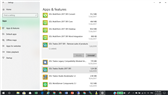
I have two instances of SDL Trados Studio 2017 SR1 in the list of Apps & Features in Windows 10Windows 10 Apps & Features list showing two instances of SDL Trados Studio 2017 SR1, one with 'Remove suite of products' label, both with greyed out Modify button.. One says SDL Trados Studio 2017 SR1 – Remove suite of products; the other one just says SDL Trados Studio 2017 SR1. The Modify button is greyed out on both. A screenshot is attached. Is this normal? If not, how can I fix the problem? Thank you.


Generated Image Alt-Text
[edited by: Trados AI at 4:31 PM (GMT 0) on 28 Feb 2024]

emoji
Parents
  • Hi 

    The 'Remove suite of products' instance is indeed that which it says. It uninstalls SDL Trados Studio 2017 SR1. You can't modify it, only click on 'Uninstall' and it will remove Studio. 

    However, as you say, in the list of Apps & Features, the only option for SDL Trados Studio 2017 SR1 entry is ALSO Uninstall, which is not as it should be. I don't know why.

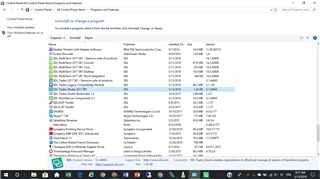
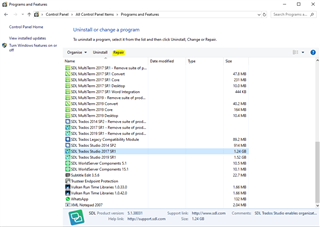
    To achieve the full features you should have accessible, type 'Control panel' into your 'Type here to search' window by your Windows start button bottom left of your screen (then if necessary select View by: 'Small icons') then click on 'Programs and Features' and you will see the more traditional version appear...

    Screenshot of the Programs and Features window showing a list of installed software, including SDL Trados Studio 2017 SR1 with the option to 'Uninstall' or 'Change'.

    In this list, a right-click or a look at the top bar will show you that you can, again, uninstall using the 'Remove suite of products' instance but that if you highlight the main instance of SDL Trados Studio 2017 SR1, you also have the option to 'Repair'. This is a very useful feature and should be used now and again, after big Windows updates for example, to make sure that Studio runs smoothly with all its features. 

    In fact, it is useful to run this 'Windows Repair' on any complex piece of software that has the facility.

    Hope this helps!

    All the best,

    Alison Slight smile

    emoji


    Generated Image Alt-Text
    [edited by: Trados AI at 4:31 PM (GMT 0) on 28 Feb 2024]
Reply
  • Hi 

    The 'Remove suite of products' instance is indeed that which it says. It uninstalls SDL Trados Studio 2017 SR1. You can't modify it, only click on 'Uninstall' and it will remove Studio. 

    However, as you say, in the list of Apps & Features, the only option for SDL Trados Studio 2017 SR1 entry is ALSO Uninstall, which is not as it should be. I don't know why.

    To achieve the full features you should have accessible, type 'Control panel' into your 'Type here to search' window by your Windows start button bottom left of your screen (then if necessary select View by: 'Small icons') then click on 'Programs and Features' and you will see the more traditional version appear...

    Screenshot of the Programs and Features window showing a list of installed software, including SDL Trados Studio 2017 SR1 with the option to 'Uninstall' or 'Change'.

    In this list, a right-click or a look at the top bar will show you that you can, again, uninstall using the 'Remove suite of products' instance but that if you highlight the main instance of SDL Trados Studio 2017 SR1, you also have the option to 'Repair'. This is a very useful feature and should be used now and again, after big Windows updates for example, to make sure that Studio runs smoothly with all its features. 

    In fact, it is useful to run this 'Windows Repair' on any complex piece of software that has the facility.

    Hope this helps!

    All the best,

    Alison Slight smile

    emoji


    Generated Image Alt-Text
    [edited by: Trados AI at 4:31 PM (GMT 0) on 28 Feb 2024]
Children