Pre-translate function in Trados 2024 using private TM and Language Weaver- NOT ACCEPT PRIVATE TM SUGGESTIONS FIRST

I’m working on a translation and have enabled the pre-translate function in the project, linking my TM first and then Language Weaver’s NMT. I’m wondering why, when I translate, it accepts the NMT’s suggestions rather than those from the TM (which I’ve set as the first source with a 70 per cent threshold; it won’t let me set it any lower). When I confirm my segments by editing the Language Weaver output, I notice that the segments not yet edited retain the NMT output, so I am forced to replace the NMT output with the result from my TM every time, even though these are very repetitive segments. I’ve chosen to update only my TM and not Language Weaver. Could this be the reason? If I update Weaver, does it affect the ‘confidentiality’?
What would you suggest me to do? Thank you in advance for your feedback!

Flavia

emoji
  • Hello Flavia,

    Thank you for your detailed question! It sounds like you're encountering a priority issue in the pre-translate function of Trados Studio 2024. Let me guide you step by step to ensure your private TM suggestions are prioritized over Language Weaver's NMT output:

    ### Step 1: **Check the Order of Resources in the Project Settings**

      - Go to **Project Settings** > **Language Pairs** > **Translation Memory and Automated Translation**.

      - Ensure your private TM is listed **above** Language Weaver in the order of resources. Trados Studio processes resources in the order they appear, so the TM should be prioritized.

    ### Step 2: **Adjust the Pre-Translate Settings**

      - In the **Batch Tasks** > **Pre-translate Files** settings, ensure the "Apply automated translation if no match is found" option is enabled. This ensures that Language Weaver is only used when your TM does not provide a match.

      - Set the **Minimum Match Value** for your TM to 70% (or lower if possible). If the system does not allow you to set it below 70%, this is likely a default threshold for TM matches.

    ### Step 3: **

    emoji
  • I went through the steps suggested by AI, but I had no answer about what happens if I rename the file and add to the project, thicking "updating Language Weaver". Would confidentialiy be affected? What about the segments translated by Language Weaver but not confirmed yet? Would they be automatically changed according to my confirmed segments edited by me as I go on translating? 

    emoji
  • Hello,

    Let me address your concerns step by step:

    1. **Renaming the File and Adding it to the Project:**

      - Renaming a file and adding it to the project does not inherently affect confidentiality. However, if you are using Language Weaver, the content of the file will be sent to the machine translation engine for processing. Ensure that your organization’s confidentiality policies align with the use of machine translation services. Language Weaver is designed with robust security measures, but it’s always good to verify compliance with your specific requirements.

    2. **Segments Translated by Language Weaver but Not Confirmed Yet:**

      - If you tick the option "Re-send draft and translated segments" in the Language Weaver Cloud plugin settings, the untranslated and draft segments will be re-sent to Language Weaver for translation. This means that any segments not yet confirmed will be updated with the latest suggestions from Language Weaver.

    3. **Impact on Confirmed Segments:**

      - Confirmed segments are not automatically changed by Language Weaver. Once you confirm a segment, it is considered final unless you manually edit it. As you continue translating, Language Weaver will provide suggestions for untranslated or draft segments, but it will not overwrite your confirmed translations.

    4

    emoji
  • Hi  

    Did you pre-translate the entire file before starting your translation or are you working in an interactive setting, which means that target segments are only filled when clicking in them?

    If you pre-translated the file before starting your translation and your TM was empty, MT will be applied for every segment. If you then confirm segments while translating, the MT outputs are not necessarily overwritten by your TM results but you have to insert the TM matches manually every time. This is by default (unless you use auto-propagation, see below).

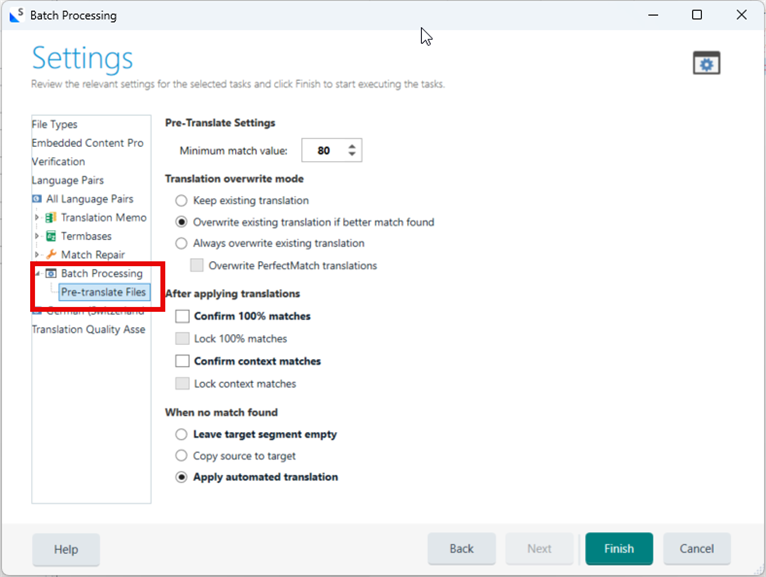
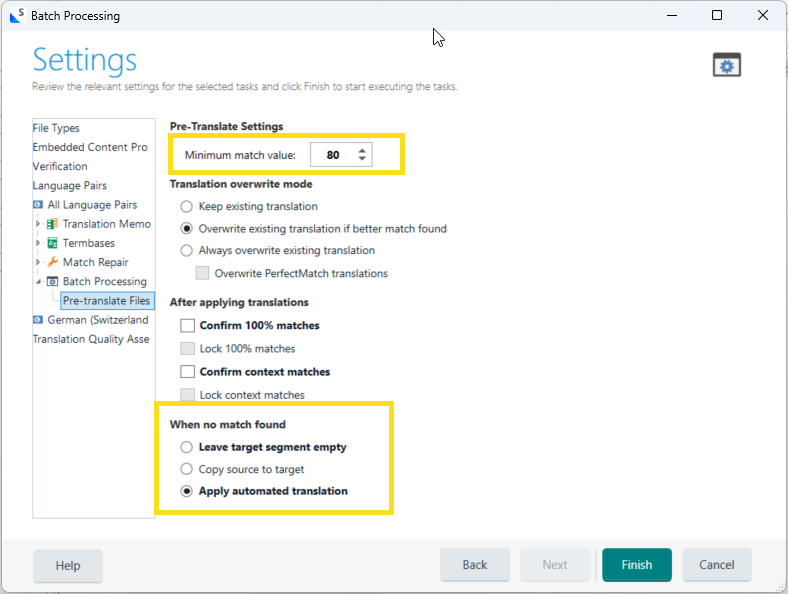
    If your TM is not empty and already contains translation units which you expect to be applied, you could check your settings under Project Settings > Language Pairs > either All Language Pairs or [specific language pair, e.g.] English (US) -> German (Germany) > Batch Processing > Pre-translate Files:

    Maybe you need to adjust the Minimum match value to receive Fuzzy Matches, too. Also check what Studio does when it can't find a match in your TM (leave target segment empty or apply automated translation):


    With regard to Language Weaver, unfortunately, I can't answer your question as I've never used this translation feature so far.
    I'm not sure, though, if you're even able to update Language Weaver at all. I'd expect it to be grayed out because I don't think update is available as it's not a custom model which most probably doesn't learn from your output adjustments in real time.

    So if you pre-translated the document before starting your translation, the segments which already contain MT outputs are not replaced by your newly created Translation Units from your TM, you have to insert them manually every time (unless they're auto-propagated, again, see below).

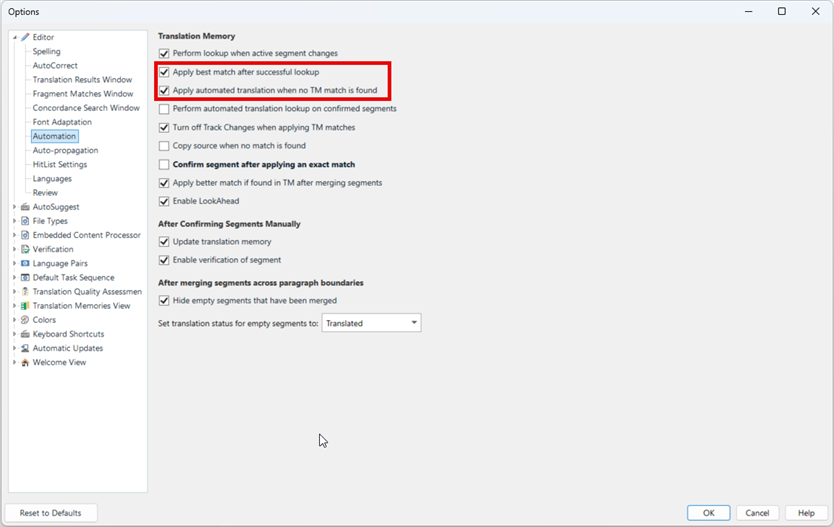
    In you're case, I'd rather clear all the target segments, and only apply MT outputs interactively as soon as you click/jump into a new segment. To do so, these are the two boxes that would need to be ticked under File > Options > Automation:

    Box 1 applies your TM matches
    Box 2 applies MT outputs if no TM matches could be found (or if only matches could be found below 70 % threashold in your case).

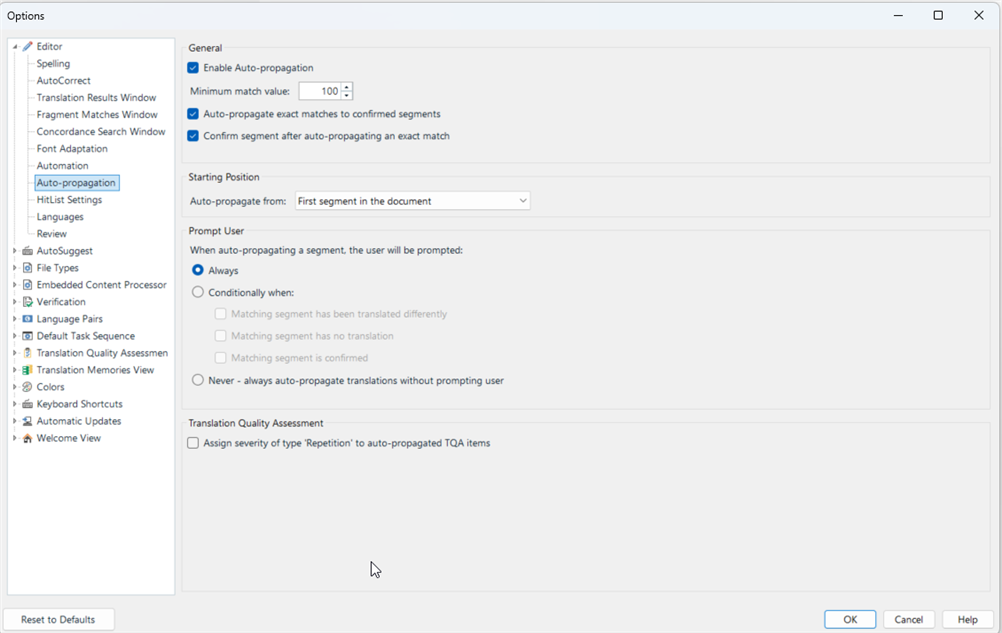
    If you wish to use the auto-propagate feature, you can find the settings under File > Options > Auto-porpagation:

    Here you can define whether you want matches from your TM to be applied to exact (100%) or similar (Fuzzy Matches, below 100 %) segments.

    I hope this helps.

    Best regards
    Seraina

    emoji
  • Thank you Seraina for your detailed answer! I tried to apply auto-propagation to the file I had already started using pre-translating, but the function doesn't apply automatically to the segments translated by LW.  What do you mean by "clear the target segements"?  I suppose I've to eliminate the file in the project and rename the original file given by the client so that I can use the auto-propagation, without using the pre-translate function but  only the MT interactively as you say. I cannot clear all the segments manually. Am I right?  Thanks for your feedback if you can. Flavia

    emoji
  • Thank you Seraina for your detailed answer! I tried to apply auto-propagation to the file I had already started using pre-translating, but the function doesn't apply automatically to the segments translated by LW.  What do you mean by "clear the target segements"?  I suppose I've to eliminate the file in the project and rename the original file given by the client so that I can use the auto-propagation, without using the pre-translate function but  only the MT interactively as you say. I cannot clear all the segments manually. Am I right?  Thanks for your feedback if you can. Flavia

    emoji
  • Hi  

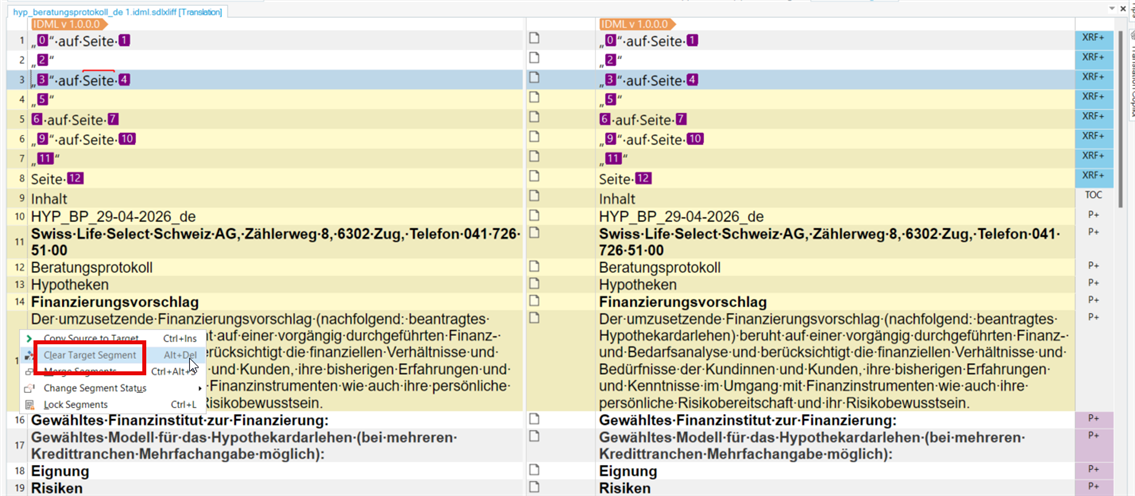
    One option to empty the pre-translated target segments is

    1. to click on the first segment number you'd want to delete the content of the target segment (left column) > segment appears blue
    2. press the shift key on your keyboard + click on the last segment number you'd want to empty > various segments are selected > selected segments turn yellow
    3. right click and select "Clear target segment":

    --> The target segment column will be emptied for the selected segments.

    If you ever have a document in which you want to delete all the target segments, you can select all the segments of the document by clicking into the empty box on the left of the orange tag at the top of the document in the editor (box on top of segment no. 1).

    Maybe you could also share some examples of segments which you expect to be auto-propagated and I could test on my end and see what it looks like.

    Best
    Seraina


    emoji
  • Thank you Seraina for your suggestions! I'll keep them in mind for the future. They could be usseful. At the moment, I'm translating the file anew without LW, only based on my memory

    Have a nice weekend!

    emoji