Trados Studio 2024 does not start. It stops at "Showing application window...".

Trados Studio 2024 does not start on our desktops. It seems to stop at the step "Showing application window...". See below screenshot.
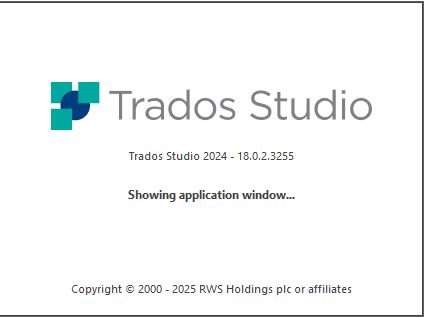
Trados Studio 2024 splash screen showing version 18.0.2.3255 with the message 'Showing application window...' and copyright notice from 2000 to 2025 RWS Holdings plc or affiliates.

Already tried restarts and other desktops.

What can we do?

Thanks in advance.

Kind regards,

Luc Steenbergen


Generated Image Alt-Text
[edited by: RWS Community AI at 2:07 PM (GMT 1) on 25 Jun 2025]

emoji
Parents Reply Children
  • I had this same problem on Friday.  I had downloaded the most recent update on Thursday and it had worked, then when I opened the program on Friday nothing did.  I tried repairing, uninstalling and reinstalling, but nothing changed.  Eventually I installed it on a separate computer to get it to work, but that's not a long-term solution as that computer doesn't belong to me.

    This morning I've come here to look for solutions and can't even find the above file to look to delete.

    The computers are near-identical, same make, largely same spec, both running Windows 11 with the latest updates, but I just can't get Trados to work anymore.  Any and all useful suggestions appreciated.

    emoji
  • Hi Andrew,

    You can do a Reset for Trados to its initial settings when the repair procedure does not solve the issue, by renaming the following folders on your machine:

    C:\Users\%USERNAME%\AppData\Roaming\Trados - rename the Trados Studio folder

    C:\Users\%USERNAME%\AppData\Local\Trados - rename the Trados Studio folder

    C:\Users\%USERNAME%\Documents - rename the Studio [version] folder to Studio [version]_old

    Uninstalling Trados may not solve issues related to certain files, so we recommend the reset to default state of Trados, since it returns Trados to the initial settings. Also, generally, when you cannot see a certain file, it might be hidden, and you can opt to show hidden files in Windows:

    Windows 11

    1. Open File Explorer from the taskbar.
    2. Select View > Options > Change folder and search options.
    3. Select the View tab and, in Advanced settings, select Show hidden files, folders, and drives and OK

    Please let me know if this helps. Also, if it does not, please make your own post here  https://community.rws.com/product-groups/trados-portfolio/f/licensing   , include everything you already tried and we can help you further. Here, on somebody else's post, we cannot verify your account information.

    Kind regards,

    Anca

    Anca Stoian RWS Group

    emoji
  • That seems to have worked, for which many thanks.  The frustrating thing is there's rarely, if ever, any sign of anything going wrong beforehand...

    **EDIT**: It happened again when I updated to the newest version, so I repeated the above steps and it appears to have solved the problem, but why is this happening?

    emoji
  • Generally, there may be various factors involved and cannot all be anticipated, like for example, a local set-up of a computer and various Windows updates, or even the antivirus may start blocking certain processes because of an update, even if it did not do that before.

    I am glad it worked.

    This reset to default state is usually advised for such issues where it's rather difficult to identify a cause and Trados just does not start.

    Have a good day!

    Anca

    Anca Stoian RWS Group

    emoji