You are currently working on UAT 

Trados does not want to open an sdlppx file

Hello,

I have been given an sdlppx project.

When I import it into Trados, the system does not want to open it "because it contains languages which are not set up for this installation" (please see attached document).

I do not know what this means (I am just starting with Trados Studio..).

Could you give me a piece of advice please, as I am wondering what I should ask the customer ?

Thank you very much for your help.

M.AnneDemande aide Trados Studio 2019 question 180719.docx

  • Hi 

    The error message means that the project contains a language (or more if it is a multilingual project) that is not one of those that your SDL Trados Studio was installed with.

    Freelance Studio requires that you enter 5 languages when you first install it. You need to ask the client what languages were included with the project. If they've given you a multilingual project then they need to give you a project with just the source language and the language you are to translate into. This is totally possible.

    Edit: the following instructions are no longer valid

    Here are instructions on how to change the 5 languages your Studio is set up for:

    Changing the 5 languages Studio is set up for

    The method described should work. As you are reinstalling, the software should ask you to enter your 5 languages again. NB you only need to add one entry from each language group as all the others will come with it. So English UK will also support English US for example. French FR will also support French CH, etc.

    Edit: the following link leads to a conversation about various methods to try to change the language. 

    If it does not work, take a look at the many instructions in this thread:

    How to change the 5 languages without installing

    There are many potential solutions there.

    Edit: my next post in the current thread gives the current solution.

    The most important thing to do, first of all, is to find out which languages are in the project.

    I hope this helps,

    Alison Slight smile

  • Dear Alison,

    I am grateful for the detailed information...which I gave immediately to the customer (now I am waiting whether he wants or not to provide me just the source language and the language I am to translate into).

    Nb : I saw the following comment when opening the first link above, by the way:

    Due to some changes that were implemented to solve some component issues, uninstalling and re-installing Trados Studio Freelance 2019 SR1 and Trados Studio Freelance 2017 SR1 CU15 will no longer enable the user to choose their 5 languages again.

    So I presume I will have to have a look, if need be, to the instructions in the second thread (how to change the 5 languages without installing)...or...contact support ( and under "Case Type" choose "Installation")...wait and see.

    Once again many thanks!

    M.Anne

  • Hi 

    Regarding:

    Due to some changes that were implemented to solve some component issues, uninstalling and re-installing Trados Studio Freelance 2019 SR1 and Trados Studio Freelance 2017 SR1 CU15 will no longer enable the user to choose their 5 languages again.

    I'm sorry, I didn't know that this was now a recognised fact. All I knew was that reinstalling didn't always work.

    did you know that? It's a basic flaw that shouldn't be. 

    So, Marie, here are the instructions that will enable you to change the 5 languages:

    Editing the registry key to remove 5 languages from Studio Freelance version

    Close all SDL products.

    In your 'Type here to search' window at bottom left of your screen, type 'regedit'.

    Open the Registry Editor.

    First, via File>Export, save a backup copy of the registry. This takes seconds.

    Then, either search manually:

    The actual address is HKEY_CURRENT_USER\Software\Microsoft\LDSRClient5

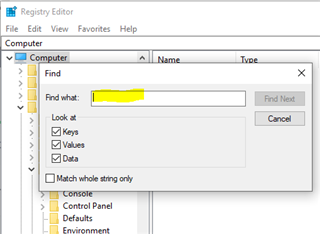
    Or click on 'Edit > Find' or use Ctrl+F 

    Registry Editor window with the Find dialog open, a yellow highlight over the 'Find what' input field.

    In the box that appears, type 'LDSRClient15' for Studio 2019 then hit 'Find'
    (it would be 'LDSRClient5' for Studio 2017 -1,2,3or4 for earlier versions) 

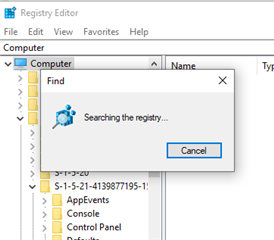
    The search will take a while as the registry is very long and very complex:

    Registry Editor window displaying a progress dialog box with the message 'Searching the registry...' and a cancel button.

    When the registry key appears, right-click on it and select 'rename'. 

    Add 'old' to the end of the LDSRClient5 name.

    Close the registry.

    Open Studio and you should find that it prompts you to add your 5 languages again. Note that you don't need to add more than one variant of any language as all other variants of that language will work once it has been added.

    Only do this if you feel confident enough to change your PC registry. If not, contact installation support here:

    Installation support

    Fill out the form, explain your problem, quote this post, and give them an accurate email address to contact you on and they can access your computer to change that setting for you.

    All the best,

    Alison

    emoji


    Generated Image Alt-Text
    [edited by: Trados AI at 5:25 PM (GMT 0) on 28 Feb 2024]