You are currently working on UAT 

Projects are gone and cannot be found.

This morning I wanted to start translating, however, all my projects were gone, except for the sample project. I have the 2019 version. Does this happen more often and what can I do about it?

Parents
  • Hello ,

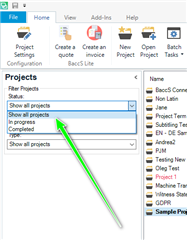
    The first thing to check would be your settings in Studio

    and 'Show All Projects'

    Trados Studio screenshot showing the 'Projects' dropdown menu with 'Show all projects' selected, indicated by a green arrow.

    If this is set to 'completed' for example- this maybe the reason you cannot see the projects...

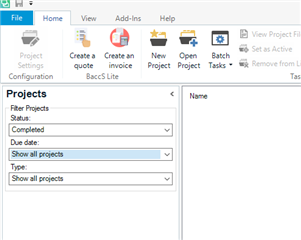
    Trados Studio screenshot with the 'Projects' dropdown menu open, showing options including 'Completed' and 'Due Date'.

    Also check the Due Date settings and Type.

    If you still cannot see the projects- they should be in your projects folder-

    Just navigate to -

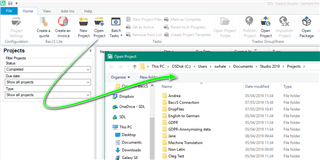
    C:\Users\yourusername\Documents\Studio 2019\Projects (or to the folder you have set up if not using the default location).

    Then double click the sdlproj. icon and this will reopen the project in Studio.

    Alternatively you can open the project using Studio-

    Trados Studio screenshot of a file explorer window with a green arrow pointing to the 'sdlproj' icon in the 'Studio 2019Projects' folder.

    Is the problem now resolved?

    Oana Nagy | QA Engineer | RWS Group

    emoji


    Generated Image Alt-Text
    [edited by: Trados AI at 4:49 PM (GMT 0) on 28 Feb 2024]
Reply
  • Hello ,

    The first thing to check would be your settings in Studio

    and 'Show All Projects'

    Trados Studio screenshot showing the 'Projects' dropdown menu with 'Show all projects' selected, indicated by a green arrow.

    If this is set to 'completed' for example- this maybe the reason you cannot see the projects...

    Trados Studio screenshot with the 'Projects' dropdown menu open, showing options including 'Completed' and 'Due Date'.

    Also check the Due Date settings and Type.

    If you still cannot see the projects- they should be in your projects folder-

    Just navigate to -

    C:\Users\yourusername\Documents\Studio 2019\Projects (or to the folder you have set up if not using the default location).

    Then double click the sdlproj. icon and this will reopen the project in Studio.

    Alternatively you can open the project using Studio-

    Trados Studio screenshot of a file explorer window with a green arrow pointing to the 'sdlproj' icon in the 'Studio 2019Projects' folder.

    Is the problem now resolved?

    Oana Nagy | QA Engineer | RWS Group

    emoji


    Generated Image Alt-Text
    [edited by: Trados AI at 4:49 PM (GMT 0) on 28 Feb 2024]
Children