
You are currently working on UAT 

I cannot confirm any segment - U R G E N T

Following some (disastrous) settings adjustment of Studio 2019 SR1 (Which one? I cannot remember!), I can no longer confirm any segment.

Error message: "La valeur ne pas être null. Nom du paramètre: baseUrl".

I am begging for help.

Parents
  • Hi 

    Resetting Studio should help.

    You could try here via File>Options if this is happening with any single file translation or project:
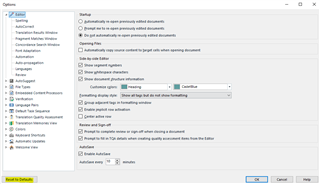
    Trados Studio Options menu with a focus on the Editor section showing various settings such as 'Show whitespace characters' and 'Confirming display options'.

    Or here in the Project Settings if it is just with one project that this is happening:
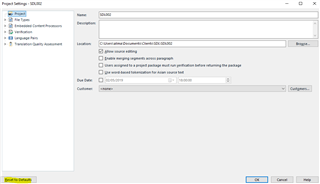
    Project Settings window in Trados Studio with options for 'Allow automated actions' and 'Warn before running automated actions for large projects'.

    If that doesn't work then a reset may sort this problem:

    To do this, rename the following folders, for example add '_old' to the filename:

     
    C:\Users\[User_Name]\AppData\Local\SDL\SDL Trados Studio
    C:\Users\[User_Name]\AppData\Local\SDL\ProjectApi
     
    C:\Users\[User_Name]\AppData\Roaming\SDL\SDL Trados Studio
    C:\Users\[User_Name]\AppData\Roaming\SDL\ProjectApi
     
    C:\Users\[User_Name]\Documents\Studio 2019
     
    They'll be recreated next time you open and close Studio. If for some reason this fails, you can rename them as they were before.
    If that doesn't solve the problem, try a Windows repair of Studio via Control Panel...
    Close all SDL applications.
    Open the Control Panel via Windows button>Windows System>Control Panel:
    Windows Vista/7: Start > Control Panel > Programs > Programs and Features.
    Windows 8: Right-click on the screen at bottom-left corner and choose Control Panel > Uninstall a Program.
    Windows 10: Right-click on Start (Windows button) >Windows System > Control Panel > Select View by: Small Icons > Programs and Features.
    Click/highlight the relevant SDL product in the list (e.g. SDL Trados Studio 2019 SR1) and click Repair on the top toolbar (or in right-click context menu).
    Restart Studio.
    (Repeat the above for the MultiTerm components).
    If that doesn't help, try uninstalling and reinstalling Studio.
    If that doesn't change anything, you can resolve this problem by contacting SDL's free licensing and installation help service, here:
    Fill in the form, giving details of the problem and what you've tried already. Select 'Installation' from the 'Case type' dropdown and, most importantly, give your correct email address so that they can contact you.
    All the best!
    Alison ;-)
    All the best,
    Ali
    emoji


    Generated Image Alt-Text
    [edited by: Trados AI at 4:24 PM (GMT 0) on 28 Feb 2024]
Reply
  • Hi 

    Resetting Studio should help.

    You could try here via File>Options if this is happening with any single file translation or project:

    Trados Studio Options menu with a focus on the Editor section showing various settings such as 'Show whitespace characters' and 'Confirming display options'.

    Or here in the Project Settings if it is just with one project that this is happening:

    Project Settings window in Trados Studio with options for 'Allow automated actions' and 'Warn before running automated actions for large projects'.

    If that doesn't work then a reset may sort this problem:

    To do this, rename the following folders, for example add '_old' to the filename:

     
    C:\Users\[User_Name]\AppData\Local\SDL\SDL Trados Studio
    C:\Users\[User_Name]\AppData\Local\SDL\ProjectApi
     
    C:\Users\[User_Name]\AppData\Roaming\SDL\SDL Trados Studio
    C:\Users\[User_Name]\AppData\Roaming\SDL\ProjectApi
     
    C:\Users\[User_Name]\Documents\Studio 2019
     
    They'll be recreated next time you open and close Studio. If for some reason this fails, you can rename them as they were before.
    If that doesn't solve the problem, try a Windows repair of Studio via Control Panel...
    Close all SDL applications.
    Open the Control Panel via Windows button>Windows System>Control Panel:
    Windows Vista/7: Start > Control Panel > Programs > Programs and Features.
    Windows 8: Right-click on the screen at bottom-left corner and choose Control Panel > Uninstall a Program.
    Windows 10: Right-click on Start (Windows button) >Windows System > Control Panel > Select View by: Small Icons > Programs and Features.
    Click/highlight the relevant SDL product in the list (e.g. SDL Trados Studio 2019 SR1) and click Repair on the top toolbar (or in right-click context menu).
    Restart Studio.
    (Repeat the above for the MultiTerm components).
    If that doesn't help, try uninstalling and reinstalling Studio.
    If that doesn't change anything, you can resolve this problem by contacting SDL's free licensing and installation help service, here:
    Fill in the form, giving details of the problem and what you've tried already. Select 'Installation' from the 'Case type' dropdown and, most importantly, give your correct email address so that they can contact you.
    All the best!
    Alison ;-)
    All the best,
    Ali
    emoji


    Generated Image Alt-Text
    [edited by: Trados AI at 4:24 PM (GMT 0) on 28 Feb 2024]
Children
