You are currently working on UAT 

Wrong segmentation in XML file - SDL Studio 2017

Hi,


We've received an XML file from our client, and when adding it to Studio, then the segmentation is not correct.

It is important to mention, that each XML row ends with <CR><LF>


XML file in Notepad++

XML file displayed in Notepad++ showing rows ending with CR LF and string tags not properly segmented.


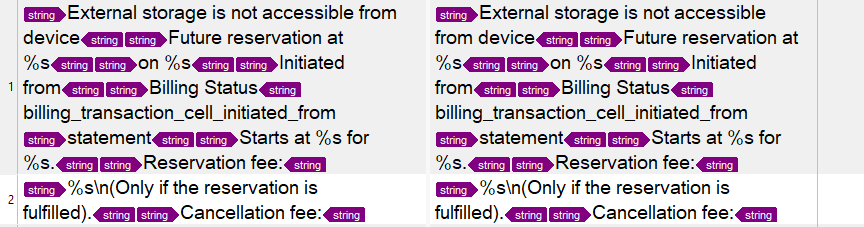
In the Studio Editor

Trados Studio Editor view with incorrect segmentation, where multiple strings are combined into one segment.


How to fix that in order to each string (between the <string> tags) will appear in a separate segment?


Thanks

Fouad


Generated Image Alt-Text
[edited by: Trados AI at 3:26 PM (GMT 0) on 28 Feb 2024]

emoji
Parents


  • If you have created a custom XML and it's still segmenting the same way then I would think you have simply done something wrong. If you want some proper help with it you should provide a sample file. It should be simple to create one that represents your problem and only contains the sort of information you have already shared.

    Paul Filkin | RWS

    Design your own training!
    You've done the courses and still need to go a little further, or still not clear? 
    Tell us what you need in our Community Solutions Hub

  • Hi Paul,

    Attached is a sample file for you check.

    Much appreciated in advance.

    <string name="image_picker_external_na">External storage is not accessible from device</string>
    <string name="home_future_reservation_pending">Future reservation at %s</string>
    <string name="home_future_reservation_pending_suffix">on %s</string>
    <string name="station_charge_transaction_initiator">Initiated from</string>
    <string name="station_charge_transaction_billing_status">Billing Status</string>
    billing_transaction_cell_initiated_from
    <string name="activity_statement_pdf_name">statement</string>
    <string name="item_reservation_start_desc">Starts at %s for %s.</string>
    <string name="item_reservation_reservation_fee_desc">Reservation fee: %s\n(Only if the reservation is fulfilled).</string>
    <string name="item_reservation_dialog_cancellation_fee_desc_suffix">Cancellation fee: %s\n(only if you cancel).</string>


    Fouad

  • Is this really the complete file?!
    If yes, then I was right - it's not a valid XML... and Studio is probably treating it as plain text file, or something.

  • Hello,

    I think it is necessary to have at least a very basic understanding of XML in order to use an XML file as translation source. Indeed, what you show us does not like an XML file unless there is some kind of root element ("note" in  the example below). And the odd thing that there is text outside an element, which does not wokr at all with XML ("billing_transaction..."). Since you are using Notepad++, get the "XML Tools" plugin and "Check XML syntax".

    A most basic XML file looks like this (copied form w3schools, see link below):

    <?xml version="1.0" encoding="UTF-8"?>
    <note>
      <to>Tove</to>
      <from>Jani</from>
      <heading>Reminder</heading>
      <body>Don't forget me this weekend!</body>
    </note>

    This is a good starting point for getting a first idea of what XML is: https://www.w3schools.com/xml/default.asp

    Assuming that you want to get going with your translation job before you start educating yourself on this, and assuming the snippet you showed us is really how this file is structured, I'd treat it as a text file and in Project Settings->File type->Text->Document structure enter as opening pattern:^<string.*?> and as closing pattern:<\/string>$

    Daniel


Reply
  • Hello,

    I think it is necessary to have at least a very basic understanding of XML in order to use an XML file as translation source. Indeed, what you show us does not like an XML file unless there is some kind of root element ("note" in  the example below). And the odd thing that there is text outside an element, which does not wokr at all with XML ("billing_transaction..."). Since you are using Notepad++, get the "XML Tools" plugin and "Check XML syntax".

    A most basic XML file looks like this (copied form w3schools, see link below):

    <?xml version="1.0" encoding="UTF-8"?>
    <note>
      <to>Tove</to>
      <from>Jani</from>
      <heading>Reminder</heading>
      <body>Don't forget me this weekend!</body>
    </note>

    This is a good starting point for getting a first idea of what XML is: https://www.w3schools.com/xml/default.asp

    Assuming that you want to get going with your translation job before you start educating yourself on this, and assuming the snippet you showed us is really how this file is structured, I'd treat it as a text file and in Project Settings->File type->Text->Document structure enter as opening pattern:^<string.*?> and as closing pattern:<\/string>$

    Daniel


Children