

You are currently working on UAT 

Error message upon project creation in 2019 & 2019SR1

Ever since I upgraded to 2019, I consistently get an error message upon creating a project. I get the same error message on both my desktop (both before and after a clean Windows 10 Pro system installation) and my laptop (Windows 10 Pro). Installing SR1 didn’t fix the problem either.

Title of error message box: “Web Browser”
Caption: “Cannot find ‘file:///C:/Users/[…] Make sure the path or Internet address is correct.”
Available options: “OK” only

Clicking “OK” gets me through it and does not impede any of my usual activities. It’s just a bummer to always have to dismiss this error message.

A Google search with ["SDL" "Make sure the path or Internet address is correct."] returned only three results, none of which are related to SDL.

Any idea what this could be?
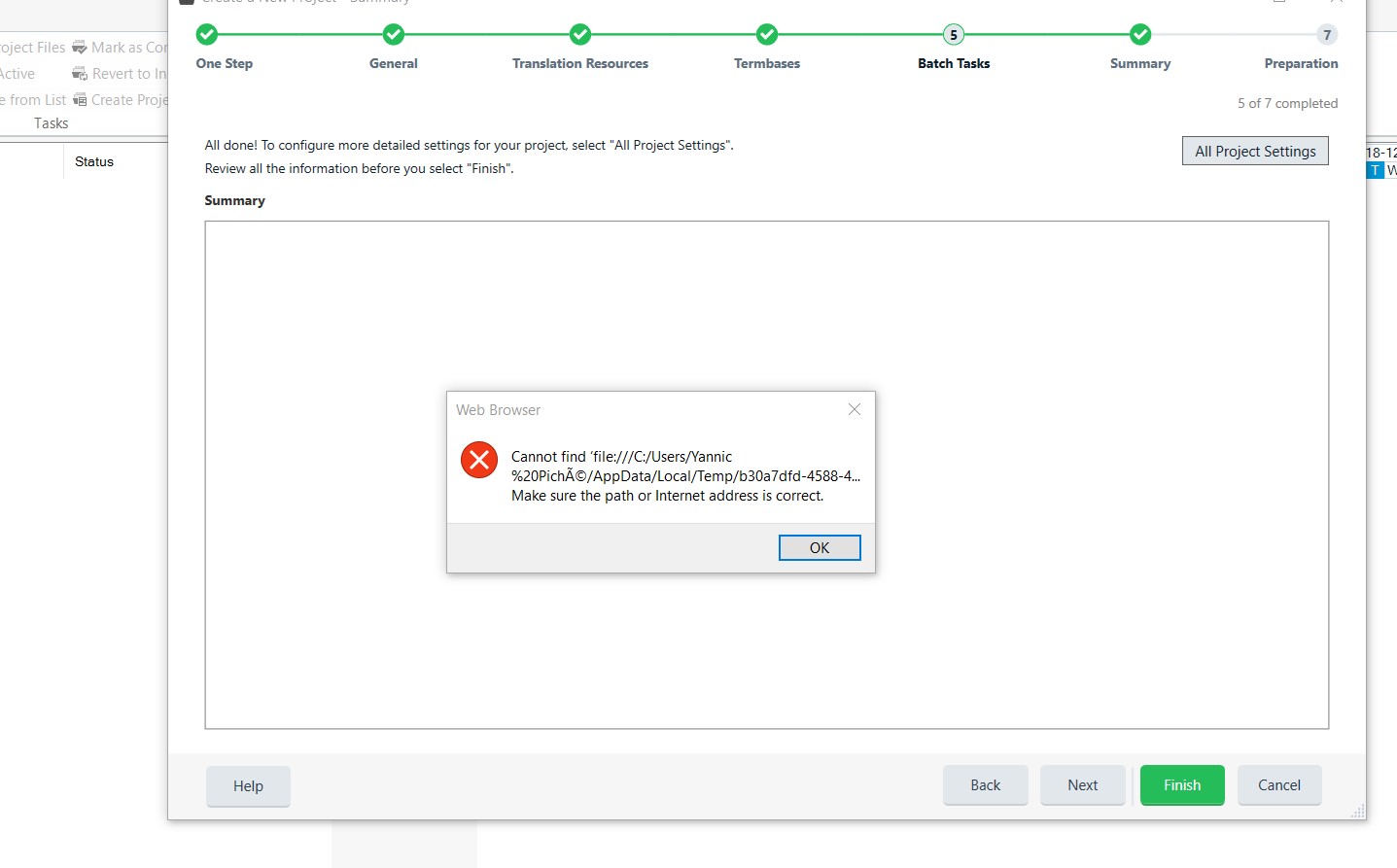

Error message in Trados Studio 2019 stating 'Cannot find file:C:Users.... Make sure the path or Internet address is correct.' with an 'OK' button.


Generated Image Alt-Text
[edited by: Trados AI at 2:59 PM (GMT 0) on 28 Feb 2024]

emoji
  • Hi Yannic

    Worth checking you installed the application as administrator. If you didn't then just install again over top, but right-click and select "Run as administrator" when you install. If that doesn't help then try a reset. Rename this folder (just add _old to the end or something, it's not important what you rename it to) and restart Studio:

    c:\Users\[USERNAME]\AppData\Roaming\SDL\SDL Trados Studio\15.0.0.0

    If that still won't help then I'd recommend you log a support case. For licensing or installation issues that prevent you from working we have a route for all customers to get help. This can be achieved really quickly using this link:

    gateway.sdl.com/liveagentlicensing

    You have two options:

    1. Submit a case using a webform

    2. Use live chat to get a licence reset

    You want to use the first option.

    Above text copied from a previous post by Paul...

    Hope it helps!

    All the best,

    Alison