You are currently working on UAT 

Adding files to a project in 2019 disables all existing files

Former Member
Former Member

I have an ongoing project to which I have to add files as I receive them.


With the project open, I clicked on "Add Files" and inserted the file I wanted. This disabled all the files in the project and I can no longer open them. Why!?
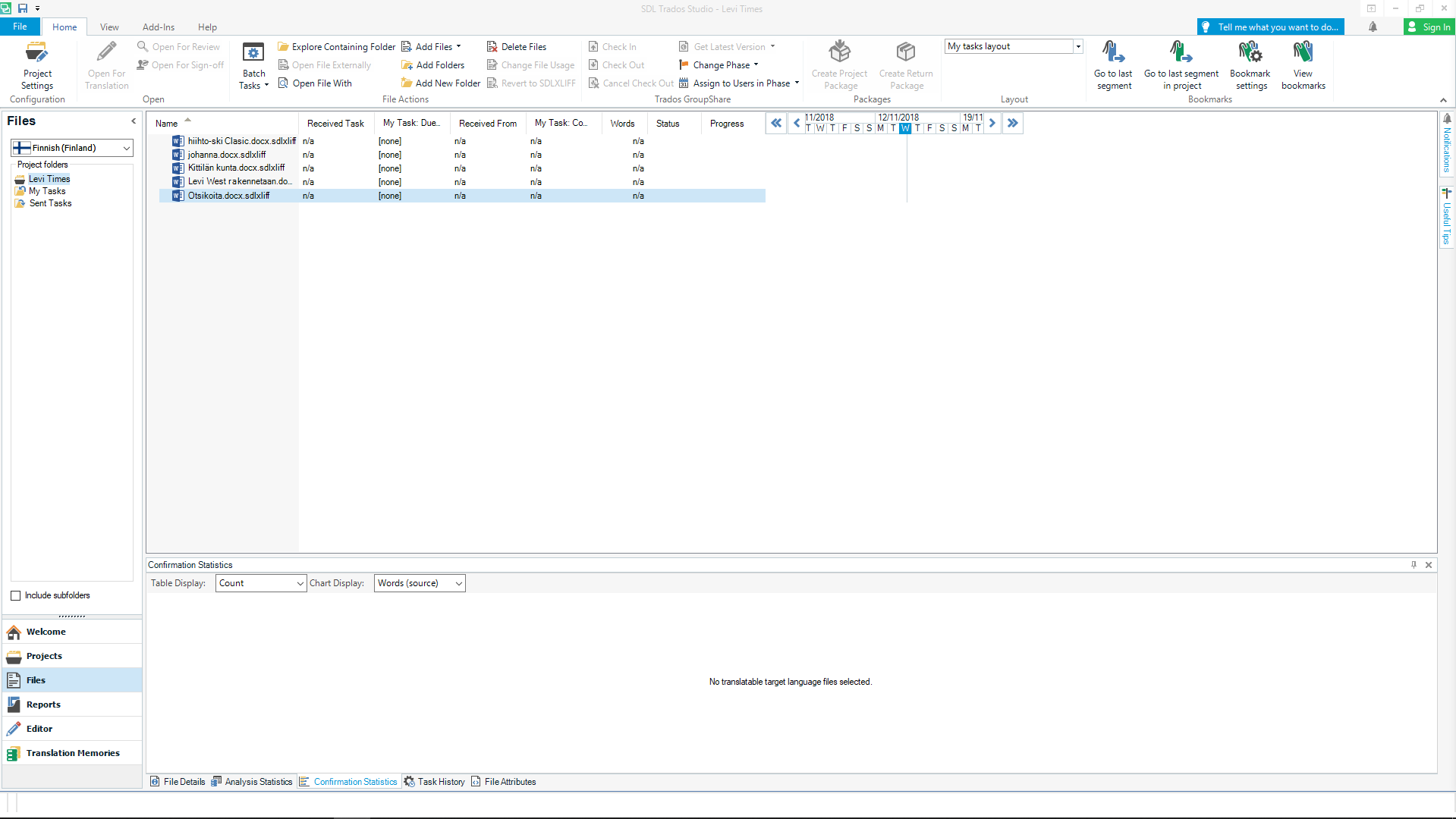
 

Trados Studio screenshot showing the project view with files listed. The 'Add Files' button is highlighted, and all files in the list appear disabled and unclickable.


Generated Image Alt-Text
[edited by: Trados AI at 2:35 PM (GMT 0) on 28 Feb 2024]

emoji
Parents Reply Children
  • Hi , hi 

    May I interrupt and say I think it might help, Peter, if you took a look at the pages where the Files view is explained in the online SDL Trados Studio 2019 manual:

    Files View

    There are various links for you to explore the functions and functionality available. You can use them to see various images and explanations, such as:

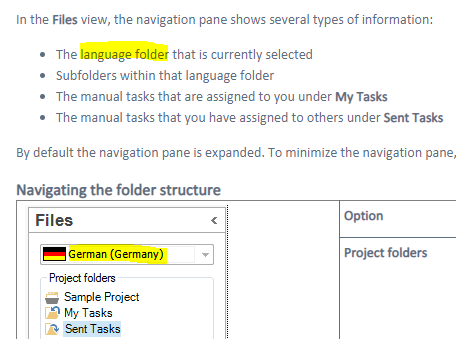
    Screenshot of Trados Studio Files view showing the navigation pane with language folder 'German (Germany)' selected and subfolders 'Project Folders', 'Sample Project', 'My Tasks', and 'Sent Tasks'.

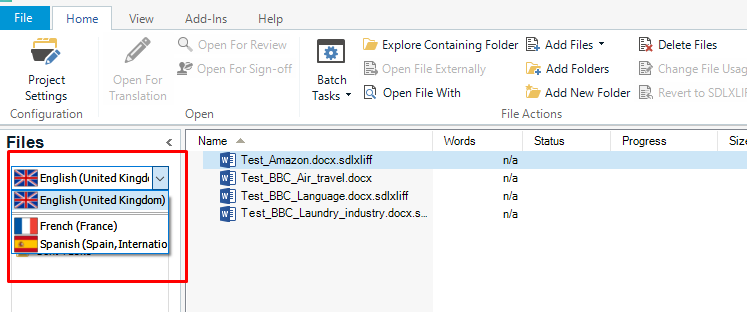
    The languages available in a given project are selectable via the dropdown arrow menu in the Languages folder dialog you're referring to, which I've highlighted in the above image.

    The Source and Target languages are available there to choose between. Source is the language you're translating from. Target is the language you're translating too.

    So, if you're translating from Finnish to English, when you click on 'Finnish', the files that you see in the list on the right will be the untranslated SLDXLIFF file/s and resource file/s that were added when you created the project. They will remain unchanged in the Source folder of your physical project (also visible in the project folder structure that was created by Studio when you created the project either from scratch or by opening a package or individual file for translation. You can navigate to it via Windows Explorer*). You won't be able to do anything (in Studio) to these files that are listed when your Source language is selected except 'Batch Tasks > Copy to Target Language' ready for translation if that hasn't already been done.

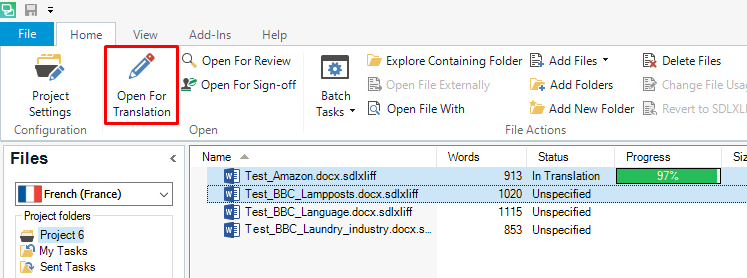
    When you select your Target language (presuming English in your case) from the languages dropdown arrow menu in the Files View of Studio, then it will be your Target file/s that will be listed in the Files View main window on the right. If they've all been prepared for translation, then the list will look the same as it did in the Source list. These are the files you can either open for reference or work on in Editor by first selecting what you want to do with them either from the top toolbar or by right-clicking and selecting an item from the dropdown menu that appears.

    It is also possible to have further languages available from the languages arrow dropdown menu if you are translating from one Source language to more than one Target language but we won't go into that.

    *If you want to look at the file structure on your computer of a project set up by Studio, you can do this via Windows Explorer here:

    C:\Users\your_username\Documents\Studio 2019\Projects

    This is the default place Studio saves projects too. It is also possible to save projects elsewhere on your system if you want to, via Browse when you first set up your project/open a package/open a single file for translation.

    Compare what the project folder looks like as opposed to the Studio visualisation of the project, if you want to feel more aware of what's happening on your PC while you're working on a project in Studio.

    I think I've given you way too much information at once so I'll stop there...

    Hope this helps,

    All the best,

    Ali

    emoji


    Generated Image Alt-Text
    [edited by: Trados AI at 2:35 PM (GMT 0) on 28 Feb 2024]