You are currently working on UAT 

Adding files to a project in 2019 disables all existing files

Former Member
Former Member

I have an ongoing project to which I have to add files as I receive them.


With the project open, I clicked on "Add Files" and inserted the file I wanted. This disabled all the files in the project and I can no longer open them. Why!?
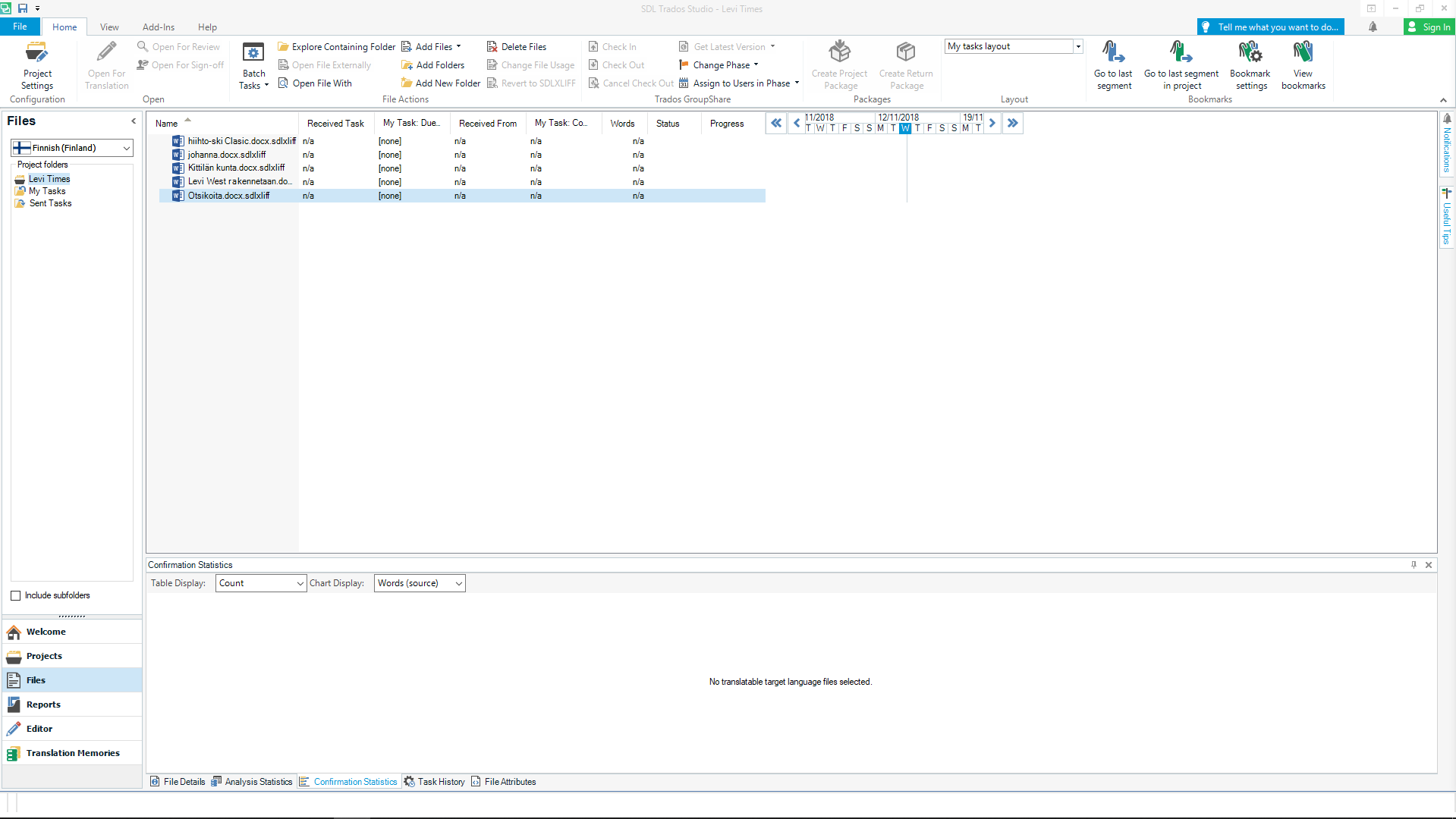
 

Trados Studio screenshot showing the project view with files listed. The 'Add Files' button is highlighted, and all files in the list appear disabled and unclickable.


Generated Image Alt-Text
[edited by: Trados AI at 2:35 PM (GMT 0) on 28 Feb 2024]

emoji
Parents
  • Hi ,

    Could you please elaborate a bit on this? Do you mean that you cannot open them for editing anymore?

    Just a quick question, is Finnish the source or the target language in your project?
    Is it possible that you are trying to open the source files under the source language in Studio? If so, that is why you cannot open them, only the target language files are to be edited in Studio.

    Looking forward to heating back from you.

    Best wishes,
    Greta Magyar
    Customer Success Representative - SDL
  • Former Member
    0 Former Member in reply to Greta Magyar

    I was working on a project of four files. I received a fifth file. I had already translated the first four. I clicked on the project where the list of files was. I then clicked on "Add Files" and chose the file to add. The file was added, but all the details about every file said n/a and [none]. I tried double-clicking on any of the five files to start translation, but nothing happened. So, yes, I can't open them to edit anymore.

    I'm not sure I understand what you mean by "opening the source files under the source language in Studio". Finnish is the source.

    I am not doing anything different to how I normally use the files, all I did was try to add a file, then everything went away.

  • Hi  ,

    Thanks for getting back to me.

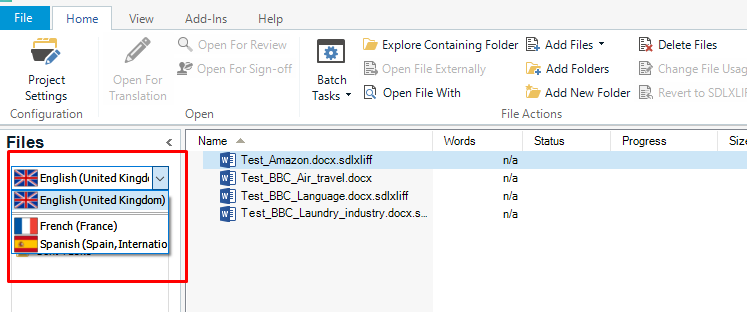
    What I would like to ask you to check is that if you change to the target language view in Studio, can you open the files for editing properly? You can switch between the source and target languages here:

    Trados Studio screenshot showing a sample project with English as the source language and French and Spanish as target languages. The English source files are not open for editing.

    As you can see in this sample project English is the source language, and by default Studio cannot open source language files, as only the target language files are to be edited, those under French and Spanish.

    Could you please check if you switch to your target language (English I presume?) you can open the files?


    Best wishes,
    Greta

    emoji


    Generated Image Alt-Text
    [edited by: Trados AI at 2:35 PM (GMT 0) on 28 Feb 2024]
Reply
  • Hi  ,

    Thanks for getting back to me.

    What I would like to ask you to check is that if you change to the target language view in Studio, can you open the files for editing properly? You can switch between the source and target languages here:

    Trados Studio screenshot showing a sample project with English as the source language and French and Spanish as target languages. The English source files are not open for editing.

    As you can see in this sample project English is the source language, and by default Studio cannot open source language files, as only the target language files are to be edited, those under French and Spanish.

    Could you please check if you switch to your target language (English I presume?) you can open the files?


    Best wishes,
    Greta

    emoji


    Generated Image Alt-Text
    [edited by: Trados AI at 2:35 PM (GMT 0) on 28 Feb 2024]
Children
  • Former Member
    0 Former Member in reply to Greta Magyar
    Ok, I had it displaying "English UK", but does this mean English is the source or target? It didn't work either way though. I actually managed to get it to work by rapidly clicking on the file, like a monkey on rage, then it opened after something like 25 clicks.
  • Hi

    If you have to translate the files into English, then indeed, English is the target language in Studio as well. Finnish is the source language in this case.

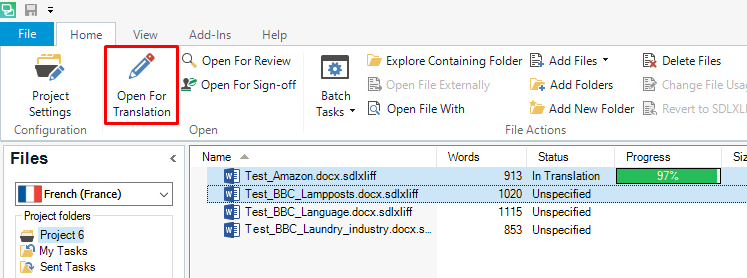
    Opening the target files for translation (when the window is displaying the English files, as you wrote) should happen quite quickly, I'm not quite sure why it took so many clicks. However, there is another way to open them for translation, please click on this icon, after selecting the files you would like to open:
    Trados Studio interface showing the 'Open for Translation' icon highlighted in red within the Home tab. Below, the Files section lists three files with their names, type, status, and progress, with one file at 57% translation progress.


    Please let me know if this works for you better.

    Best wishes,
    Greta

    emoji


    Generated Image Alt-Text
    [edited by: Trados AI at 2:35 PM (GMT 0) on 28 Feb 2024]
  • Former Member
    0 Former Member in reply to Greta Magyar
    Hi Greta

    Thanks for that help, but I already solved it by rapid clicking.

    I couldn't choose the "Open for Translation" button, as it was greyed out.

    One thing I would still like to check with you - when the language is chosen under the "Files", does this mean it is the source or target language? This still remains unclear for me.
  • Former Member
    0 Former Member in reply to Greta Magyar
    By the way, what is the difference between SDL, Trados and Studio?
  •  

    Assuming you are not winding us up on purpose... "SDL Trados Studio" is the brand name for the product. Old timers refer to it as "Trados", others as "Studio". SDL as a company bought Trados, the company, in 2005 and changed the "Trados" name to "SDL Trados" in the products.

    Paul Filkin | RWS

    Design your own training!
    You've done the courses and still need to go a little further, or still not clear? 
    Tell us what you need in our Community Solutions Hub

  • Former Member
    0 Former Member in reply to Paul Filkin
    Paul, like the people who took your survey, this was my genuine input. I am very confused by, not only the product, but also the names used for it. Thanks for clearing this up. Branding can also be challenging for any business.
  • Hi , hi 

    May I interrupt and say I think it might help, Peter, if you took a look at the pages where the Files view is explained in the online SDL Trados Studio 2019 manual:

    Files View

    There are various links for you to explore the functions and functionality available. You can use them to see various images and explanations, such as:

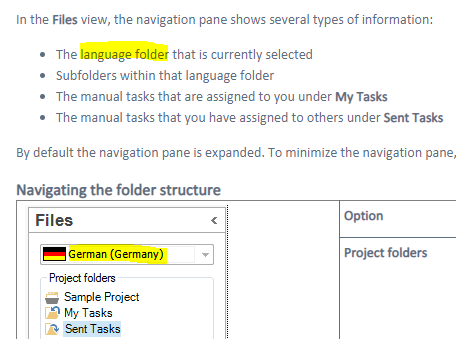
    Screenshot of Trados Studio Files view showing the navigation pane with language folder 'German (Germany)' selected and subfolders 'Project Folders', 'Sample Project', 'My Tasks', and 'Sent Tasks'.

    The languages available in a given project are selectable via the dropdown arrow menu in the Languages folder dialog you're referring to, which I've highlighted in the above image.

    The Source and Target languages are available there to choose between. Source is the language you're translating from. Target is the language you're translating too.

    So, if you're translating from Finnish to English, when you click on 'Finnish', the files that you see in the list on the right will be the untranslated SLDXLIFF file/s and resource file/s that were added when you created the project. They will remain unchanged in the Source folder of your physical project (also visible in the project folder structure that was created by Studio when you created the project either from scratch or by opening a package or individual file for translation. You can navigate to it via Windows Explorer*). You won't be able to do anything (in Studio) to these files that are listed when your Source language is selected except 'Batch Tasks > Copy to Target Language' ready for translation if that hasn't already been done.

    When you select your Target language (presuming English in your case) from the languages dropdown arrow menu in the Files View of Studio, then it will be your Target file/s that will be listed in the Files View main window on the right. If they've all been prepared for translation, then the list will look the same as it did in the Source list. These are the files you can either open for reference or work on in Editor by first selecting what you want to do with them either from the top toolbar or by right-clicking and selecting an item from the dropdown menu that appears.

    It is also possible to have further languages available from the languages arrow dropdown menu if you are translating from one Source language to more than one Target language but we won't go into that.

    *If you want to look at the file structure on your computer of a project set up by Studio, you can do this via Windows Explorer here:

    C:\Users\your_username\Documents\Studio 2019\Projects

    This is the default place Studio saves projects too. It is also possible to save projects elsewhere on your system if you want to, via Browse when you first set up your project/open a package/open a single file for translation.

    Compare what the project folder looks like as opposed to the Studio visualisation of the project, if you want to feel more aware of what's happening on your PC while you're working on a project in Studio.

    I think I've given you way too much information at once so I'll stop there...

    Hope this helps,

    All the best,

    Ali

    emoji


    Generated Image Alt-Text
    [edited by: Trados AI at 2:35 PM (GMT 0) on 28 Feb 2024]