You are currently working on UAT 

Studio v2017 (CU 12) hangs on adding a new term (MultiTerm CU 6)

The name of the topic says it all: when trying to add a new term from inside the Editor, the cursor turns into a circle and Trados hangs. The term is added to the termbase, however, Trados is unresponsive and needs to be restarted.


I have tried the following:

- Recreated the termbase from scratch

- Rolled back a Windows security update to Flash


Nothing seems to help. Ideas?


Best regards,

Pavel

Parents
  • Hi 

    You could try rolling back MultiTerm CU6 via Control Panel > Installed Updates. I did this a while back to solve a different issue. I'm not sure if a new version of this has come out but I tested the latest update and it is not producing the error any more. I vaguely recall discussion on this but can't find evidence that the latest update is OK except that it's working fine for me now. Up to you whether you try installing the latest update to MultiTerm again.
     
    Then, at risk of sounding like a 'cracked record' (a British metaphor), have you tried a Windows Repair of MultiTerm Core and Desktop and also Studio via Control Panel?
    1. Close all SDL applications.
    2. Open the Control Panel:
      • Windows Vista/7Start > Control Panel > Programs > Programs and Features.
      • Windows 8: Right-click on the screen at bottom-left corner and choose Control Panel > Uninstall a Program.
      • Windows 10: Right-click on Start > Control Panel > Select View by: Small Icons > Programs and Features
      • - or type 'Control Panel' in the search line on your bottom Windows toolbar.
    3. Click/highlight the relevant SDL product from the list (e.g. SDL Trados Studio 2017 SR1) and click 'Repair' either on the top toolbar or on the right-click dropdown menu.
    4. Restart Studio/MultiTerm.
    That may be all you need... If not, post again as it's bound to be relatively easy to solve this issue.
     
    All the best
    Ali ;-)
  • Hi Alison,

    Thank you for your message.

    I have rolled back CU 6, but the problem persists. I have transferred the project to my laptop and, unfortunately, this did not solve the problem either, so the culprit is probably within Studio or between Studio and some recent Windows update.

    Whatever it is, I do hope that SDL will find a solution soon, as the deadline for the project is looming.

    Best regards,

    PS How can I 'mention' a person in my reply, so that they get notified? Thanks.

  • Hi Pavel,

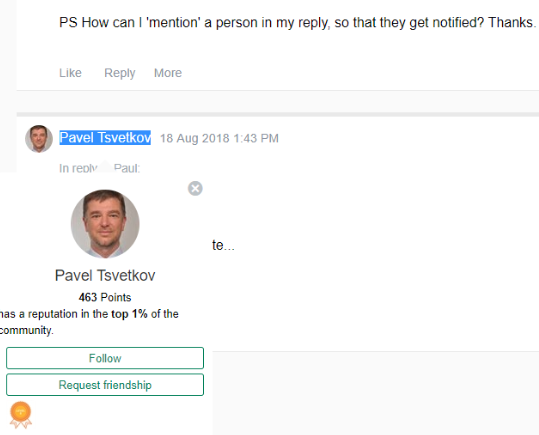
    The way I mention someone using their active link is to first highlight their active name link, which is achievable by hovering your cursor just after their name until the name is highlighted and a dropdown appears with their picture as here, then I hit Ctrl+C (Copy):

    Screenshot of a social media interface showing a post by Pavel Tsvetkov with a dropdown menu activated next to the name.

    Then I click Reply, then click on Advanced Editing Options immediately below the reply window.

    I type 'Hi' then Ctrl+V (Paste) and their name is pasted into the reply window. You can see it's active as it is blue and underlined.

    Then just continue typing as normal.

    Paul's suggestion of trying a different layout is a good idea, this has solved some people's problems with adding terms 'on the fly'.

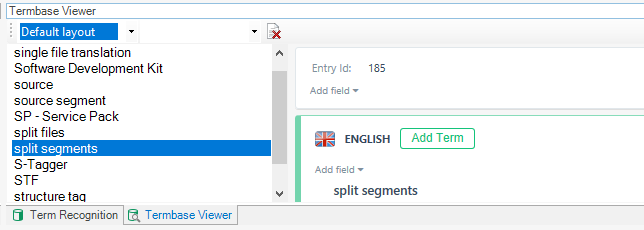
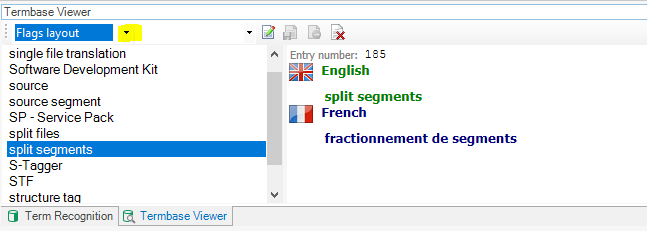
    For example you can change the Default layout to the Flags layout, as here:

    Trados Studio screenshot showing the Term Recognition window with the Default layout selected and an 'Add Term' option in English.

    The above is how it looks in my customised layout, but you can see it's set to the Default Layout. I tend to use the Flags layout:

    Trados Studio screenshot displaying the Term Recognition window with the Flags layout selected, showing an English term and its French translation.

    The layout is changed via the little down arrow I've highlighted above and then selecting in the dropdown menu it triggers.

    Hope this helps...

    Ali :)

    emoji


    Generated Image Alt-Text
    [edited by: Trados AI at 2:16 PM (GMT 0) on 28 Feb 2024]
  • Unknown said:

    The way I mention someone using their active link is to first highlight their active name link, which is achievable by hovering your cursor just after their name until the name is highlighted and a dropdown appears with their picture as here, then I hit Ctrl+C (Copy):

    Screenshot of a Trados Studio forum post with a comment asking how to 'mention' a person in a reply for notification. A user profile with the name Pavel Tsvetkov and a dropdown menu is visible.

    Then I click Reply, then click on Advanced Editing Options immediately below the reply window.

    I type 'Hi' then Ctrl+V (Paste) and their name is pasted into the reply window. You can see it's active as it is blue and underlined.

    Wow... I didn't know that!

    I always do it by typing the @ symbol and then immediately their name.  Sometimes it's hard to do this and typing the surname first can help... but names heavily accented or in ZH or JP for example are very tricky.  Will use your suggestion for those in the future :-)

    Paul Filkin | RWS

    Design your own training!
    You've done the courses and still need to go a little further, or still not clear? 
    Tell us what you need in our Community Solutions Hub

    emoji


    Generated Image Alt-Text
    [edited by: Trados AI at 2:16 PM (GMT 0) on 28 Feb 2024]
  • Hi 

    I worked it out by fiddling about. I knew there was a second way to do it but had forgotten it was using the @ symbol. I prefer my way as the @ method used to produce two versions of the name which needed fiddling with to tidy it to just one name (as below) but now I see it's been rectified to produce just the one name now.

    Screenshot showing the use of the @ symbol in Trados Studio to mention a user named Paul (pflikin).

    Heehee, you've made my day! 

    [:D]

    Ali :)

    emoji


    Generated Image Alt-Text
    [edited by: Trados AI at 2:16 PM (GMT 0) on 28 Feb 2024]
Reply Children