Set a window Always On Top

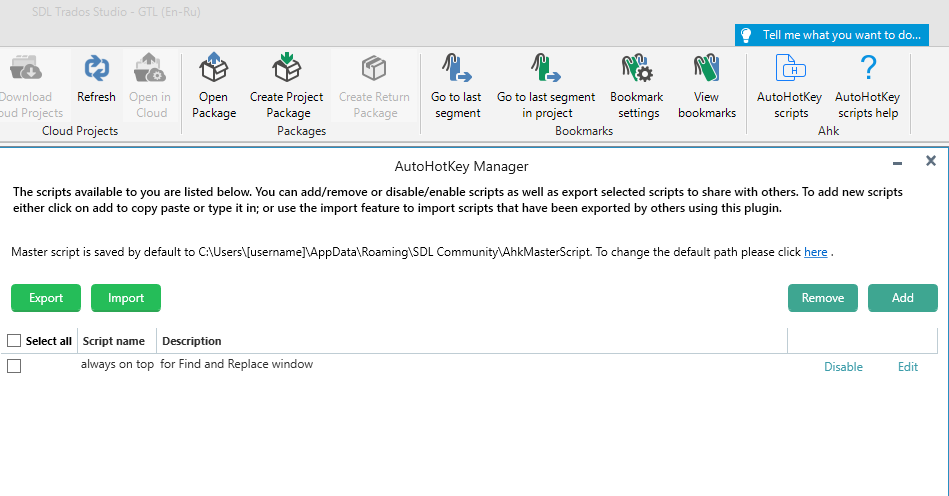
This AutoHotkey script is related to this post:

https://community.sdl.com/product-groups/translationproductivity/f/studio/35337/why-is-the-find-and-replace-window-is-not-always-on-top

where the poster asked to set the Find and Replace window on top of the Editor.

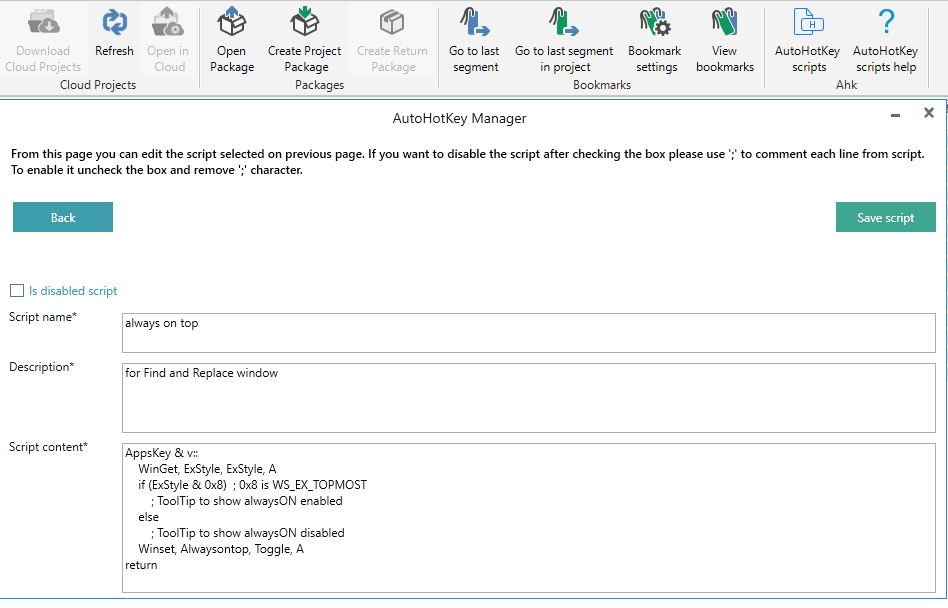
The following script will set any window Always On Top. It works with any window, not only the Find and Replace dialog box.

I use the Application key plus the V keys as a hotkey, but you can change it to your convenience.

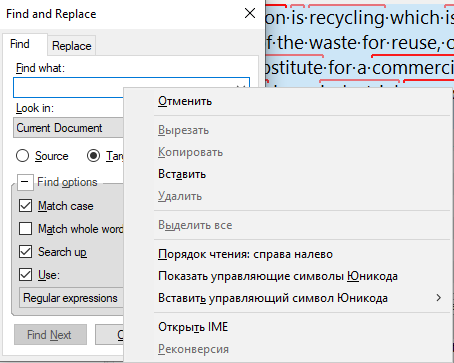
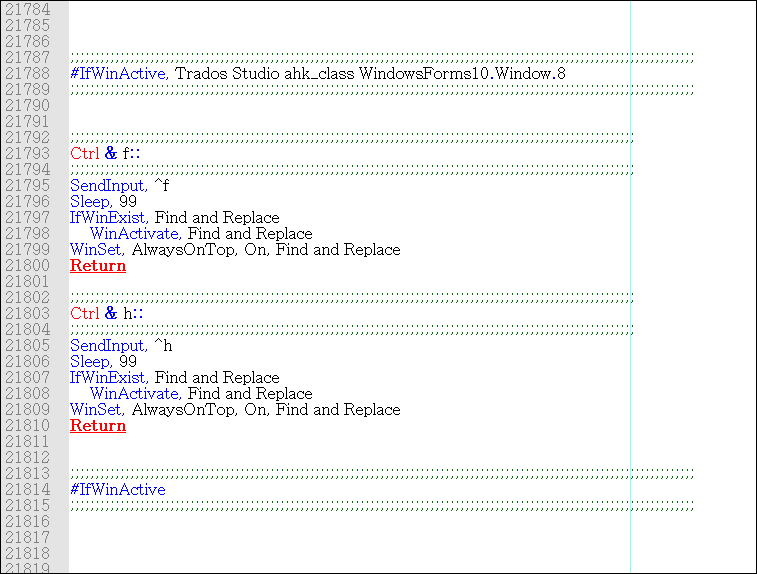
☛ The Application Key is also called the Menu Key and when pressed it opens a contextual menu: Screenshot of an AutoHotkey script to set the Find and Replace window in Trados Studio always on top using the Application key and V.

AppsKey & v::
        while GetKeyState("AppsKey", "P")
                Sleep, 20
        Winset, Alwaysontop, Toggle, A
return

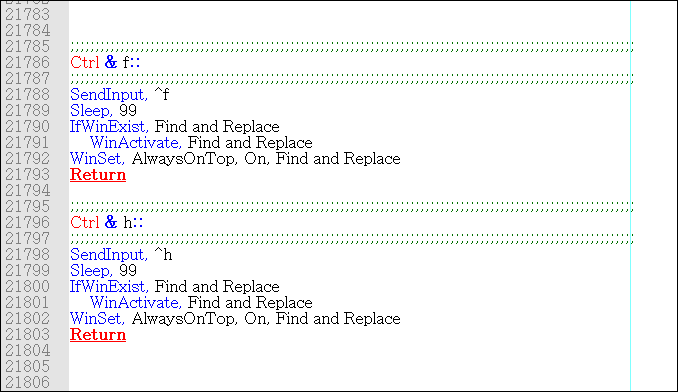
Add these lines to your script file and when the Find and Replace window (or any window) is open and active, press the hotkey. From now on the window will be on top on any window, not that just the Editor. And it'll be on top until you close the Find and Replace dialog box or until you press again the same hotkey.

  • If you close the Find and Replace dialog box, and re-open it later, you will need to press your hotkey again to set it always on top.
  • If you use another hotkey, you might need to edit the GetKeyState parameter accordingly.

I hope it helps!


Generated Image Alt-Text
[edited by: Trados AI at 4:31 AM (GMT 0) on 5 Mar 2024]

emoji
Parents Reply Children
  • Hi Paul,
    I am writing now but do not feel urged to reply during the weekend if you are not working, answer when you can, ok?

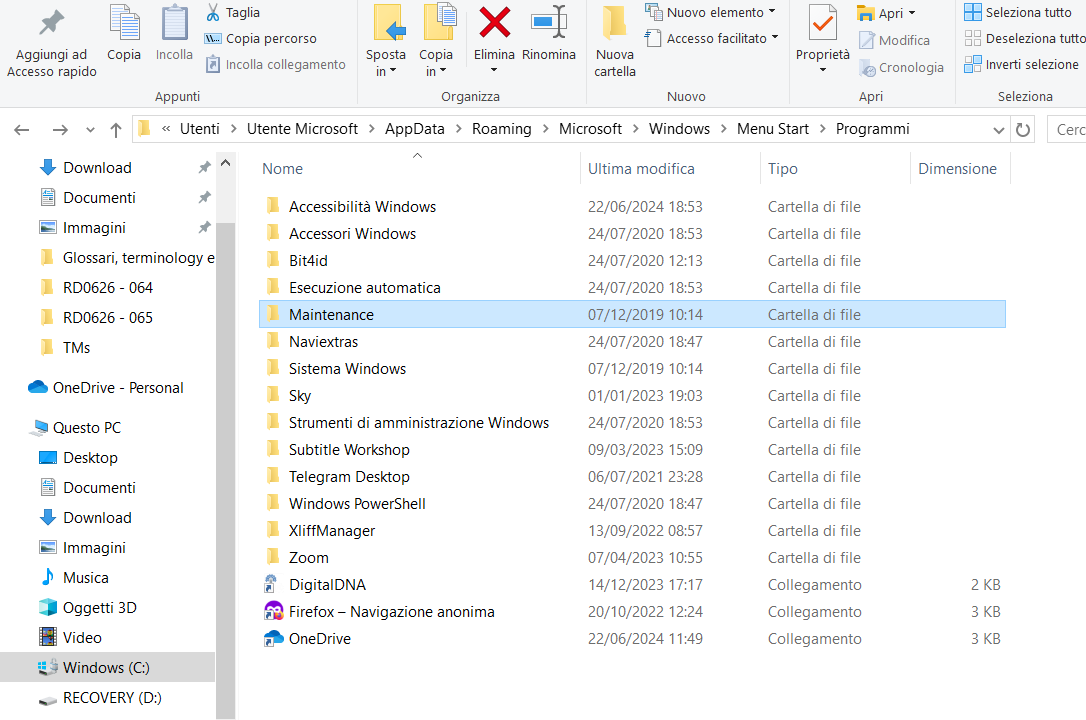
    I started doing what you instructed me to do here above, but - to begin with - in the Programs folder I do not have the Startup folder where to put the AHK file I created...

    Screenshot of a Windows file explorer window showing the contents of the Start Menu Programs folder with various folders and shortcuts listed, such as Accessibility Windows, Windows Accessories, and OneDrive.

    emoji


    Generated Image Alt-Text
    [edited by: RWS Community AI at 5:02 PM (GMT 1) on 22 Jun 2024]
  •  

    That's odd... I would have expected to see it here:

    C:\Utenti\[NomeUtente]\AppData\Roaming\Microsoft\Windows\Menu Start\Programmi\Avvio

    Your path is slightly different, but I'm not sure about the way it would look on your system

    Perhaps try typing this in the File Explorer address bar, which should take you directly to the correct folder regardless of your language settings.

    %APPDATA%\Microsoft\Windows\Start Menu\Programs\Startup

    If that still doesn't work for you another place you can place this file is here:

    C:\ProgramData\Microsoft\Windows\Menu Start\Programmi\Avvio

    ProgramData is a folder for all users on the computer.  Any programs or scripts placed in this folder will run for every user who logs into the system as opposed to the one in appdata which will only run for the specified logged in user ([NomeUtente]).

    See if that's any better.

    Paul Filkin | RWS

    Design your own training!
    You've done the courses and still need to go a little further, or still not clear? 
    Tell us what you need in our Community Solutions Hub

    emoji
  • Nope, no Startup or Avvio folder anywhere in my C: disk... and I cannot reinstall Stidio 2021. Do you think my laptop could have some problem?

    emoji
  •   

    Sorry to intrude on your conversation, Paul...

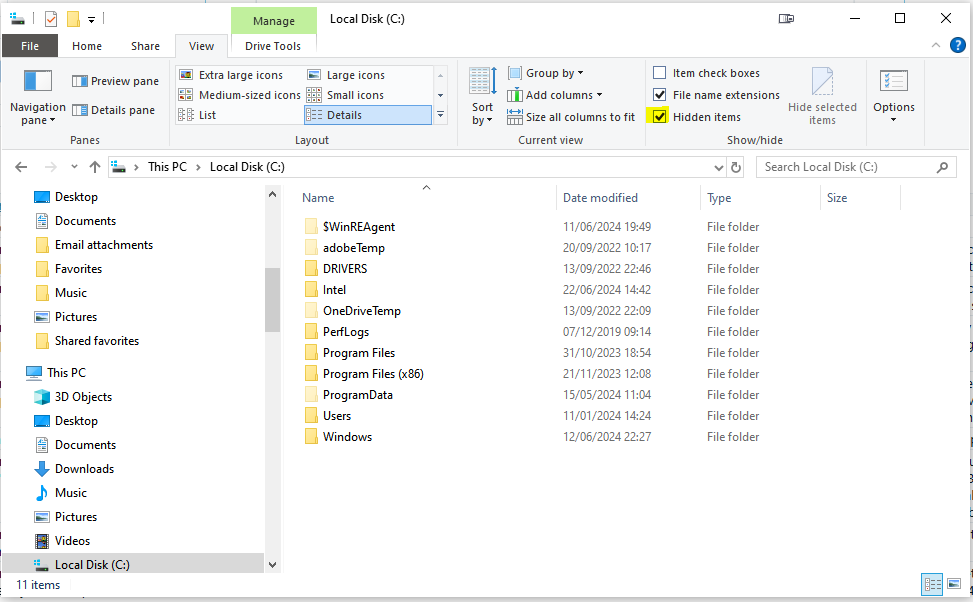
    Have you asked Valeria (in one of her other threads) to make sure 'hidden' folders are visible?

    Screenshot of a Windows File Explorer window showing the contents of the Local Disk (C:). The 'Hidden items' checkbox is ticked under the View tab, revealing system folders like 'ProgramData'.

    Just in case not... Valeria, if you look at the above screenshot of my C: drive, the folders that are less bright are the system folders that are hidden if the 'Hidden items' box is not ticked. To be able to see 'ProgramData' for example, that box must be ticked. 

    Sorry if I'm telling you something that you already know...

    All the best,

    Ali Smiley

    "Paul Filkin | RWS Group

    ________________________
    Design your own training!

    You've done the courses and still need to go a little further, or still not clear? 
    Tell us what you need in our Community Solutions Hub"

    emoji


    Generated Image Alt-Text
    [edited by: RWS Community AI at 11:49 AM (GMT 1) on 23 Jun 2024]
  • Yes yes, Ali, I know this trick, I've already found out about it in the past and I activated it this time too, otherwise I wouldn't even had viewed the "AppData" folder ;-) Thanks anyawy!

    emoji
  • Anyway, Paul, I've bought the 2022 version in order to be able to wotk from my Mac, but I am totally lost: where do I find the online editor?
    Can I have the editor just like the app on the PC (without machine translation)? Where do I find it?
    I received an email from RWS University, but those are paid training courses for people who is starting from scratch (and I have already spent €300, I would simple like to know where to start from...)

    emoji
  •  

    where do I find the online editor?

    I'm sure I created a video just for you that explained how to find it!  Just go here:

    https://languagecloud.sdl.com/

    Login with the same credentials you use for RWS and you'll be able to work entirely online, or if you make sure you either create projects online, or publish Studio projects to the cloud, work in Studio too.

    I really think this would make a good topic for some training here:  Ideas for Free Training  I'm quite disappointed that nobody seems bothered to ask for any training, despite the fact it's free, and yet we spend so much time in here trying to show people how to do things.  Maybe you can buck the trend!!

    Paul Filkin | RWS

    Design your own training!
    You've done the courses and still need to go a little further, or still not clear? 
    Tell us what you need in our Community Solutions Hub

    emoji
  •   

    Nope, no Startup or Avvio folder anywhere in my C: disk... and I cannot reinstall Stidio 2021. Do you think my laptop could have some problem?

    Frankly this is impossible.  You must have a startup folder on your computer because it's not possible for a user to have a Windows operating system without a Startup folder.  Both the user-specific and all-users Startup folders are integral parts of the Windows OS.  They are created by default when the operating system is installed.

    Please try copy/pasting this in the File Explorer address bar, which should take you directly to the correct folder regardless of your language settings:

    %APPDATA%\Microsoft\Windows\Start Menu\Programs\Startup

    Here's a video showing you exactly how:

    Paul Filkin | RWS

    Design your own training!
    You've done the courses and still need to go a little further, or still not clear? 
    Tell us what you need in our Community Solutions Hub

    emoji
  •  

    Copy the text provided by Paul to the Clipboard (CTRL+C):

    %APPDATA%\Microsoft\Windows\Start Menu\Programs\Startup

    paste it to the address bar in your Windows Explorer and then press Enter. I think it should work…

    emoji