Can Passolo Text Parser handle multi-line source file

Hi everybody

I was asked for a suggestion on how to handle this kind of content in Passolo. 

It is the TXT file output with the following structure:

@id=Value
 ;{Locked} comment or trasnlation info

With Tex parser I'm  able to extract the content for ID and Source 

but I don't know how to:


1. Parse the comment content, which is save in the following line of the ResID and source string (as per definition above).

2.  Exclude the strings where comment string contains the {Locked} in the comment line and 

The issue for me is, that the comment content is not in the same line as ResID and Source.

Can anybody help me with any idea on how to handle the 1. and 2. ?


Sample:

GeneralSetup=General setup
;Workspace tab title
ReportSetup=Reporting setup
;Workspace tab title
SalesTaxRoundingRule=Sales tax rounding rule
;Sales tax rounding rule
RoundingPrecision=Rounding precision
;Rounding precision
RoundingMethod=Rounding method
;Rounding method
VALIDATE_IN_CAPS=VALIDATE
;{Locked=!en}Caption for a menu item in Data to make it more noticable

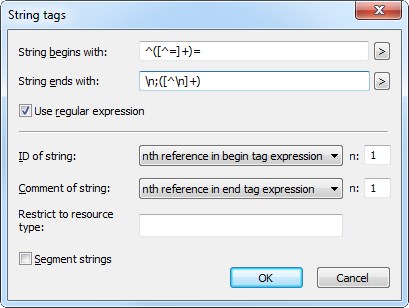
  • Yes, it can. The Text Parser rule must contain a back reference for both, the ID and the comment.

    Trados Studio String tags dialog box showing fields for string begins with, ends with, ID of string, and comment of string with regular expression option checked.

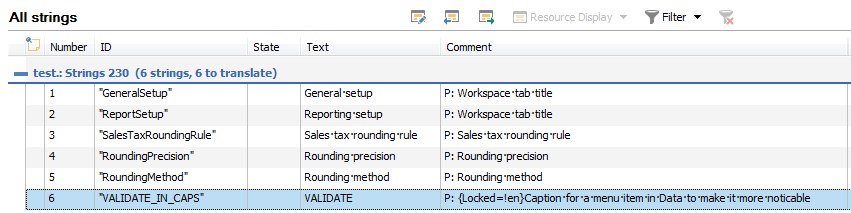
    Then the imported list will also import the comments

    Trados Studio All strings window displaying a list of strings with columns for Number, ID, State, Text, and Comment, highlighting a comment containing 'Locked' string.

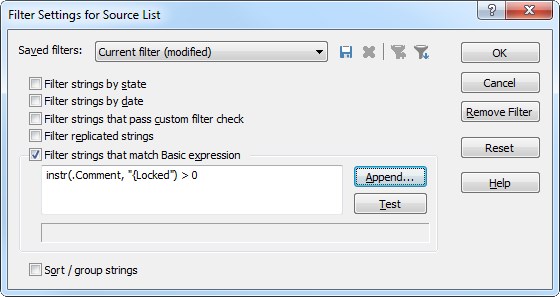
    To exclude strings with “{Locked” in the comment from translation you can manually define a filter

    Trados Studio Filter Settings for Source List dialog box with a filter expression 'instr(Comment, "Locked") > 0' entered to exclude strings with 'Locked' in the comment.

    After applying the filter you can select all displayed entries and mark them as read-only. This usually takes just a minute.

    A more automated way can be achieved by implemented a system macro that automatically parses the comment after the file is imported and then is setting the read-only flag if the comment contains the “{Locked” string.

    emoji


    Generated Image Alt-Text
    [edited by: Trados AI at 5:10 AM (GMT 0) on 5 Mar 2024]
  • Hello Achim

    Thank you very much for the detailed reply that indeed helped me get the comments displayed in Passolo.


    When I used Find All command I was able to find all the strings that contained "{Locked" in the comments. But I have issues with getting filter to filter the strings that contain "{Locked" in the comments.
    It just doesn't filter.

    This issue was observed on Demo Passolo 2018 18.0.90.0, but with Passolo 2015 Team it works flawlesly. 


    Thank you again for the help.

    Simon

  • Sorry, my mistake. Instead of using

    instr(.Comment, "{Locked") > 0

    you have to use

    instr(.ParserComment, "{Locked") > 0

    With .Comment you access the manually inserted comment while the comment that is automatically imported from the source file is stored in .ParserComment

  • Aha, I see.

    I saw the .ParserComment  in the editor but just didn't look at the remaining options in the filter dialog.

    Interestingly, Passolo 2015 worked well  with instr(.Comment, "{Locked") > 0.

    FYI, I just check the same on my Demo Passolo 2018 and somehow dosn't want to show only the strings with "{Locked" in the ParserComment.


    Maybe it has something to do with the fact that it is a Demo version?


    Anyway, your advice was very helpfull and to the point.


    Thank you again.


    Simon


  • You are right. Back in 2015 there was just one comment property named .Comment. The .ParserComment property was introduced in 2016 to allow a better differentiation between imported comments and project manager comments.

    And your observation regarding the demo version is right too. In the demo version all automation features like the command line interface and the COM object model where these filter properties are used are disabled.

    If you like to do a more deep dive testing please contact your SDL sales representative to get a time limited full version of the product.