How can I integrate publication hub with external process engines and notification tools ?

I have installed Tridion Docs 15.1 and I found a new module named "Publication Hub" which is very powerful and useful for business users.

Now I want to integrate this feature with external process engines and notification tools such as WeChat. How can I achieve this?

emoji
Parents Reply Children
  • Hi  Dave,

        The authentication method I am familiar with is similar to  POST /authentication/api/1.0/login/signin of GroupShare or  POST /api/v2/auth of Language Weaver. I could call the Rest API within username and password as parameters and got tikcet or token as response. Is there an authentication API in Tridion Docs APIs?

    emoji
  • Hello  ,
    OpenAPI does not have an authentication endpoint. Authentication is done via Access Management 
    To learn about it you can read a blog from Dave: How did we do Modern Authentication in Tridion Docs 15?
    as well as read public documentation: https://docs.rws.com/1151795/787727/tridion-docs-main-documentation/using-tridion-access-management
    The resources that were suggested in the above answers explain how to integrate a custom application with Trdion Docs modern authentication.
    If your purpose is just to make a couple of calls via Postman you can follow these high-level steps:
    - obtain clientId and clientSecret for Tridion Docs Content Manager API Client  from  Access Management
    - use clientId and clientSecret to get an access token from Access Management. Endpoint: https://host:port/access-management/connect/token
    - use access token as bearer token and pass it via Authorization Header to OpenAPI endpoint
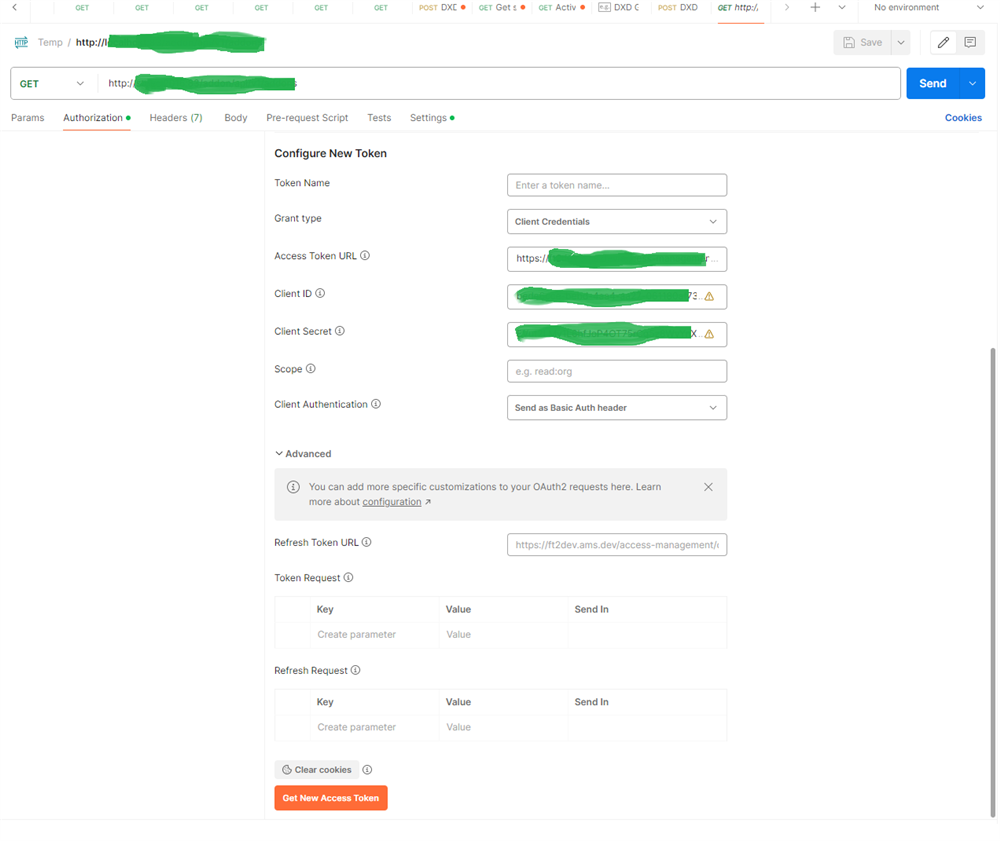
    Postman allows you to configure all in your OpenAPI request on the authorization tab you specify AutherizationType Auth2.0 with request headers, token endpoint, clientID, and clientSecret and get the token after that
    Screenshot of Postman Authorization tab showing configuration fields for a new token with fields for Token Name, Grant Type, Access Token URL, Client ID, Client Secret, Scope, and Client Authentication.
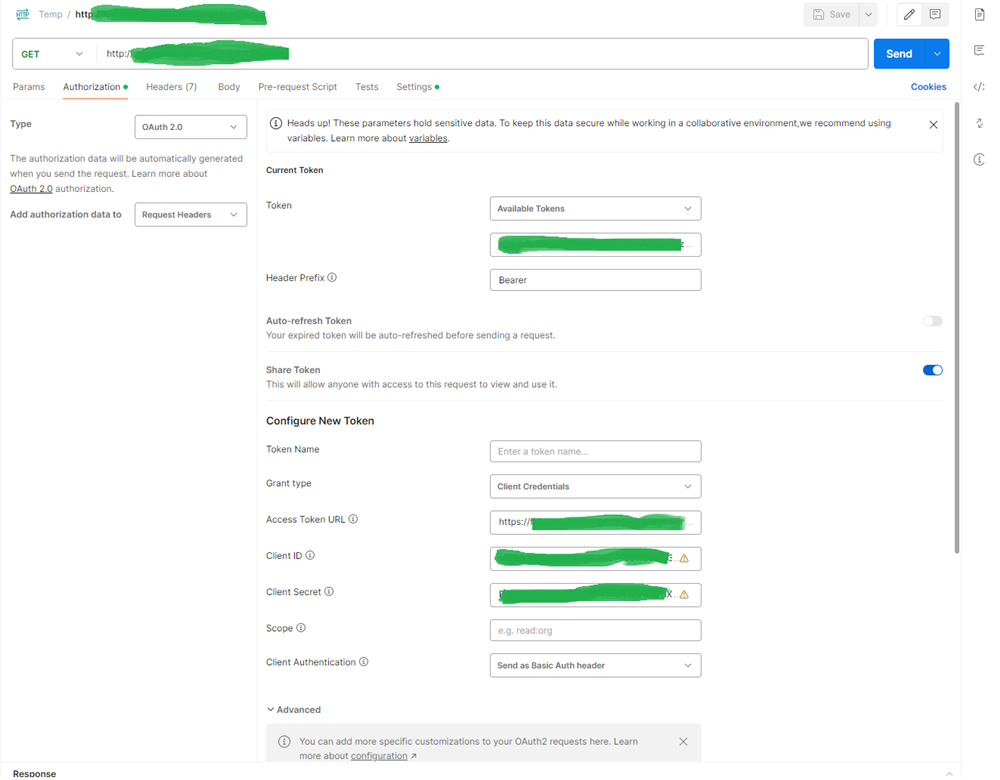
    and then you can use that token for your OpenAPI request
    Screenshot of Postman Authorization tab with OAuth 2.0 settings including fields for Token Name, Grant Type, Access Token URL, Client ID, Client Secret, Scope, Client Authentication, and a section for configuring a new token.

    emoji


    Generated Image Alt-Text
    [edited by: RWS Community AI at 2:31 PM (GMT 1) on 4 Jul 2024]
  • Hi Andriy,

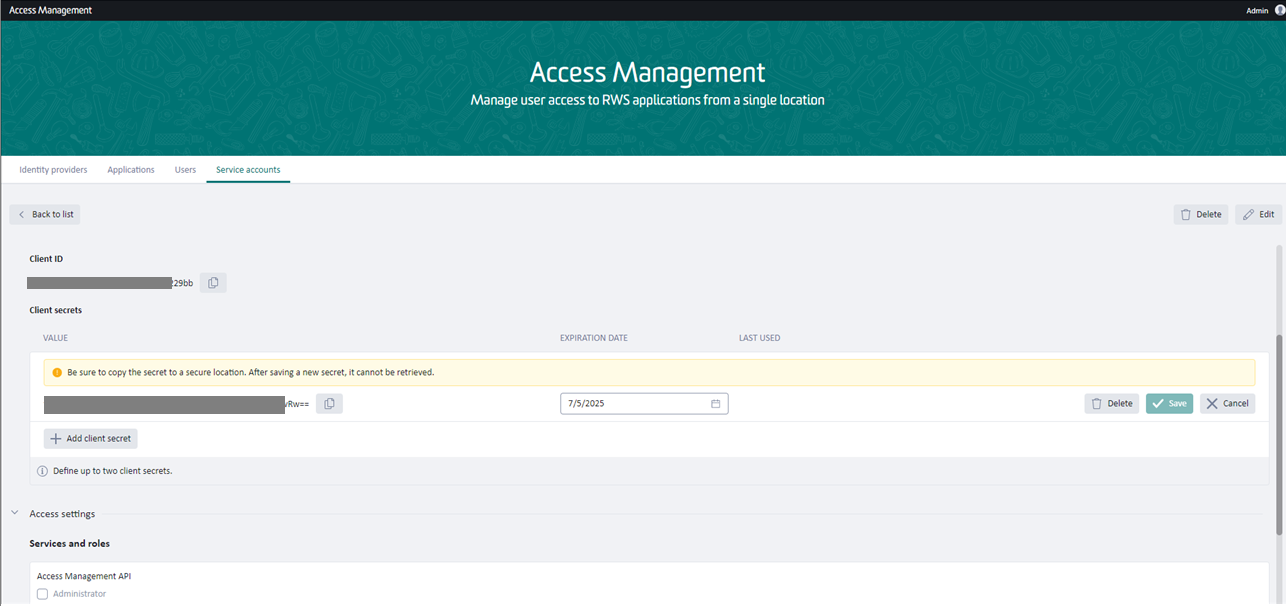
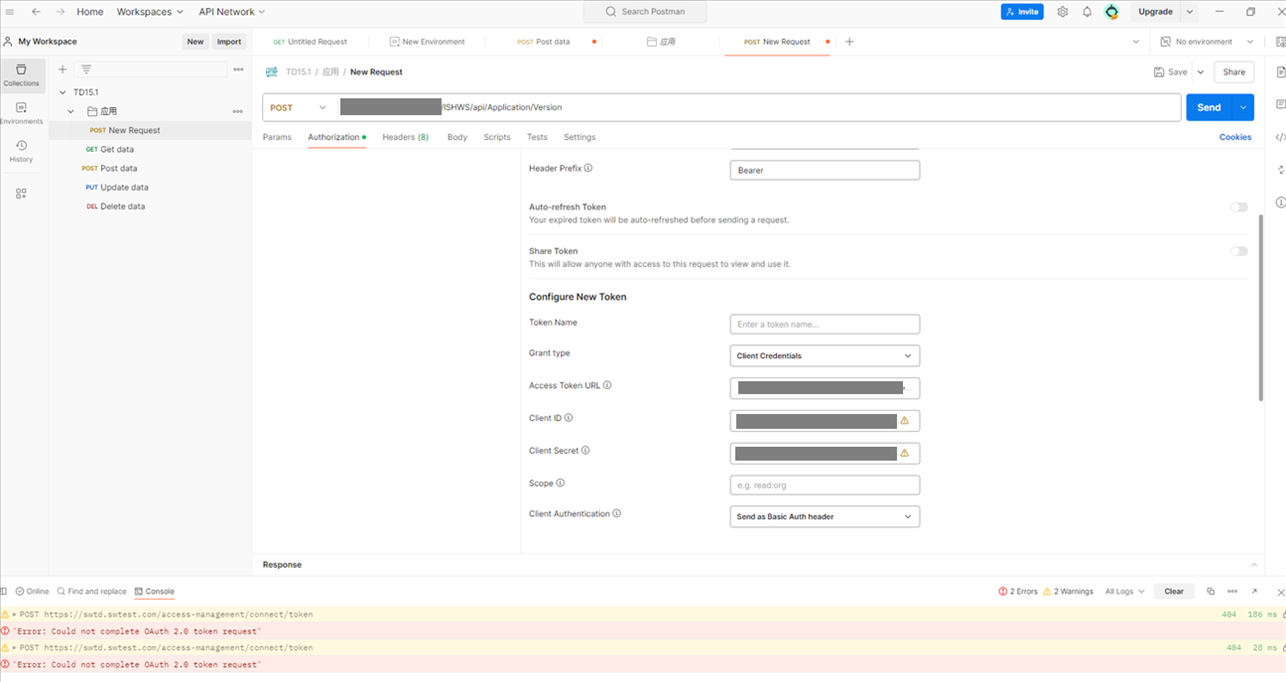
          I have tried using Postman to obtain the access token based on your suggestion, but I got  an error response as the following screenshots show.

           I  checked and found that the URL and parameters should be correct, so would  you please help me check what the problem is? thank you!

    Screenshot of Access Management page showing a client ID and a client secret with a warning message to save the secret as it cannot be retrieved after saving.

    Screenshot of Postman application with an error response for a POST request to an access token URL. The error message states 'Could not complete OAuth 2.0 token request'.

    [edited by on 14 Aug 2024, redacted some details and uploaded new screenshots] 

    emoji


    Generated Image Alt-Text
    [edited by: RWS Community AI at 2:48 AM (GMT 1) on 5 Jul 2024]
  • I recreated the screenshots with authentication details hidden (it's probably a good idea to use Postman variables to hide those details in the future).

    I'm not sure if you got this working, but from the screenshot it seems the URL for the token might not be correct or there is some other issue getting to the endpoint, due to the 404 error. 

    Also, knowing what you're trying to achieve as Andriy asked earlier can help. Though Publication Hub is new with Tridion Docs 15, you might not need to use it directly for an integration. For example, are you trying to send statuses to WeChat or other systems during certain actions in the Content Manager?

    Alvin Reyes | RWS

    Twitter: @Nivlong | Personal Blog: CreateandBreak

    emoji