Studio Subtitling

Hello

Thanks for today’s webinar. I am quite keen on trying it out on a live project I have on my desk I’ve downloaded and installed Studio Subtitling plus all the file definitions, but unfortunately can’t seem to get any of it working. For the files, there is no option to Prepare them, and the video preview interface isn’t offered. (I had the old SubRip, if that’s relevant, run Studio 2019, up-to-date, on a PC with Windows 10, all other apps/plug-ins work normally.) Any ideas?

Many thanks

Pavel

  • Hello 

    You don't prepare any of these files.  I think you should review this wiki as it might help you as it also explains about adding filetypes that you have installed but they don't show up yet:

    https://community.sdl.com/product-groups/translationproductivity/w/customer-experience/4680/studio-subtitling

    The SBV, STL and webVTT plugins give you the ability to handle source files created in these formats.  Studio handles SRT out of the box, with these plugins you can handle SRT, SBV, STL and webVTT if you receive source files in these formats.

    What you have to do is this:

    1. prepare a project in Studio using any of the supported subtitle source files (SRT, SBV, STL and webVTT) if you have one.
    2. Once you have done this open one of the files for translation in the same way you would open any file for translation in a Studio project
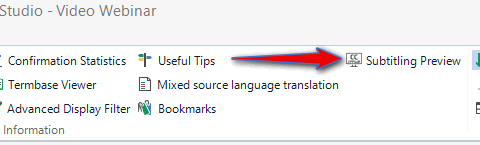
    3. Click on the View menu when the file is open and you will see this:
      Trados Studio interface showing the View menu with an arrow pointing to the 'Subtitling Preview' option.
      Click on it and the preview window will be opened in your Editor View
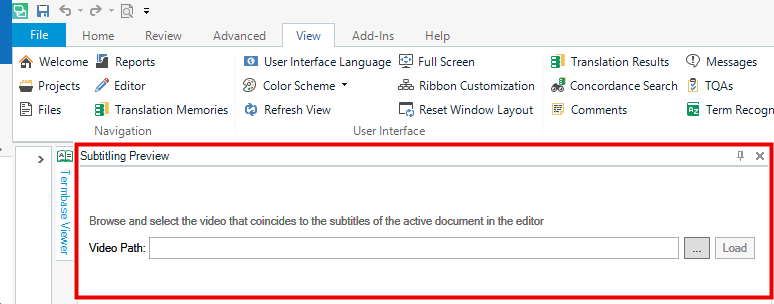
    4. Position the preview window somewhere where you'd like to use it and select a video that corresponds to the source text you have received:
      Subtitling Preview window in Trados Studio with a field to browse and select the video path and a 'Load' button.

    That's it.

    Paul Filkin | RWS

    Design your own training!
    You've done the courses and still need to go a little further, or still not clear? 
    Tell us what you need in our Community Solutions Hub

    emoji


    Generated Image Alt-Text
    [edited by: Trados AI at 10:52 AM (GMT 0) on 4 Mar 2024]
  • Hi Paul

    Many thanks for the time you’ve taken to write a detailed response. Obviously I have a lot to learn about how to write a crystal clear question. I have followed the webinar carefully, and I am a rather experienced Trados user. By “Prepare” I meant “Batch Tasks > Prepare” after adding, ie the usual way of adding files – so the additional filetypes have not been installed correctly, somehow, even though they are on the list (I know about the “Additional installed File Types...” trick). As for the main app, it is listed in the Plugins box as installed, but none of the features (ie icons) appear, and the SRT file type does not appear.

    Sorry – Pavel

  • Hello Paul and Pavel,

    First of all, I want to thank you as well for the webinar. I don't want to open a new thread because I seem to have the same problem as Pavel. I've followed the instructions to install the plugin and different file types, but when I go to options I don't get the "Additional installed file Types" links anywhere. Instead, the three file types (VTT, STL and SBV) appear already on the list of file types. Once I've accepted (although I wouldn't need to, since they are already included in the file types supported), I try to open an STL file I have to work with, but Trados says it is NOT a supported file type.

    I've tried restarting my PC, uninstall the plugin and file types and install them again... Nothing seems to work. I can't open the file and of course, I can't see the preview option at all. Could you please help me? I'm really looking forward to exploring the potential of this new tool. Thanks.

  • ok... there's a couple of things here we need to look at:

    the SRT file type does not appear

    The SRT filetype is provided as part of the core Studio product.  So if this is not there there is something wrong with your installation.  Perhaps you have been using old Project templates that are not properly compatible with Studio 2019 at all?

    so the additional filetypes have not been installed correctly, somehow, even though they are on the list

    This might also suggest that you are using Project Templates and if you are then you need to make the changes with additional filetypes trick in your Project templates as well.

    As for the main app, it is listed in the Plugins box as installed, but none of the features (ie icons) appear

    ok.  I don't have an answer for this other than to ask if I could take a look at your computer with you over Skype or Team Viewer perhaps?  There is clearly something wrong.  Can you drop me an email at pfilkin@sdl.com and we can arrange a call to look at this together?

    Paul Filkin | RWS

    Design your own training!
    You've done the courses and still need to go a little further, or still not clear? 
    Tell us what you need in our Community Solutions Hub

  • Hi

    they are already included in the file types supported

    That's good.  I'm not sure why it sometimes adds them and sometime doesn't, but if you can see them in your list of filetypes then we're all good so far.

    I try to open an STL file I have to work with, but Trados says it is NOT a supported file type.

    There could be at least two reasons for this:

    1. You are working with Project Templates (or a previous project) and you have not updated the filetypes available in your Project Templates (or previous project)
    2. The STL filetype you have is not a Spruce STL.  There are two types of STL filetype and we only support Spruce since this was the one we understood to be more useful.  Can you share your STL file so I can check it?  You can email it to pfilkin@sdl.com if that's ok?

    Thanks

    Paul Filkin | RWS

    Design your own training!
    You've done the courses and still need to go a little further, or still not clear? 
    Tell us what you need in our Community Solutions Hub

  • Just closing this off as the plugins are all working as expected for Pavel and also Patricia.

    Paul Filkin | RWS

    Design your own training!
    You've done the courses and still need to go a little further, or still not clear? 
    Tell us what you need in our Community Solutions Hub

  • Hi All, 

    I'm wondering if you can confirm if this app is compatible with packages downloaded from WorldServer 11.3