How do I open a Trados Teams project in Trados Studio 2026 (or 2024)?

Hi!

My client has just moved from Trados GroupShare to Trados Teams. As I find the Online Editor difficult to work in, I have tried the "Open in Studio" instead. I says it will open the project in Trados Studio 2024 (annoyingly, not in Trados Studio 2026, which I normally use), but after Studio 2024 opens, no project appears. What do I need to do to work in the project?

Kind regards,

Johanna


Removed AI Suggestion
[edited by: Johanna Liljenzin at 1:43 PM (GMT 1) on 28 Jul 2026]
emoji
Parents
  • Hello Johanna,

    Thank you for your question! It’s great to hear that you’re exploring how to work with Trados Team projects in Trados Studio. Let me guide you through the steps to ensure you can open and work on your Trados Team projects in Trados Studio 2026 (or 2024):

    ### Step 1: Verify Trados Studio Version Compatibility

    - Ensure that both **Trados Studio 2026** and **Trados Studio 2024** are installed and updated to the latest versions. Updates often include fixes and enhancements for integration with Trados Team.

    ### Step 2: Check Your Trados Team Account Connection

    - Open Trados Studio 2026 (or 2024) and navigate to **File > Setup > Cloud Accounts**.

    - Ensure that your Trados Team account is connected. If not, log in using your credentials. This connection is essential for syncing projects between Trados Team and Trados Studio.

    ### Step 3: Open the Project from Trados Studio

    - Instead of using the "Open in Studio" option from the Online Editor, try opening the project directly from Trados Studio:

     1. Go to **File > Open > Open Cloud

    emoji
  • Dear AI,

    Step 1: all software was already installed and updated.

    Step 2: There is no "Cloud Accounts" option under "File>Setup".

    Step 3: There is no option to "Open Cloud" under "File>Open".

    Please help??

    Johanna

    emoji
  • Hi Johanna

    I'm not sure if you already have a solution to this, but if not, there are a few steps you need to do.

    First, you need to confirm with your client that they have added you as a user to their Trados Team tenant.  The process is slightly different to that in GroupShare, but if they're familiar with that, I assume they've probably done so.  The difference for you is that you would have received an email from their Trados Team tenant asking you to connect.

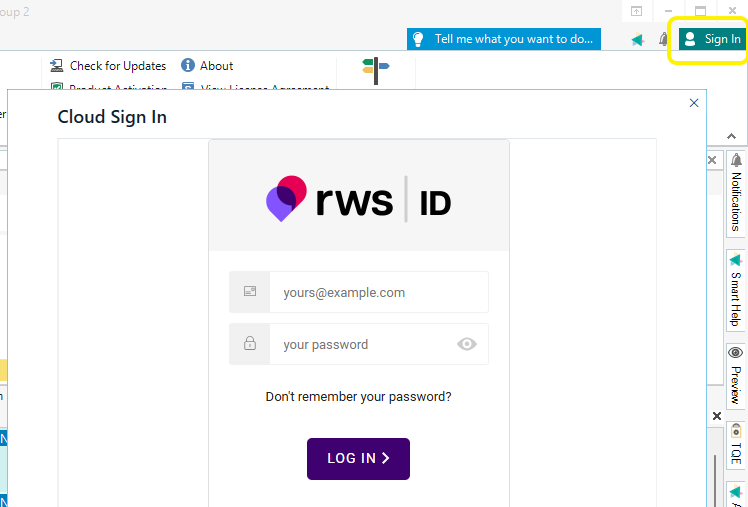
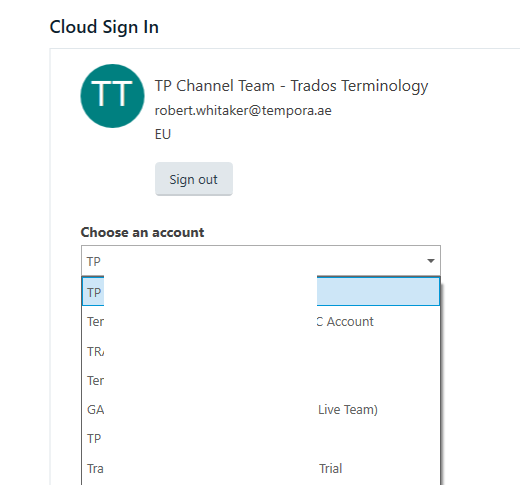
    Once you have received that email invitation you need to accept it - so if you haven't received it, you need to ask your client to send it again and watch for it to arrive.  Accepting the invitation will connect to your OOS account, or force you to create a new one if it is a different (new) email address. Once you have received and accepted that email, you then need to sign in in Trados Studio using the same email address you were invited to the Trados Team platform with.  If it is the same address you have already used with Studio, the dialogue box where you sign in will ask you which account to use - you will then have to select your client's account rather than your own account.

    That should connect your copy of Trados Studio to their Trados Team tenant.  At that point, your Projects screen should update, and show you a list of projects in the cloud, as well as any local or GroupShare ones you have.

    Of course, in Trados Team you need to accept a project from your New Inbox in the Trados Team browser page in order to work on it, but at that stage you should be able to use the Open in Studio link, or use the link in the Studio Projects window.

    I hope that all makes sense(!) and works.

    Rob

    emoji
  • Rob,

    I am able to connect to their Teams page online, and I was able to see and accept the project in question online. However, I seem unable to  open (or even see) said project in my own Studio client, even after chosing online to open the project in Studio. Where am I supposed to enter "their" account details?

    Johanna

    emoji
Reply Children