Unable to save opened project package in correct folder.

When I open the project package and try to save it in the same folder, I get an error message saying "The specified folder already contains files - choose a new or empty folder'. I've tried creating new folders with shorter pathways but I always get the same message.  I have to save them in the same folder so that they will clean up later.  I'm using Trados 19.  Any help would be appreciated please.  Thank you.


Removed AI Suggestion
[edited by: Christine Birch at 3:28 PM (GMT 1) on 17 Jul 2026]

emoji
  • Hello,

    It seems like the issue you're encountering is related to how Trados Studio (2019) handles project folder naming and file paths. Here's a step-by-step guide to resolve this issue:

    ### Step 1: Check for Trailing Spaces in the Project Name

    1. Open the project package in Trados Studio.

    2. Carefully review the project name in the "Save As" dialog box.

    3. Ensure there are no trailing spaces at the end of the project name. Trailing spaces can cause conflicts when saving the project in an existing folder.

    ### Step 2: Disable "Append Project Name to Project Folder" Option

    1. When opening the project package, look for the option **"Append project name to project folder"** in the dialog box.

    2. Uncheck this option. This will prevent Trados Studio from automatically appending the project name to the folder path, which might be causing the conflict.

    ### Step 3: Save the Project in a New Folder

    1. If the above steps do not resolve the issue, create a new folder specifically for this project.

    2. Save the project package in this new folder to avoid conflicts with existing files.

    ### Step 4: Verify File Path Length

    emoji
  • Hi  

    I'm not sure if I understood correctly, but I'll try to advise anyways.
    The folder to which the project with all the project sub-folders and project files gets extracted from the project package must be empty. Otherwise, Studio won't let you select the folder as project location. For example:
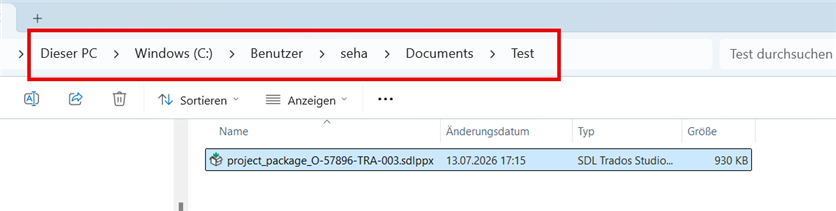
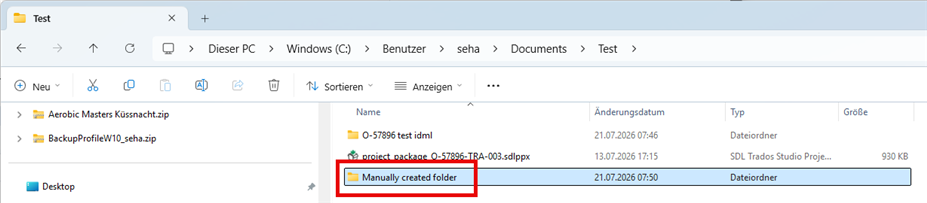
    If the project package is stored under "C:\Users\seha\Documents\Test", Studio won't let you choose this exact path to save your project there, too:


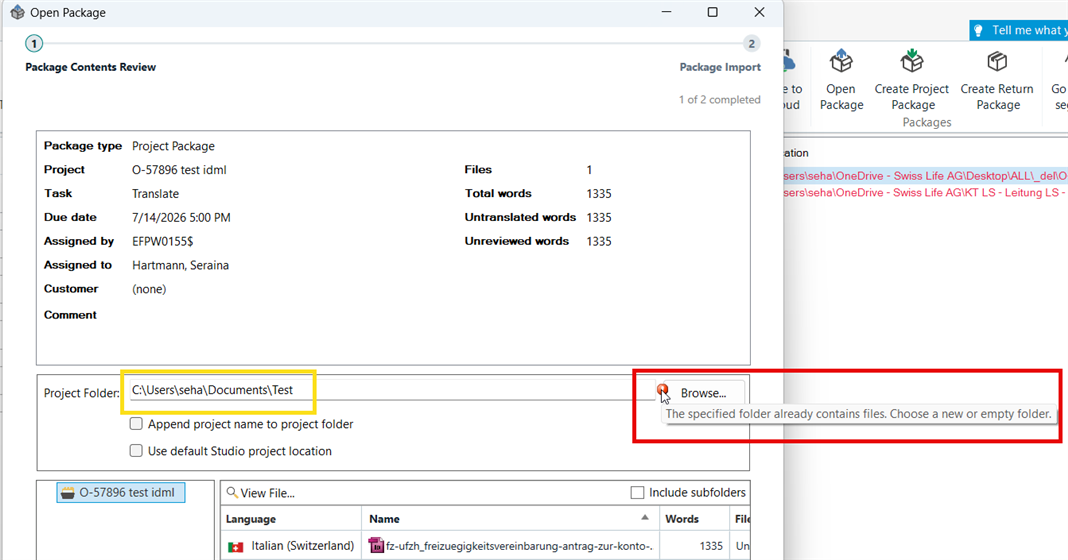
    You'll get this message: "The specified folder already contains files. Choose a new or empty folder."


    From here, you have two options. I'd recommend option 1, as I guess this is what you're looking for:

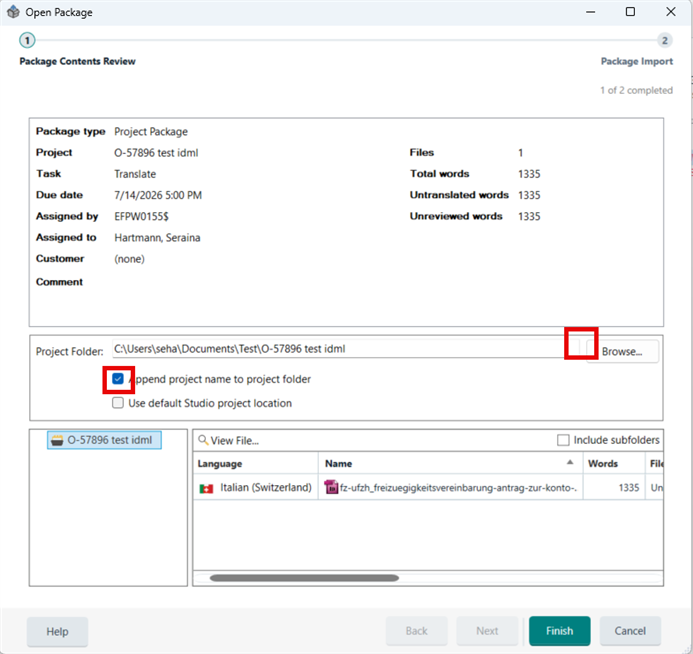
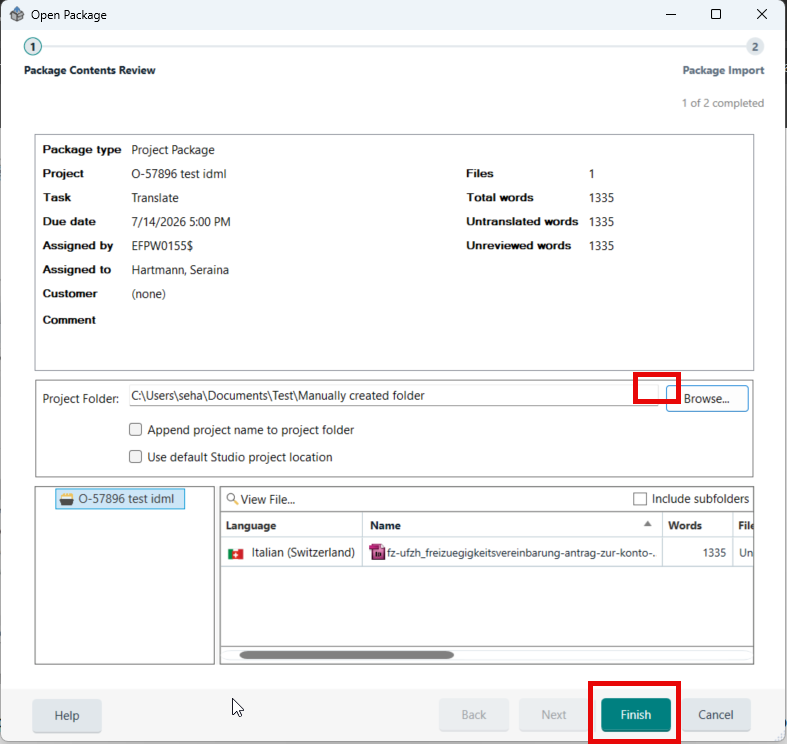
    1) Tick the box for "Append project name to project folder" --> the message next to the browse button disappearse and you can import the project by clicking on "Finish" in the bottom right corner.


    Here's what happens: (As the box you ticked suggests)
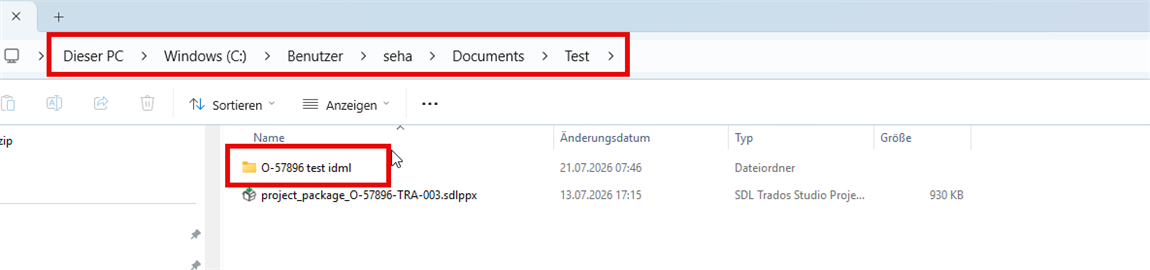
    Under "C:\Users\seha\Documents\Test" a new folder is created automatically. The new folder is named after the project name, which was selected during the project creation process:


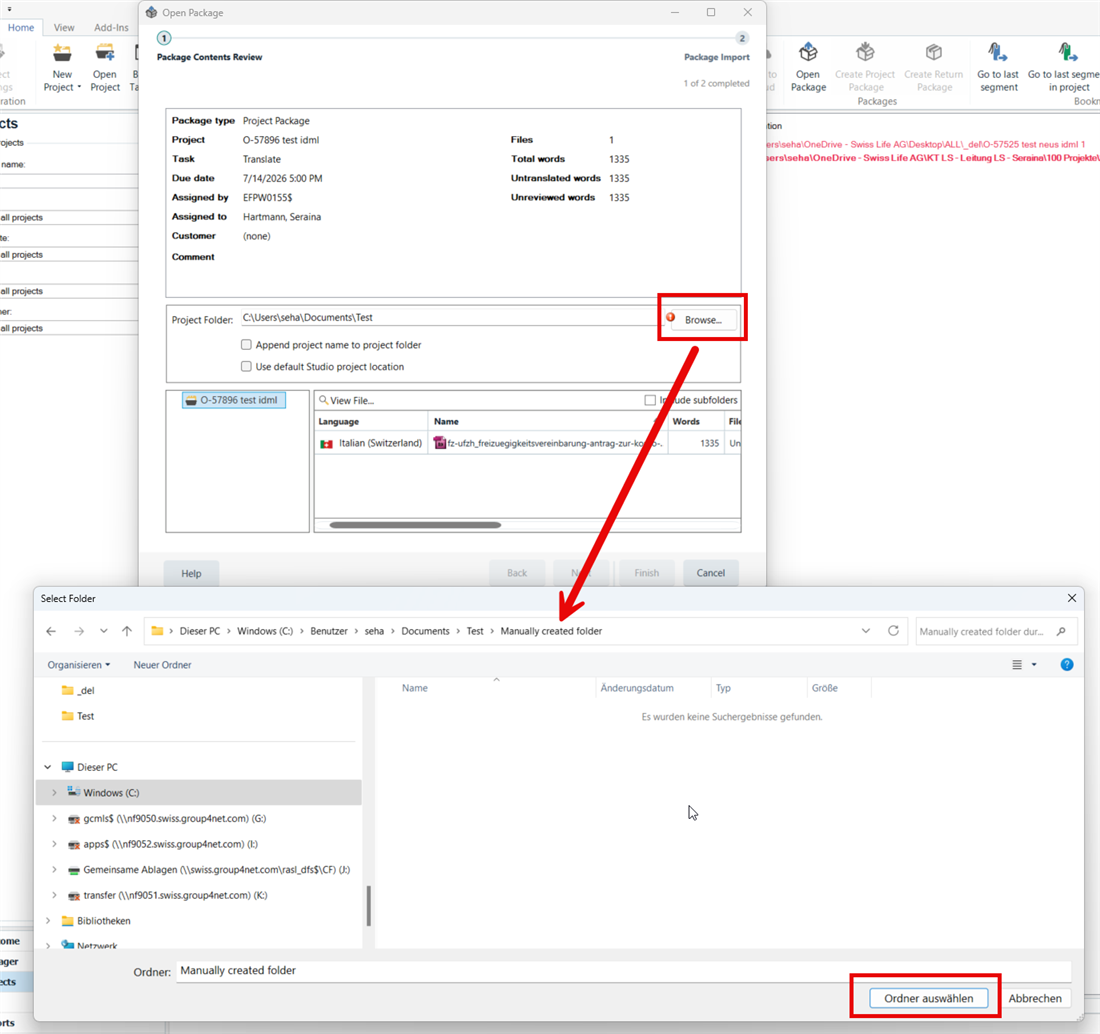
    2) This option would involve manual folder creation either under the selected path or anywhere else and subsequently selecting this folder manually by clicking on "Browse" and navigating to it:


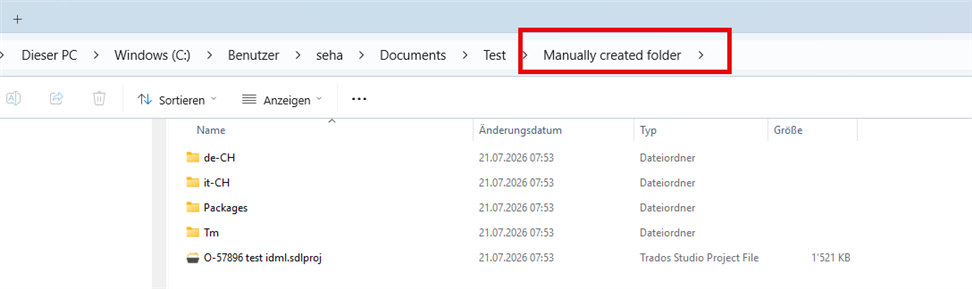
    The message disappears and you'll be able to import the project. The project will be saved in the empty folder you've manually created.


    Either way works, in both cases the project package becomes obsolete as soon as you saved the project to whatever empty folder. So no need to "save them in the same folder so that they will clean up later", as you write above.

    Play around with these options and see what works best for you.
    I hope my explanations help.

    Best reagards
    Seraina

    emoji
  • Thank you very much Seraina.

    That was very helpful.

    Best wishes

    Christine 

    emoji