Programming Elgato StreamDeck buttons for use with Trados?

Has anyone considered setting up their Elgato StreamDeck for use with Trados Studio? (I'm thinking out loud here)

Alternatively a Corsair gaming keyboard with StreamDeck integration? Did you find it easy to do? What shortcuts did you programme?


Removed AI Suggestion
[edited by: Michael Bailey at 2:33 PM (GMT 1) on 6 Jul 2026]
emoji
Parents
  •  

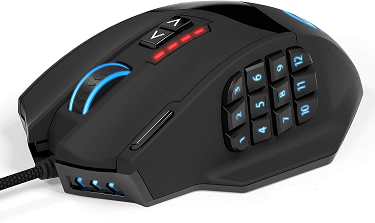
    I don't use the Elgato Stream Deck, but this UtechSmart Venus mouse with 12 side buttons (you can find it in Amazon): 

    I use AutoHotkey to know I'm in Trados Studio and the active view (Editor, Files…) and run the following tasks:

    Button 1 (Copy):

    • Copy comment
    • Run WORD COUNT COPY app + post-processing results + copy to the Clipboard

    Button 2 (Delete):

    • Split segment at cursor
    • Delete comment
    • Delete project

    Button 4 (Paste):

    • Paste selection from Source to Target
    • Insert comment
    • Paste all from Results/Concordance in target
    • Insert term translation
    • Run New project wizard
    • Auto-fill New project wizard

    Button 5 (Properties):

    • Open Options
    • Open Project Settings
    • Explore containing folder
    • Change segment status to Translation Approved

    Button 6 (View):

    • Filter by selected text in Source/Target

    Button 9 (Save):

    • Save XLIFF

    Each button sends an unusual keyboard combination in the form WIN+CTRL+ALT+Num, being Num the number of the Button #. Then AutoHotkey maps that combination to a special AutoHotkey block code. 

    For your convenience I've added the general task in brackets each button. For example, button 1 is Copy, which is consistently used in other aplications, although the real task varies from application to application. This is how my brain works and how I can remember what each button does… I reckon you can label the buttons with Elgato, but just for your information. So button 1 runs a specific task in Trados Studio different than in Word. Also in Trados Studio the actual task executed depends on where the mouse is, which view is active and also if the mouse is over the Source or over the Target content.

    emoji
Reply
  •  

    I don't use the Elgato Stream Deck, but this UtechSmart Venus mouse with 12 side buttons (you can find it in Amazon): 

    I use AutoHotkey to know I'm in Trados Studio and the active view (Editor, Files…) and run the following tasks:

    Button 1 (Copy):

    • Copy comment
    • Run WORD COUNT COPY app + post-processing results + copy to the Clipboard

    Button 2 (Delete):

    • Split segment at cursor
    • Delete comment
    • Delete project

    Button 4 (Paste):

    • Paste selection from Source to Target
    • Insert comment
    • Paste all from Results/Concordance in target
    • Insert term translation
    • Run New project wizard
    • Auto-fill New project wizard

    Button 5 (Properties):

    • Open Options
    • Open Project Settings
    • Explore containing folder
    • Change segment status to Translation Approved

    Button 6 (View):

    • Filter by selected text in Source/Target

    Button 9 (Save):

    • Save XLIFF

    Each button sends an unusual keyboard combination in the form WIN+CTRL+ALT+Num, being Num the number of the Button #. Then AutoHotkey maps that combination to a special AutoHotkey block code. 

    For your convenience I've added the general task in brackets each button. For example, button 1 is Copy, which is consistently used in other aplications, although the real task varies from application to application. This is how my brain works and how I can remember what each button does… I reckon you can label the buttons with Elgato, but just for your information. So button 1 runs a specific task in Trados Studio different than in Word. Also in Trados Studio the actual task executed depends on where the mouse is, which view is active and also if the mouse is over the Source or over the Target content.

    emoji
Children