
My Trados Studio 2019 won't open because it can't find a project path. Help!

It "can't find part of path" of a project (which is open but completed), but it won't open the program to let me fix that problem. I know why I am getting that message, but not how to fix it, given that the program isn't opening.. I just want to remove that project actually, since it's completed. Any ideas? I run Trados on Windows via Parallels on my Mac.

Thanks!
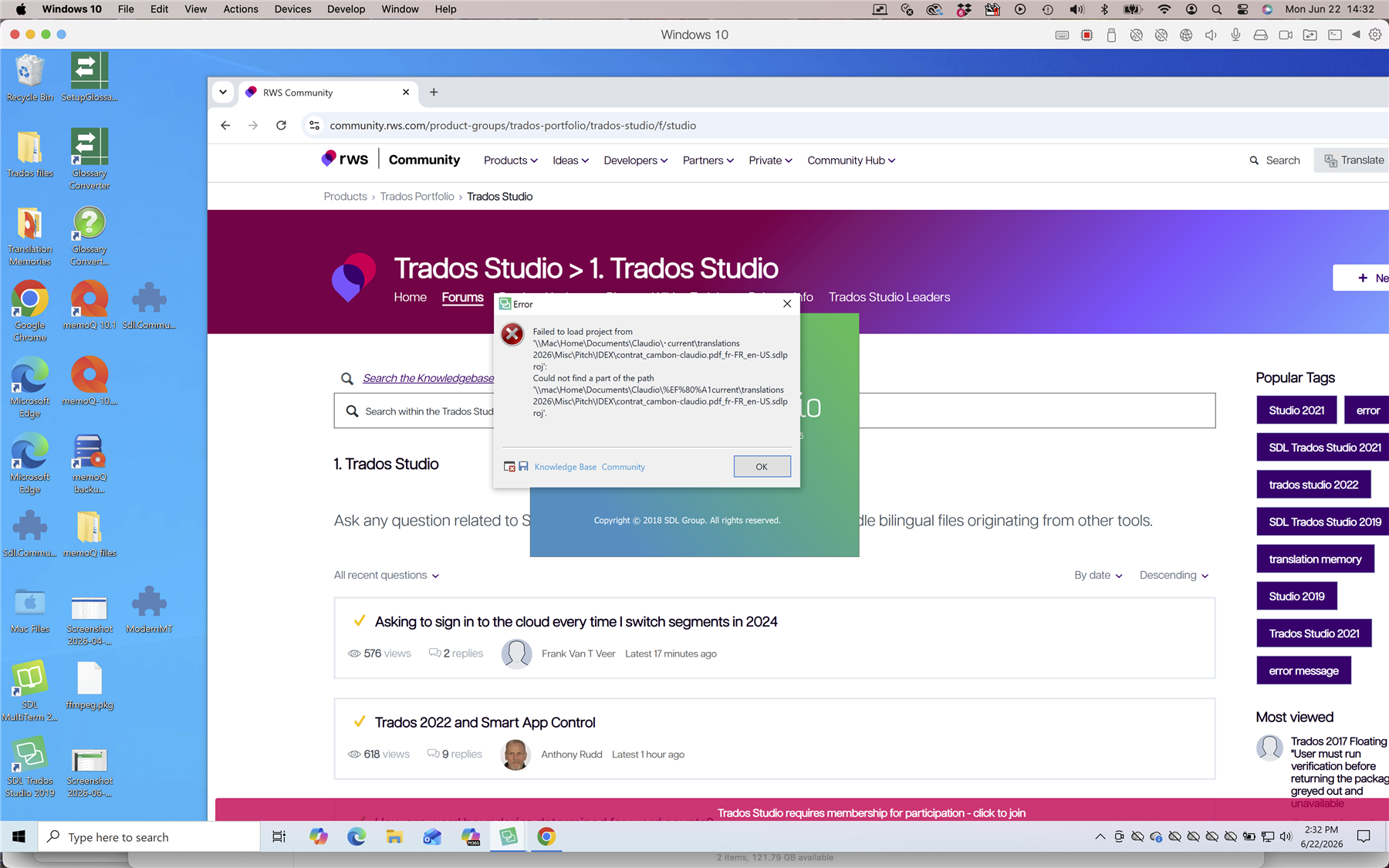
A Windows 10 desktop showing the RWS Community Trados Studio forum in a browser. An error message is displayed, stating 'Failed to load project' due to a missing file path.


Removed AI Suggestion
[edited by: Claudio Cambon at 6:54 PM (GMT 1) on 22 Jun 2026]

emoji
Parents
  • Hello,

    It sounds like Trados Studio 2019 is encountering an issue with a missing or inaccessible project path, which is preventing the program from launching. Since you cannot open the application to resolve the issue directly, here’s a step-by-step guide to fix this:

    ### Step 1: Reset Trados Studio to Default Settings

    1. **Close Trados Studio completely** (if it is partially open or stuck).

    2. Navigate to the following folder on your Windows system (via Parallels):

      - `C:\Users\[YourUsername]\AppData\Roaming\SDL\SDL Trados Studio\15.0.0.0`

    3. Locate the file named `Projects.xml` and rename it to something like `Projects_old.xml`. This file contains the list of projects that Trados Studio tries to load on startup.

    4. Restart Trados Studio. It should now open without attempting to load the problematic project.

    ### Step 2: Remove the Problematic Project

    1. Once Trados Studio opens, go to the **Projects** view.

    2. Identify and remove the project that caused the issue (right-click on the project and select **Remove from List**).

    ### Step 3:

    emoji
  • Thank you Anca. There's nothing in that folder. Amazingly, I restarted everything and Trados opened, and the faulty file was gone, so it kinda fixed itself? :-)

    emoji
Reply Children