Space from source i dont see in trados translation window.

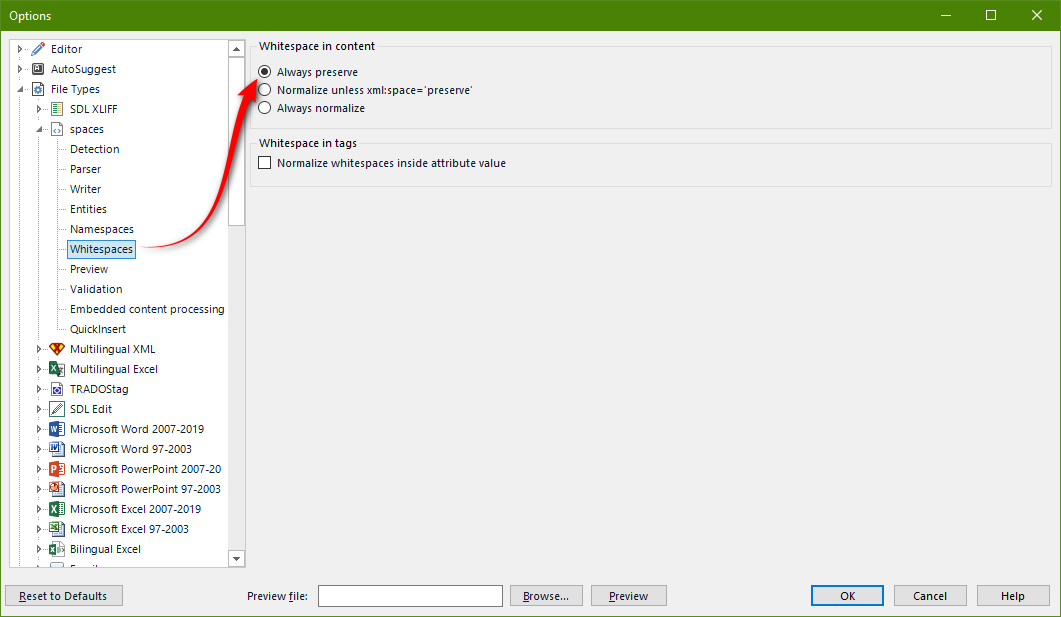
I am translating an xml file where I have set my file type. I would need the spaces in the source to be also in the target. I have set Whitespaces in content: Always preserve, but I don't see them in the translation panel.


Screenshot showing XML code with source tags and a segment of text without visible spaces.Trados Studio translation panel displaying lines 28 to 30 with the words 'Remove procedure', 'and', 'VHF antenna' and error icons indicating issues with the translation.

Thank you for your help


Generated Image Alt-Text
[edited by: Trados AI at 10:49 AM (GMT 0) on 29 Feb 2024]

emoji
Parents
  • Hi Jan,

    It seems that you have already set the \"Whitespaces in content: Always preserve\" option, but you are still not seeing the spaces in the translation panel. To make the whitespace characters visible in the translation panel, you can follow these steps:


    On the Home ribbon, click the \"Show Whitespace Characters\" button. This will display the whitespace characters in the translation panel.


    If you want to change this setting in the default project template, follow these steps:
    a. Select File > Options or press Alt+F10, F, T to open the Options dialog box.
    b. Select \"Editor\" in the left pane.
    c. In the right-hand pane, select \"Show whitespace characters in the Side-by-side Editor area. By following these steps, you should be able to see the whitespace characters in the translation panel. If you still face issues, you can try copying the source to the target (Ctrl+Insert or SDLX F4) and then type over the non-tokenized text. This will help you maintain the spaces from the source in the target translation."

    I hope this helps to solve your issue

    emoji
Reply
  • Hi Jan,

    It seems that you have already set the \"Whitespaces in content: Always preserve\" option, but you are still not seeing the spaces in the translation panel. To make the whitespace characters visible in the translation panel, you can follow these steps:


    On the Home ribbon, click the \"Show Whitespace Characters\" button. This will display the whitespace characters in the translation panel.


    If you want to change this setting in the default project template, follow these steps:
    a. Select File > Options or press Alt+F10, F, T to open the Options dialog box.
    b. Select \"Editor\" in the left pane.
    c. In the right-hand pane, select \"Show whitespace characters in the Side-by-side Editor area. By following these steps, you should be able to see the whitespace characters in the translation panel. If you still face issues, you can try copying the source to the target (Ctrl+Insert or SDLX F4) and then type over the non-tokenized text. This will help you maintain the spaces from the source in the target translation."

    I hope this helps to solve your issue

    emoji
Children