How to make Trados System UI Font Larger (not editor font)

Is there a way to make the UI/System font for Trados larger? I know how to change the editor font size, and the system wide font size on Windows. But for some reason Trados UI is like a size 6 font and I can't find anywhere to change that or to get it to abide by Windows settings. It doesn't allow to zoom in either. Please help!

Thank you!

emoji
Parents
  • Hi  

    What windows OS are you using? As well as what Studio version?

    Without a screen print, context is unclear but if its what I have seen in the past.

    I have seen screens were were some / all of the UI is so small a user cant easily view what is happening. Some have managed to fix this be addressing local configuration settings. 

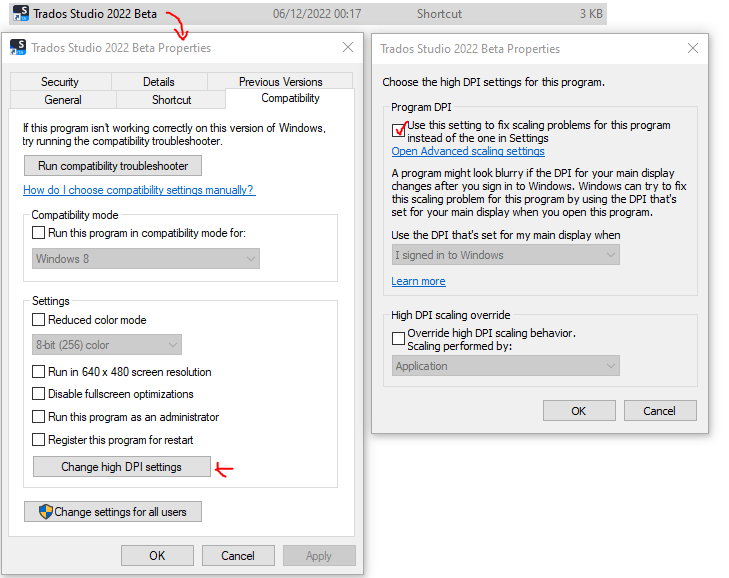
    Please can you right click on Studio.exe or shortcut, access its properties. Then DIP settings and lets see what is enabled for you. See screen print below 

    Trados Studio 2022 Beta Properties window with Compatibility tab open, showing settings with 'Run this program in compatibility mode for: Windows 8' selected and 'Change high DPI settings' button highlighted. 

    Let me know how you get on

    Lyds

    Oana Nagy | QA Engineer | RWS Group

    emoji


    Generated Image Alt-Text
    [edited by: Trados AI at 10:08 AM (GMT 0) on 29 Feb 2024]
Reply
  • Hi  

    What windows OS are you using? As well as what Studio version?

    Without a screen print, context is unclear but if its what I have seen in the past.

    I have seen screens were were some / all of the UI is so small a user cant easily view what is happening. Some have managed to fix this be addressing local configuration settings. 

    Please can you right click on Studio.exe or shortcut, access its properties. Then DIP settings and lets see what is enabled for you. See screen print below 

    Trados Studio 2022 Beta Properties window with Compatibility tab open, showing settings with 'Run this program in compatibility mode for: Windows 8' selected and 'Change high DPI settings' button highlighted. 

    Let me know how you get on

    Lyds

    Oana Nagy | QA Engineer | RWS Group

    emoji


    Generated Image Alt-Text
    [edited by: Trados AI at 10:08 AM (GMT 0) on 29 Feb 2024]
Children
  • Hi Lydia,

    Thank you for responding, I am using Windows 10 and Trados Studio 2021 SR2 - 16.2.9.9198

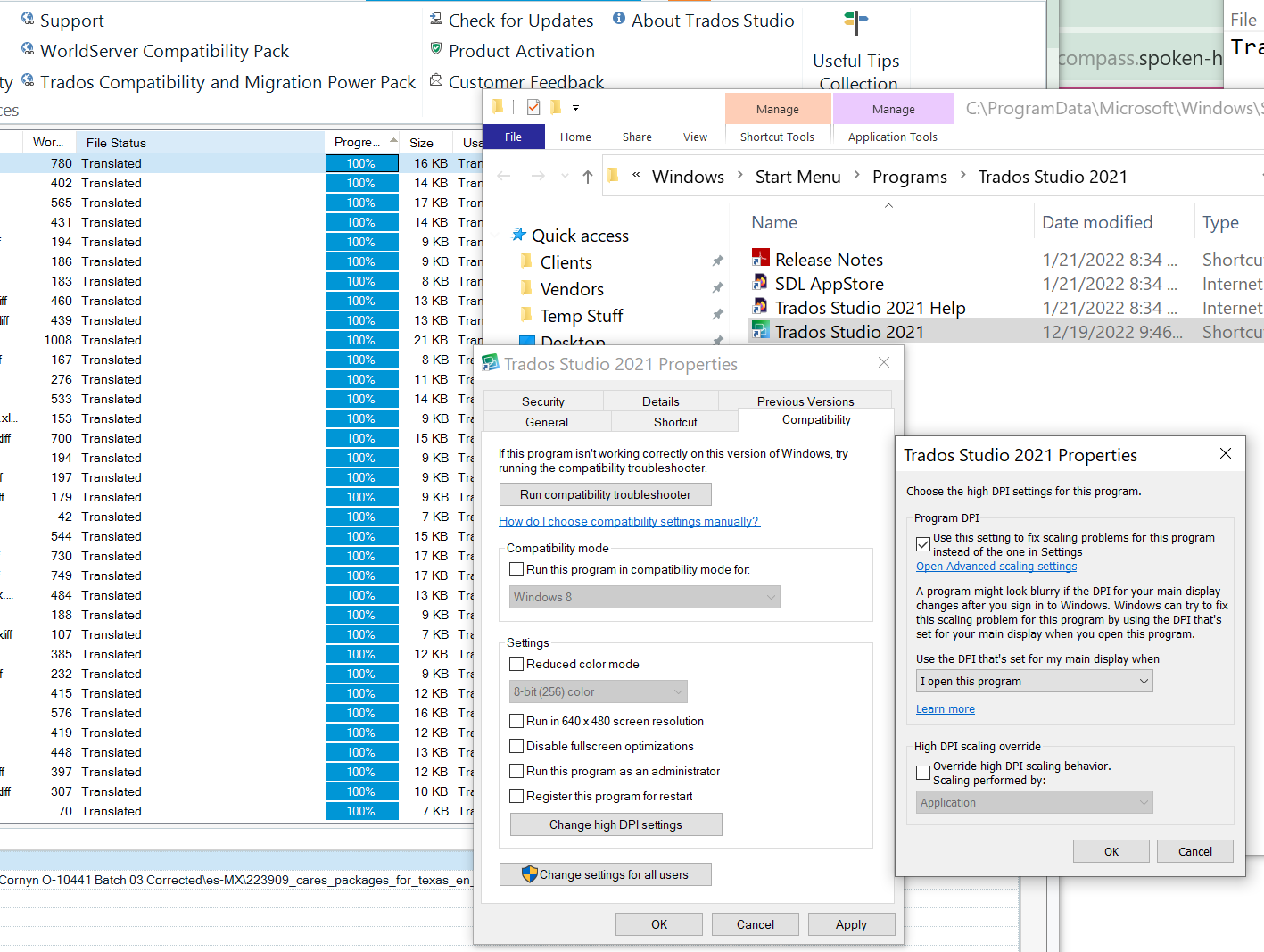
    You can see in this snippet the difference in the font size between my system and the Trados UI - it is so tiny it is very difficult to read. Please let me know if there is something in this are I should try to change:

    Screenshot showing Trados Studio 2021 with tiny UI font size compared to larger system font size on Windows 10 settings.

    emoji


    Generated Image Alt-Text
    [edited by: Trados AI at 10:09 AM (GMT 0) on 29 Feb 2024]
  • I have exactly the same issues. The UI font size is that tiny that I somethimes just cannot see what's there.

    I have tried the settings as described by Lydia, but this hasn't helped.

    I'm using a Mac with the latest OS and Windows 11.

    I was able to figure this out on my old Mac with windows 10. But Windows 11 is acting kind of weird when changing the scale of the monitor. I changed it to a higher number (350%) but now Im not able to change it back to it's initial setting. But this change hasn't helped for Trados either.

    Is there any solution?

    Regards

    Stefanie

    Trados Studio screenshot showing the 'Projekteinstellungen' tab with small UI font size, making text difficult to read.

    emoji


    Generated Image Alt-Text
    [edited by: Trados AI at 10:09 AM (GMT 0) on 29 Feb 2024]