You are currently working on UAT 

Why isn’t Studio 2019 cancelling TM lookup after segment confirm?

Hi

I have this really annoying behaviour since I upgraded to Trados 2019 (one that is really making me regret upgrading).

When I translate, and Trados is looking for TM matches, sometimes it takes so long to come up with a result (or no result at all after several seconds) that it’s faster to just translate the segment, whether there is a TM match or not. That happens when working with server TMs, and it happened before on 2015 if the server is too slow. That’s not really what I’m complaining about though.

When working with 2015, if I validated a segment before the lookup was finished, it would just cancel the lookup and look for the next segment, which is the obvious thing to do. So I wonder why 2019 doesn’t do that. It stacks all the subsequent lookups and do them in order, creating a big stack of lookups that are totally useless. I sometimes have more than 10 segments awaiting to be searched for, which is really pointless, and makes the whole TM feature useless (and as far as I remember, that was kind of one of the most important features of Trados).

Is there something I missed in the settings, a box that should be un/checked?

Thanks

Parents
  • Hello @

    There are a few things that you can do to improve the speed and over all performance.

    As I believe you may have your TM's on a server- 

    That happens when working with server TMs, and it happened before on 2015 if the server is too slow.

    Then please ensure that you have white listed your Studio and MultiTerm applications on your AV exceptions list.

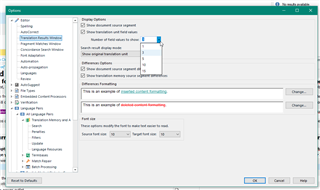
    Now go to your project settings- Editor- Translation results window and maybe lower the number of fied values to show

    Trados Studio options window showing Editor settings with a dropdown menu for 'Number of field values to show' set to 1.

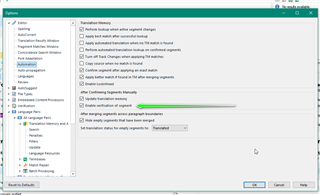
    Now maybe check that you have LookAhead enabled 

    Trados Studio options window displaying Translation Memory settings with 'Enable LookAhead' option checked.

    Another reason for slow TM lookup might be that your TM's are not optimised.

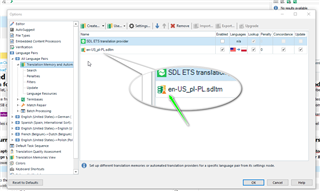
    If you see the following  (orange triangle)...

    Trados Studio showing an SDL ETS Translation Provider with a green arrow pointing to the file name 'en-US_PL.sdlitm'.

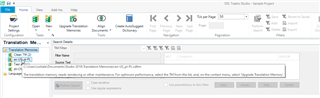
    Then I would suggest upgrading your Translation memories (depending on the size- you should set some time aside for this)

    Trados Studio Translation Memories window with an orange triangle warning symbol indicating the need to upgrade Translation Memory for optimal performance.

    Let me know if this helps you.

    Oana Nagy | QA Engineer | RWS Group

    emoji


    Generated Image Alt-Text
    [edited by: Trados AI at 7:25 PM (GMT 0) on 28 Feb 2024]
Reply
  • Hello @

    There are a few things that you can do to improve the speed and over all performance.

    As I believe you may have your TM's on a server- 

    That happens when working with server TMs, and it happened before on 2015 if the server is too slow.

    Then please ensure that you have white listed your Studio and MultiTerm applications on your AV exceptions list.

    Now go to your project settings- Editor- Translation results window and maybe lower the number of fied values to show

    Trados Studio options window showing Editor settings with a dropdown menu for 'Number of field values to show' set to 1.

    Now maybe check that you have LookAhead enabled 

    Trados Studio options window displaying Translation Memory settings with 'Enable LookAhead' option checked.

    Another reason for slow TM lookup might be that your TM's are not optimised.

    If you see the following  (orange triangle)...

    Trados Studio showing an SDL ETS Translation Provider with a green arrow pointing to the file name 'en-US_PL.sdlitm'.

    Then I would suggest upgrading your Translation memories (depending on the size- you should set some time aside for this)

    Trados Studio Translation Memories window with an orange triangle warning symbol indicating the need to upgrade Translation Memory for optimal performance.

    Let me know if this helps you.

    Oana Nagy | QA Engineer | RWS Group

    emoji


    Generated Image Alt-Text
    [edited by: Trados AI at 7:25 PM (GMT 0) on 28 Feb 2024]
Children
  • Hi Steven

    Thanks for your answer

    I checked all this but:
    - 3 field values is the minimum I can show to be useful. I often choose the second or third
    - LookAhead is checked, but "Enable Verification" is not, simply because it drags even more when it’s enable (it checks with server TM, which takes sometimes up to 30s, and I can’t edit the next segments during verification). Actually, I should try by deactivating LookAhead; it has a hard time catching up with me, so maybe be deactivating it, it will focus more on the current segment.
    - Finally, I always optimize the project TMs. But the problem is not the TMs I add, it’s the server ones that I have no control over.