You are currently working on UAT 

Is it possible to restore segments to initial status?

We received a project package with machine translations. While translating in SDL Studio the program suddenly crashed, so our progress wasn’t saved. When reopening the project in Studio, we noted that the segments were saved in the translation memory. So Studio automatically filled in the segments with the previous translations. However, the status of the segments was changed. First it was AT, but after the crash and refilling myloweslife the segments, the status was now CM or 100%. My question is, is it possible to change the status of these affected segments back to AT?

Parents
  • Hello ,

    Im not quite sure which version of Studio you are using- but normally (in Studio 2019) the file is autosaved every 10 minutes meaning you shouldn't be able to lose too much . So first of all, I  would probably check your project folder for the target files.

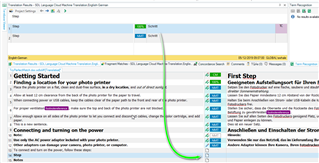
    When you confirm a segment in the Editor, this is then saved to the TM- hence the CM/100% matches.

    Depending on the size of the document, you could delete the CM/100% segments from your TM- then create a new project and run the file again using AT. This should then give you the AT segments as before.

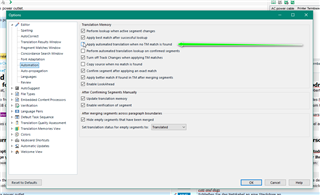
    Or if using tjhe TM- disable....

    Trados Studio options menu with 'Translation Memory and Automated Translation' settings, highlighting 'Apply automated translation where no TM match is found'.

    Then you can choose the CM/100% or AT 

    Trados Studio Editor view showing a segment confirmed with a green checkmark, indicating it's saved to the TM with CM100% match.

    and then choose which option you prefer.

    Oana Nagy | QA Engineer | RWS Group

    emoji


    Generated Image Alt-Text
    [edited by: Trados AI at 7:23 PM (GMT 0) on 28 Feb 2024]
Reply
  • Hello ,

    Im not quite sure which version of Studio you are using- but normally (in Studio 2019) the file is autosaved every 10 minutes meaning you shouldn't be able to lose too much . So first of all, I  would probably check your project folder for the target files.

    When you confirm a segment in the Editor, this is then saved to the TM- hence the CM/100% matches.

    Depending on the size of the document, you could delete the CM/100% segments from your TM- then create a new project and run the file again using AT. This should then give you the AT segments as before.

    Or if using tjhe TM- disable....

    Trados Studio options menu with 'Translation Memory and Automated Translation' settings, highlighting 'Apply automated translation where no TM match is found'.

    Then you can choose the CM/100% or AT 

    Trados Studio Editor view showing a segment confirmed with a green checkmark, indicating it's saved to the TM with CM100% match.

    and then choose which option you prefer.

    Oana Nagy | QA Engineer | RWS Group

    emoji


    Generated Image Alt-Text
    [edited by: Trados AI at 7:23 PM (GMT 0) on 28 Feb 2024]
Children
No Data