You are currently working on UAT 

Trados 2019 unusable - keeps freezing

Hello,

Since this morning, I can't use Trados at all: it freezes every time I try to open a file. I did ctrl alt suppr multiple times and tried restarting my computer, in vain.

I've had freezing problems since I updated my 2019 version, but never took the time to take care of it. Usually one ctrl alt suppr did the job.

But today I have been completely stuck for hours and have urgent projects to deal with and. Could someone help?

Thanks a lot in advance!

Parents
  • Hi Frédérique Rey

    Firstly, have you updated MultiTerm to the latest version also? If not, you need to. You can check for updates by opening MultiTerm and clicking on the Help tab and 'Check for Updates'. A notification should appear then you can proceed with installing the update.

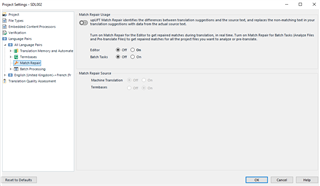
    Ir this is happening with a particular project, it can help to turn off Match Repair in the Project settings of the project that is misbehaving, here:
    Trados Studio Project Settings dialog box with Match Repair option highlighted, showing options to turn it on or off.

    If that doesn't help, I suggest that you try a Windows Repair of Studio:

    1. Close all SDL applications.
    2. Open the Control Panel:
      • Windows Vista/7: Start > Control Panel > Programs > Programs and Features.
      • Windows 8: Right-click on the screen at bottom-left corner and choose Control Panel > Uninstall a Program.
      • Windows 10: Right-click on Start > Control Panel > Select View by: Small Icons > Programs and Features
      • - or type 'Control Panel' in the search line on your bottom Windows toolbar.
    3. Click/highlight the relevant SDL product from the list (e.g. SDL Trados Studio 2019 etc) and click 'Repair' either on the top toolbar or on the right-click dropdown menu.
    4. Restart Studio.
    That usually helps the sort of problem you're experiencing, i.e. that occur after an update/upgrade.
    There are further repair & reset instructions here:
    Or you can cut to the chase and simply try reinstalling Studio. Actually in your case, as it's the installation of the update that has triggered this problem), then you already have the right to contact Installation Help free of charge, here:

    installation and licensing help

    Select 'Installation' from the 'Case type' dropdown menu.

    Someone will help in the next day or two if you give your correct email address.

    All the best,

    Ali :)

    emoji


    Generated Image Alt-Text
    [edited by: Trados AI at 7:20 PM (GMT 0) on 28 Feb 2024]
Reply
  • Hi Frédérique Rey

    Firstly, have you updated MultiTerm to the latest version also? If not, you need to. You can check for updates by opening MultiTerm and clicking on the Help tab and 'Check for Updates'. A notification should appear then you can proceed with installing the update.

    Ir this is happening with a particular project, it can help to turn off Match Repair in the Project settings of the project that is misbehaving, here:
    Trados Studio Project Settings dialog box with Match Repair option highlighted, showing options to turn it on or off.

    If that doesn't help, I suggest that you try a Windows Repair of Studio:

    1. Close all SDL applications.
    2. Open the Control Panel:
      • Windows Vista/7: Start > Control Panel > Programs > Programs and Features.
      • Windows 8: Right-click on the screen at bottom-left corner and choose Control Panel > Uninstall a Program.
      • Windows 10: Right-click on Start > Control Panel > Select View by: Small Icons > Programs and Features
      • - or type 'Control Panel' in the search line on your bottom Windows toolbar.
    3. Click/highlight the relevant SDL product from the list (e.g. SDL Trados Studio 2019 etc) and click 'Repair' either on the top toolbar or on the right-click dropdown menu.
    4. Restart Studio.
    That usually helps the sort of problem you're experiencing, i.e. that occur after an update/upgrade.
    There are further repair & reset instructions here:
    Or you can cut to the chase and simply try reinstalling Studio. Actually in your case, as it's the installation of the update that has triggered this problem), then you already have the right to contact Installation Help free of charge, here:

    installation and licensing help

    Select 'Installation' from the 'Case type' dropdown menu.

    Someone will help in the next day or two if you give your correct email address.

    All the best,

    Ali :)

    emoji


    Generated Image Alt-Text
    [edited by: Trados AI at 7:20 PM (GMT 0) on 28 Feb 2024]
Children