You are currently working on UAT 

Project templates revert to previous config after Windows reboot

So, when doing the initial configuration of Studio after a recent OS reinstall (or rather PC swap, but let's keep it simple), I messed around with the project template files in the SDL directory, trying to copy my backed up templates from the former PC. I can't tell you now what I did and did not exactly as I encountered some complications and can't really trace back all the hassle I engaged in, but the bottom line now is that I see the templates revert to a previous situation after every Windows reboot, meaning: I recently configured (again) two templates by editing the default one and creating a new one from scratch, then rebooted the PC and what I'm seeing now is one of my templates safely in place, and the default template having reverted to its default setting.

Sorry if my explanation is a bit messy, I hope you get the general idea. The thing is: I could try repairing or reinstalling Studio (though I surely would prefer avoiding wasting time on that), but I'm not sure if it will even help as reinstalls often tend to preserve the "soft" configuration files of users, such as templates, keyboard shortcuts etc.

Another thing I noticed after installing Studio on my PC was that the initial configuration ("Welcome" or whatever) window came up about three times, which is obviously erroneous. So it looks a bit like my copy of Studio for some reason has problems with embedding itself properly into the Windows registry or something.

Any ideas? I'm super tired of reconfiguring my templates all the time.

Parents Reply Children
  • Hello ,

    The default template is loaded in a new installation when the option 'load sample files' is selected, so if you dont select the sample files (this option is only available on new installs) then the default template wont be loaded.

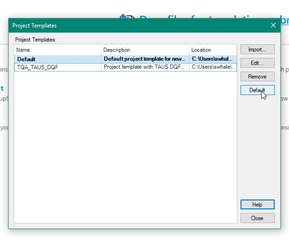
    Of course if you don't want the default out of the box template- simply delete this-

    Trados Studio Project Templates window showing 'Default' and 'TQA_Taus' templates with 'Delete' button highlighted.

    Now when you create the project, you will only (in this instance) have the option of the TQA_Taus template.

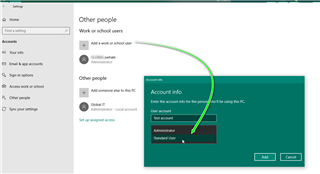
    On the question of ensuring you are working as admin- you can check this under the Windows account Settings

    e.g

    Windows account settings highlighting 'Administrator' and 'Standard User' options with an arrow pointing to 'Add account' button.

    Here there are two accounts on my machine-

    Mine with local install admin rights and then of course the corporate IT department.

    There is then the option of adding another user account (Admin or Standard).

    Under Standard settings- there would normally be restricted write/installation rights meaning a standard user by default wouldnt have admin rights (needed for installing software).

    Now moving on to Studio-

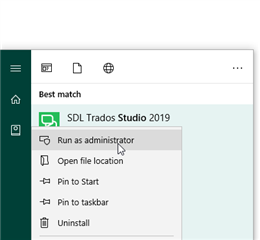
    You can start Studio by simply clicking the icon- but this is normal user rights which dont imply admin rights.

    To ensure Studio is running under admin rights- you need to right click and then run as admin

    Search menu with 'SDL Trados Studio 2019' application selected and 'Run as administrator' option visible.

    Oana Nagy | QA Engineer | RWS Group

    emoji


    Generated Image Alt-Text
    [edited by: Trados AI at 7:02 PM (GMT 0) on 28 Feb 2024]