You are currently working on UAT 

Rant: Studio 2019 Project Wizard

 I cannot believe this wizard was not out the window in the last update! I am sick and tired of being unable to create simple project files folders, and keep getting error messages that "the file/folder already exists" even after I deleted it in windows explorer, not to mention a renaming, an impossible task. I am sick and tired of hard restarts because of that. I am sick and tired of the annoying messages when I change the project template. I am sick and tired of getting file processing error messages in the wizard that do no come up when processing a file not through the wizard. That wizard is awful. Take it away.

Sorry for the tone, that wizard is just...too much for August!

Shmuel

Parents
  • Hi

    The Studio 2019 project wizard has worked perfectly for me right from the very first beta. I therefore can't reproduce this problem you've been having.

    Firstly, is your version of MultiTerm also up to date? You can find this out by opening MultiTerm then going to the Help tab and clicking 'Check for Updates'.

    Next, have you run a Windows Repair on Studio recently? Or have you tried reinstalling? This can sometimes be all it takes to cure a problem caused by software/environment clashes. Here's how to do both:

    First, try a Windows Repair of Studio and MultiTerm components, as here:

    1. Close all SDL applications.
    2. Open the Control Panel:
      • Windows Vista/7Start > Control Panel > Programs > Programs and Features.
      • Windows 8: Right-click on the screen at bottom-left corner and choose Control Panel > Uninstall a Program.
      • Windows 10: Right-click on Start > Control Panel > Select View by: Small Icons > Programs and Features
      • - or type 'Control Panel' in the search line on your bottom Windows toolbar.
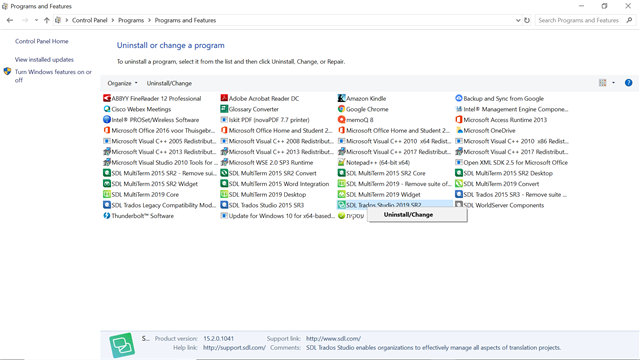
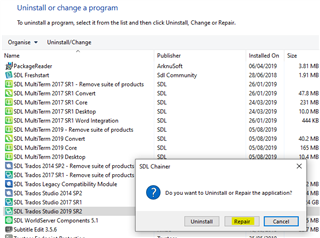
    3. Click/highlight the relevant SDL product from the list (e.g. SDL Trados Studio 2019 etc) and click 'Repair' either on the top toolbar or on the right-click dropdown menu.
    4. Restart Studio/MultiTerm.
    If that doesn't help, try reinstalling both products.
    If that doesn't work, then you have the right to contact Installation Help free of charge, here:

    installation and licensing help

    Select 'Installation' from the 'Case type' dropdown menu.

    Someone will help in the next day or two if you give your correct email address.

    It would be good if you could share the solution here when the help team find it... Thanks!

    All the best,

    Ali :)

  • Further to my last comment, the option 'repair' is, strangely, not available for Studio 2019 SR2. So I cannot even attempt you suggested solution,

  • Hi again 

    Ah, OK, you have the very latest version of Windows.

    It is available but you have to look for it in the older interface... Type 'Control Panel' in your 'Type here to search' line next to your Windows button bottom left of your screen.

    Then click on 'Control panel desktop app' and you should be able to follow the instructions above from there...

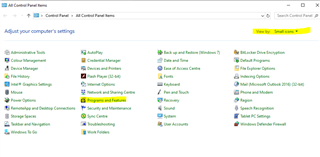
    It may be necessary to click on 'Small icons' then the following screen will appear:

    Control Panel window with 'View by: Small icons' selected. 'Programs and Features' is highlighted among other system settings options.

    then click on Programs and Features and follow the instructions I gave above.

    Looking forward to hearing if it helps... 

    Ali Slight smile

    emoji


    Generated Image Alt-Text
    [edited by: Trados AI at 5:39 PM (GMT 0) on 28 Feb 2024]
Reply Children