You are currently working on UAT 

Can I undo a segment merge?

I would have thought that clicking Undo would be enough, but it doesn't seem to work!

In a translation in Studio 2019, I merged 3 segments (having first enabled this in Project Settings), but then I realized this would mess up the formatting too much. So I would like to undo the merge - but the segments seem to have disappeared. The numbers in the left-hand column jump straight from 44 to 48, and the text of the source segments is nowhere to be found.

When I click undo (ctrl+Z), all my other actions can be undone, but the segment merge doesn't appear in the list of actions.

Any insights?

Thanks very much in advance!

Parents
  • Hi

    I would have expected Ctrl+Z to undo a merge... in fact I'm pretty sure I did this in the past.  But maybe I'm dreaming!

    So I did a quick test to see if there is a workaround, and with 2019 you could do this messy workaround if it's really important to you.

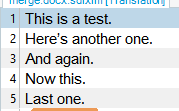
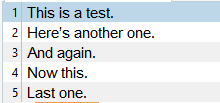
    Started here:

    Initial Trados Studio screen showing five separate lines of text numbered 1 to 5.

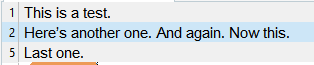
    merged like this:

    Trados Studio screen after merging lines, showing three lines of text with the second line containing merged content.

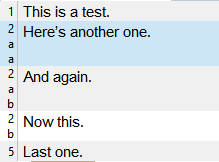
    Then manually split as a last resort undo:

    Trados Studio screen displaying manually split lines of text with sub-numbering for the previously merged content.

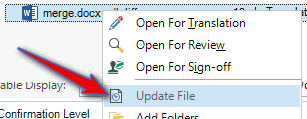
    Now use this update file feature (only available in 2019) and reselect the source file (it's in the right-click menu and further down the list ... some artistic licence by me to keep the screenshots short):

    Trados Studio right-click menu with an arrow pointing to the 'Update File' option.

    That will update the file with all your translations to get you back to where you were, but now like this again:

    Trados Studio screen showing the restored separate lines of text numbered 1 to 5 after using the 'Update File' feature.

    Seems to work... but give it a test with a test project and see what you think.

    Paul Filkin | RWS

    Design your own training!
    You've done the courses and still need to go a little further, or still not clear? 
    Tell us what you need in our Community Solutions Hub

    emoji


    Generated Image Alt-Text
    [edited by: Trados AI at 4:22 PM (GMT 0) on 28 Feb 2024]
Reply
  • Hi

    I would have expected Ctrl+Z to undo a merge... in fact I'm pretty sure I did this in the past.  But maybe I'm dreaming!

    So I did a quick test to see if there is a workaround, and with 2019 you could do this messy workaround if it's really important to you.

    Started here:

    Initial Trados Studio screen showing five separate lines of text numbered 1 to 5.

    merged like this:

    Trados Studio screen after merging lines, showing three lines of text with the second line containing merged content.

    Then manually split as a last resort undo:

    Trados Studio screen displaying manually split lines of text with sub-numbering for the previously merged content.

    Now use this update file feature (only available in 2019) and reselect the source file (it's in the right-click menu and further down the list ... some artistic licence by me to keep the screenshots short):

    Trados Studio right-click menu with an arrow pointing to the 'Update File' option.

    That will update the file with all your translations to get you back to where you were, but now like this again:

    Trados Studio screen showing the restored separate lines of text numbered 1 to 5 after using the 'Update File' feature.

    Seems to work... but give it a test with a test project and see what you think.

    Paul Filkin | RWS

    Design your own training!
    You've done the courses and still need to go a little further, or still not clear? 
    Tell us what you need in our Community Solutions Hub

    emoji


    Generated Image Alt-Text
    [edited by: Trados AI at 4:22 PM (GMT 0) on 28 Feb 2024]
Children