You are currently working on UAT 

Alignment Edit Mode grayed out

Hello, I have started using my newly purchased Studio 2019. I tried to use the option of alignment to create my TM, however, I can't seem to have the option of "Alignment Edit Mode", when I looked for it manually, it was grayed out. Any suggestions? Thanks!!

Parents
  • Hello  ,

    The only reason I can think of that the alignment is greyed out, would be id you are using a Starter version (which has no alignment function).

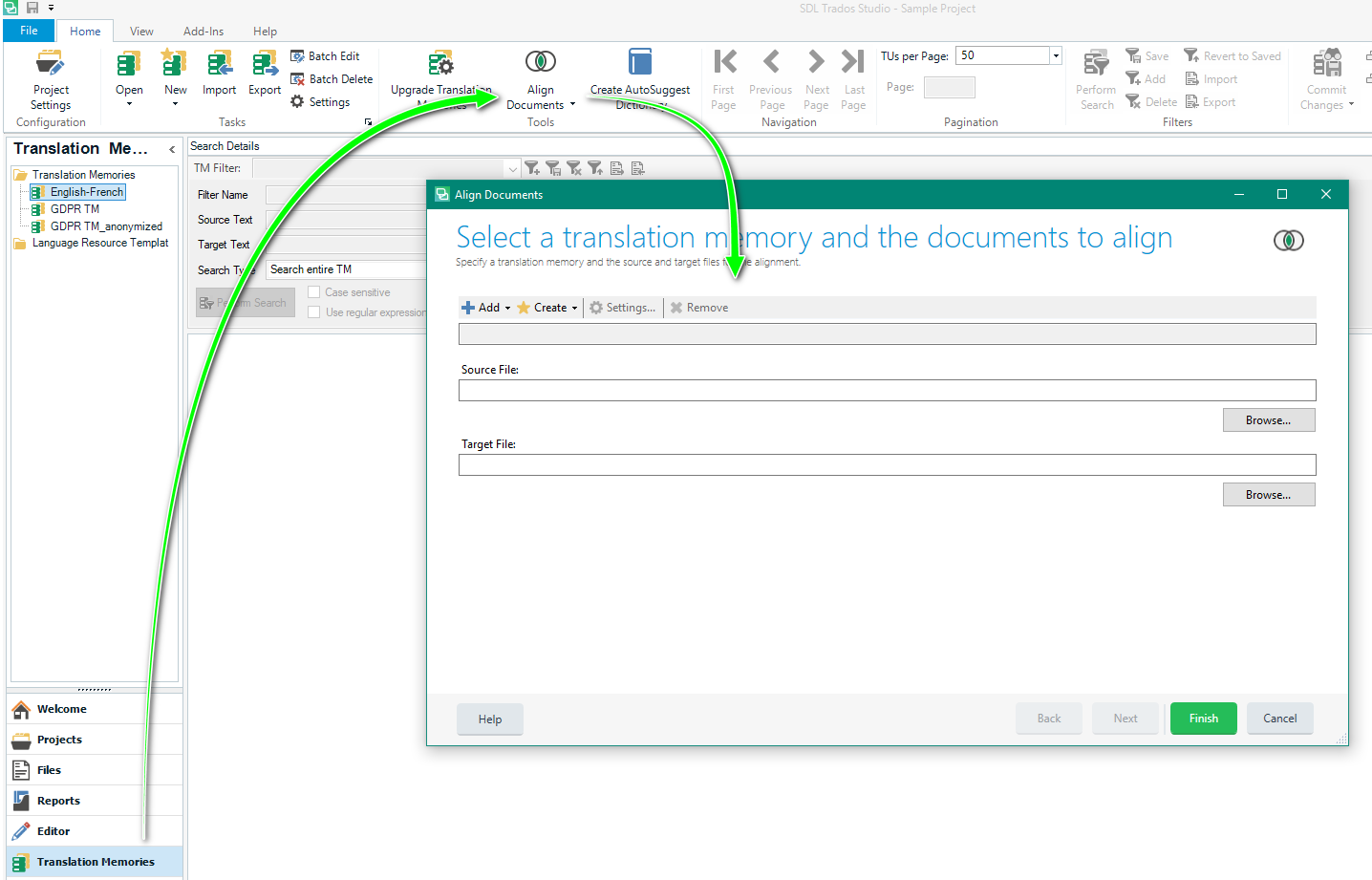
    In Freelance/Pro versions- you should be seeing something like this

    Screenshot of Trados Studio showing the alignment function active with a green arrow pointing to 'Align Documents' under 'Translation Memories' tab.


    Maybe you can post a screen shot of what you are seeing.

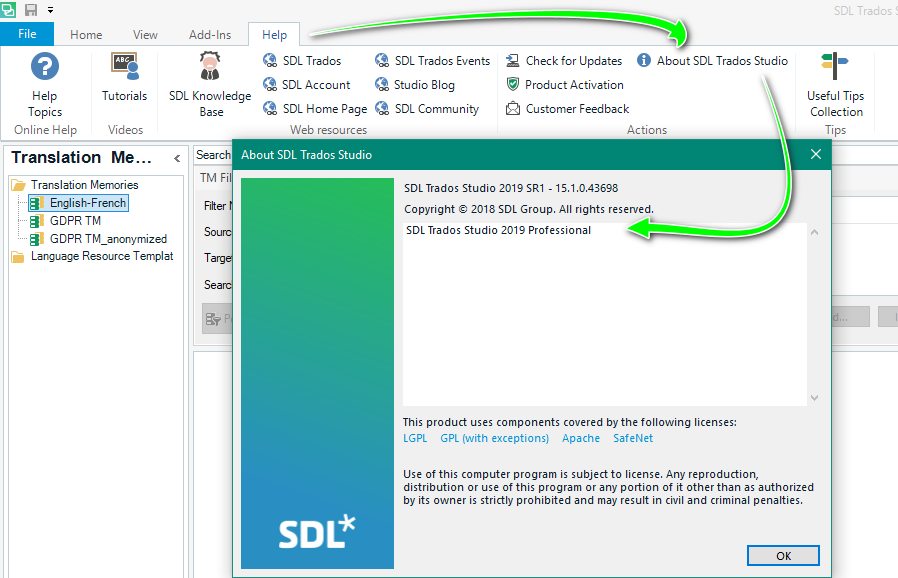
    Also you can check the version here-

    Screenshot of Trados Studio 'About' window displaying the version as 'SDL Trados Studio 2019 SR2 - 15.2.0.1041' with a green arrow highlighting the version information.


    Oana Nagy | QA Engineer | RWS Group

    emoji


    Generated Image Alt-Text
    [edited by: Trados AI at 6:21 PM (GMT 0) on 28 Feb 2024]
  • Hello Steven,

    Thank you for taking the time to explain to me! I have indeed found that I am using "SDL Trados Studio 2019 Freelance". It does have the alignment option as you have shown in image #1. However, the option of "Alignment Edit Mode" is greyed out.

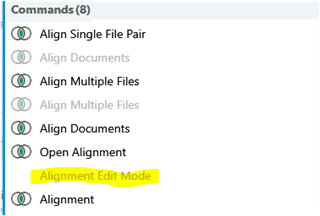
    SDL Trados Studio 2019 Commands menu with 'Alignment Edit Mode' option highlighted but greyed out and unclickable.


    As you can see in the second picture, it is not even available in the Alignment options, along with "Connect n:n" option.

    SDL Trados Studio toolbar showing unavailable 'Alignment Edit Mode' and 'Connect n:n' options greyed out.


    I followed the tutorial steps provided in the Education file I purchased with SDL exams. 

    1 - Align a single pair

    2 - create new TM + choose options

    3 - add my source and target files (from an old project). They are excel files. 

    4 - align. They are aligned perfectly as shown in the education file, and a video on SDL youtube. 

    Yet, the option seems to be not available for some reason? but for the time being, I working without :/

    emoji


    Generated Image Alt-Text
    [edited by: Trados AI at 6:21 PM (GMT 0) on 28 Feb 2024]
Reply
  • Hello Steven,

    Thank you for taking the time to explain to me! I have indeed found that I am using "SDL Trados Studio 2019 Freelance". It does have the alignment option as you have shown in image #1. However, the option of "Alignment Edit Mode" is greyed out.

    SDL Trados Studio 2019 Commands menu with 'Alignment Edit Mode' option highlighted but greyed out and unclickable.


    As you can see in the second picture, it is not even available in the Alignment options, along with "Connect n:n" option.

    SDL Trados Studio toolbar showing unavailable 'Alignment Edit Mode' and 'Connect n:n' options greyed out.


    I followed the tutorial steps provided in the Education file I purchased with SDL exams. 

    1 - Align a single pair

    2 - create new TM + choose options

    3 - add my source and target files (from an old project). They are excel files. 

    4 - align. They are aligned perfectly as shown in the education file, and a video on SDL youtube. 

    Yet, the option seems to be not available for some reason? but for the time being, I working without :/

    emoji


    Generated Image Alt-Text
    [edited by: Trados AI at 6:21 PM (GMT 0) on 28 Feb 2024]
Children