You are currently working on UAT 

Is there a way to move a specific word to the end of every segment in which it appears?

Is there a way to move a specific word to the end of every segment in which it appears?

Here's the deal: I am translating product descriptions for an Italian clothing manufacturer, from Italian into English. I am talking about THOUSANDS upon thousands of garments... And a typical segment consists of the product name (something random like “Amministratore”, “Anima” or whatever, not to be translated) followed by a summary description of the item.

For example:

AMMINISTRATORE BLUSA GEORGETTE VISCOSA STRETCH

This is to be translated as follows:

AMMINISTRATORE STRETCH VISCOSE GEORGETTE BLOUSE

Now, as you can see, much of the work can be done using the find/replace feature. The only thing is that the actual garment type (blouse, skirt, belt, bag, jacket, etc.) is always immediately after the name in Italian, while it will always go at the very end of the segment in English. So, what I'm hoping to do is replace every instance of, for example, “blusa” with “blouse”, AND move the word “blouse” to the end of the respective segment. This would save me TONS of time, so I'm wondering whether there's a way to do it automatically.

I figure this is a long shot but... what the heck! And of course, apologies if this has already been asked...

Thanks in advance,

Dave


Parents
  • There is a way! You need to use regular expressions in your Find and Replace dialog.

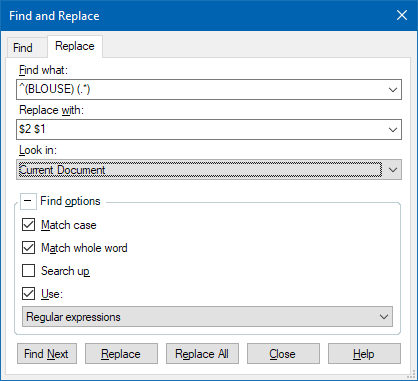
    For example, to move the word "BLOUSE" that appears at the beginning of a segment to the end, try the following:

    Trados Studio Find and Replace dialog box showing 'Find what: (BLOUSE)' and 'Replace with: $2 $1' with 'Regular expressions' checked.


    Find expression:

    ^(BLOUSE) (.*)

    Breakdown:

    ^ Indicates beginning of segment

    (BLOUSE) Grouped expression #1, the term to be moved, in parentheses. This allows the "group" (in this case, one word) to be moved as a unit during the replace operation.

      Space between the two grouped expressions.

    (.*) Grouped expression #2, containing any characters


    Replace expression:

    $2 $1

    Breakdown:

    $2 Grouped expression #2

      Space

    $1 Grouped expression #1


    emoji


    Generated Image Alt-Text
    [edited by: Trados AI at 3:48 PM (GMT 0) on 28 Feb 2024]
Reply
  • There is a way! You need to use regular expressions in your Find and Replace dialog.

    For example, to move the word "BLOUSE" that appears at the beginning of a segment to the end, try the following:

    Trados Studio Find and Replace dialog box showing 'Find what: (BLOUSE)' and 'Replace with: $2 $1' with 'Regular expressions' checked.


    Find expression:

    ^(BLOUSE) (.*)

    Breakdown:

    ^ Indicates beginning of segment

    (BLOUSE) Grouped expression #1, the term to be moved, in parentheses. This allows the "group" (in this case, one word) to be moved as a unit during the replace operation.

      Space between the two grouped expressions.

    (.*) Grouped expression #2, containing any characters


    Replace expression:

    $2 $1

    Breakdown:

    $2 Grouped expression #2

      Space

    $1 Grouped expression #1


    emoji


    Generated Image Alt-Text
    [edited by: Trados AI at 3:48 PM (GMT 0) on 28 Feb 2024]
Children