Translate



Hi,
I need to change the default languages. After uninstalling and reinstalling SDL Trados 2017, the software did not prompt for the 5 default languages.
How should I proceed?
My best,
Daniela
You are currently working on UAT

Hi,
I need to change the default languages. After uninstalling and reinstalling SDL Trados 2017, the software did not prompt for the 5 default languages.
How should I proceed?
My best,
Daniela


My guess is that it is the highest number, a view that is backed up by the following post giving the same solution based on the previous versions of Studio:
Changing languages without reinstalling
So... rename LDSRClient5 as LDSRClient5-old here in the registry:
HKEY_CURRENT_USER\Software\Microsoft\LDSRClient5
Give that a try.
If it doesn't work, go back into the registry and delete the 'old' or whatever suffix you used to rename it.
If that doesn't do it, though I think it will, then follow the link I gave you to installation help.
All the best,
Ali
My guess is that it is the highest number, a view that is backed up by the following post giving the same solution based on the previous versions of Studio:
Changing languages without reinstalling
So... rename LDSRClient5 as LDSRClient5-old here in the registry:
HKEY_CURRENT_USER\Software\Microsoft\LDSRClient5
Give that a try.
If it doesn't work, go back into the registry and delete the 'old' or whatever suffix you used to rename it.
If that doesn't do it, though I think it will, then follow the link I gave you to installation help.
All the best,
Ali
Excellent, Daniela Mochny , I'm so glad! You have a lovely day too! Ali :)
Which version of Studio are you using?
Ali :)
If you feel confident about editing the registry, here are instructions. Follow them precisely as editing the registry is a risky business...
Editing the registry key to remove 5 languages from Studio Freelance version
Close all SDL products.
In your 'Type here to search' window at bottom right of your screen, type 'regedit'.
Open the Registry Editor.
Either search manually:
The actual address is HKEY_CURRENT_USER\Software\Microsoft\LDSRClient5
Or click on 'Edit > Find' or use Ctrl+F
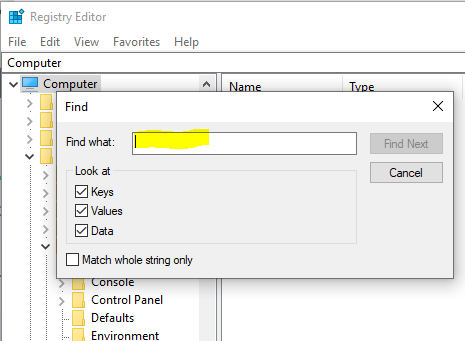
In the box that appears, type 'LDSRClient5' for Studio 2017 (it would be LDSRClient15 for Studio 2019 or 1,2,3or4 for earlier versions) then hit 'Find'
The search will take a while as the registry is very long and very complex:
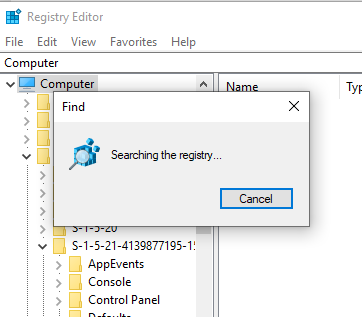
When the registry key appears, right-click on it and select 'rename'.
Add 'old' to the end of the LDSRClient5 name.
Close the registry.
Open Studio and you should find that it prompts you to add your 5 languages again. Note that you don't need to add more than one variant of any language as all other variants of that language will work once it has been added.
Only do this if you feel confident enough to change your PC registry. If not, contact installation support here:
Fill out the form, explain your problem, quote this post, and give them an accurate email address to contact you on and they can access your computer to change that setting for you.
All the best,
Alison