You are currently working on UAT 

Editing TB entries in Studio 2019 still doesn't work!

Hi,

One of the main reasons to buy me a new PC was that working with Trados was extremely slow and inefficient.

One of my problems was that when I tried to edit a TB entry in Studio by right-clicking I had the following phenomenon:

1) I do right click on the term I want to edit, then the window "Termbase Viewer" opens, with the text: "Loading termbases...". In this window, I see a rotating circle for about one minute, meanwhile Studio is frozen and I can't do anything, not even close this pop-up window.

2) After having passed one minute (sometimes even longer), the rotating circle disappears but the Termbase Viewer window remains empty.

3) I close this window, close the file being edited and re-open the file to edit.

4) I do the same as in point 1), but now the term list is being populated and I can edit the terms in "Default Layout". I close the little window where I edited the term hitting Enter or clicking on the checkmark and close the window "Termbase Viewer".


Now I have a BRANDNEW PC, a NEW OS (Win10), a NEW version of Studio (2019) - BUT THE OLD PROBLEMS!!!

Until the above point #3) everything is the same, only that in point 4) the following happens:

4) I make a right-click on the term to edit, the window "Termbase Viewer" opens, I edit the term in Default Layout and hit Enter.

5) I close the window "Termbase Viewer" but the edited term in the window "Term recognition" hasn't changed, it's still the un-edited version.

6) I close the file being edited again and re-open it, do right click on the term to edit and in the window "Termbase Viewer" there's still the version that I had edited before but in the window "Term recognition" there's still the un-edited version! THUS, IT'S WORSE THAN WITH 2017!


I DO have Studio and Multiterm up to date and my PC has almost nothing installed but Bitdefender, Chrome browser, Office 2019 and Trados.


WILL SDL EVER FIX THIS????


I had noticed a deterioration from Studio 2014 to 2017 in terms of speed and stability and it seems with 2019 it continues to worsen its versions...


A very desperate

Markus


Parents
  • Hi 

    A totally clean install is a good idea. If you'd like to try repairing and resetting first, take a look here:

    Performing the first suggestion, a Windows Repair, is helpful with any heavy-duty software, especially after an update. BTW, you can find Control Panel by typing it into the 'Type here to search' box next to the Windows button bottom left of your screen.
    Here are similar solutions for MultiTerm:
    I'm thinking, though, that a reset might be what you need and the instructions for resetting Studio and MultiTerm are in the above two links.
    If these suggestions don't help, then indeed try reinstalling.
    If that does not work, you can then get free help with installation issues that are preventing you from working, pretty fast:
    Fill in the form here:
    Select 'Installation' from the 'Case type' dropdown and tell them that the problems occurred after installation and, most importantly, give your correct email address so that they can contact you.
    I hope that you can find a solution in amongst all of the above!
    Alison ;-)
  • Hi Alison,
    I tried everything of the above proposed (even a complete re-install) but nothing helped. Other than that, I reorganized my termbase because it's an old one from Trados 2014, but no success either...
    I will now contact your installation help because I'm really frustrated. I mainly upgraded to Trados 2019 because I was hoping that my problems would be resolved, but they remain.... :-(
    Thanks for all your help!
    Best regards,
    Markus
  • Hi  

    If this is only happening with just the one termbase then it's very possible that it's that termbase that is causing the problem.

    To find this out, export the termbase and reimport it.

    The Glossary Converter app is an easy way to export and import termbases and that process can be used to smooth out any corruptions:

    Glossary Converter

    It's very good at converting termbases to Excel. You can check visually for errors in Excel then convert back to .sdltb termbase format, at which point an error message may flag up anything that isn't as it should be. Then you can look it up in the error log and pinpoint where it is, correct it and convert the termbase again...

    To know how to use the Glossary Converter, click on 'Learn how to use this app' on the above page ...

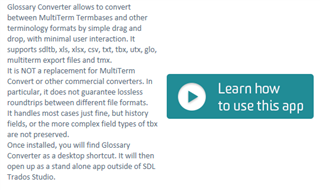
    Screenshot of Glossary Converter app description highlighting its ability to convert between MultiTerm Termbases and other terminology formats with minimal user interaction.

    I hope this helps!

    All the best,

    Alison

    emoji


    Generated Image Alt-Text
    [edited by: Trados AI at 3:45 PM (GMT 0) on 28 Feb 2024]
  • Hi Alison,

    First of all - thank you for your continued and prompt support! :-)

    Well, I downloaded and installed the Glossary Converter but after installing (and on every start) it shows an error message "Can't detect MultiTerm, using xdt/xml as termbase format instead." I don't know if this is important.

    Anyway, it's not that I have this problem with one specific termbase but with ALL of them! And I had this problem already with Studio 2017. But I thought with a completely new computer and a clean install of a new Trados these problems would be history, but I was mistaken. Actually, the best and most stable version of Studio was 2014. 2017 was crashing all the time with big projects and nobody could help me either. The only solution was auto-saving every 2 minutes...

    As for the current problem, as I have described it in my first entry, I can't edit immediately after launching a project/file. That's why with Studio 2017 I had already the habit to start a project/file, then trying to edit a termbase entry, wait one minute until the rotating circle had finished, close the file, restart it and work normally. But, honestly, is this a way to work efficiently with a state-of-the-art software as it's Trados???

    And as for reviewing my termbases visually in Excel, that's not so easy because they are pretty big. EN-DE is over 600 MB, FR-DE is about 195 MB and my two ES-DE are 76 and 28 MB, respectively. I don't know in entries, but I'm sure you can imagine it.

    So, please tell me if I can use the Glossary Converter with this error message or if I have to do something about it.

    Thank you very much again,
    Markus
  • Hi 

    The solution to this particular problem has been provided by , the creator of Glossary Converter, as follows:

    go to C:\Program Files (x86)\SDL\SDL MultiTerm\MultiTerm14
    and copy the following files to C:\Program Files (x86)\Common Files\SDL\MultiTerm14:

    Sdl.Enterprise2.Studio.Platform.Client.dll
    Sdl.Enterprise2.Platform.Contracts.dll

    and then delete all folders in:
    C:\ProgramData\SDL\Sdl.MultiTerm.Tools.GlossaryConverter

    See if you can solve the problem with that.

    Fingers crossed here...

    All the best,

    Ali

  • Hi Ali,
    Thanks again for your help, but at the moment I'm really busy and can't try your new propositions. Anyway, tomorrow morning your installation support will contact me and make a remote session to find out what's going wrong...
    I will report you later how it went, have a nice afternoon,
    Markus
Reply Children