You are currently working on UAT 

Can't open PDF

Hi, I'm a new SDL-Trados user. I've just translated a PDF using SDL-Trados and now I would like to export the translated file. I wasn't sure how to do this but went to Batch Tasks/Export Files and exported the file to my desktop. It appeared there in a folder labeled en-US. However, when I try to open the file using my PDF reader app, it refuses to open. The app just quits. Any idea how to resolve this issue?

Thanks, Daniel

Parents
  • Hi Daniel,

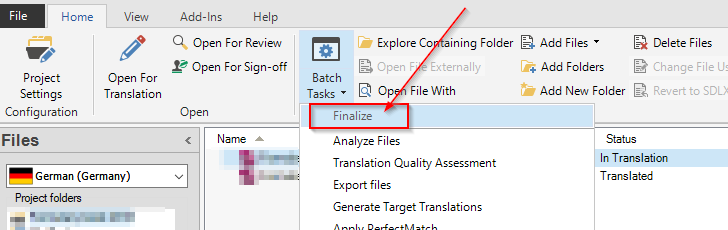
    in Studio you get your translated files in the correct formt by running the batch task "Finalize":

    Trados Studio interface showing the 'Batch Tasks' dropdown menu with an arrow pointing to the 'Finalize' option.

    In the following dialogue, click "Finish" unless you want to customize settings, then "Close" after the process is done.

    You will then be asked whether you want to open the folder containing the finalized files. Select "yes" and you will see the files. If this dialogue box does not come up, select "Explore containing folder":

    Close-up of the Trados Studio ribbon with the 'Help Topics' button highlighted in the 'Help' tab.

    It will be obvious which is the target file (in your case it will be a pdf) and which are Studio's files (sdlxliff).

    For me, there was a learning curve with Studio, but I want to make you aware of what in my eyes is part of the quality of the product, and that is the excellent documentation. Click "Help Topics" on the "Help" tab in the ribbon to get there. Also, there are many video tutorials especially covering the basic steps. If you are looking for help with a specific problem that is not covered by the above mentioned sources, try Paul's blog, which is a very good resource for the more in-depth issues: https://multifarious.filkin.com/

    Lots of fun!

    Daniel

    Daniel

    emoji


    Generated Image Alt-Text
    [edited by: Trados AI at 3:13 PM (GMT 0) on 28 Feb 2024]
Reply
  • Hi Daniel,

    in Studio you get your translated files in the correct formt by running the batch task "Finalize":

    Trados Studio interface showing the 'Batch Tasks' dropdown menu with an arrow pointing to the 'Finalize' option.

    In the following dialogue, click "Finish" unless you want to customize settings, then "Close" after the process is done.

    You will then be asked whether you want to open the folder containing the finalized files. Select "yes" and you will see the files. If this dialogue box does not come up, select "Explore containing folder":

    Close-up of the Trados Studio ribbon with the 'Help Topics' button highlighted in the 'Help' tab.

    It will be obvious which is the target file (in your case it will be a pdf) and which are Studio's files (sdlxliff).

    For me, there was a learning curve with Studio, but I want to make you aware of what in my eyes is part of the quality of the product, and that is the excellent documentation. Click "Help Topics" on the "Help" tab in the ribbon to get there. Also, there are many video tutorials especially covering the basic steps. If you are looking for help with a specific problem that is not covered by the above mentioned sources, try Paul's blog, which is a very good resource for the more in-depth issues: https://multifarious.filkin.com/

    Lots of fun!

    Daniel

    Daniel

    emoji


    Generated Image Alt-Text
    [edited by: Trados AI at 3:13 PM (GMT 0) on 28 Feb 2024]
Children
No Data