You are currently working on UAT 

TM size when converting from Studio 2011 to 2019

Hi all, and a Happy New Year!

I have been using Studio 2011 for years and recently purchased Studio 2019 via a group buy at proz.com. I have been spending the holidays upgrading my TMs from 2011 format to 2019 format using the wizard in Studio 2019 and plan to start using Studio 2019 right after the holidays. After it finished upgrading the TMs, I noticed something peculiar: The TMs in 2019 format are between 10% and 600% larger (that is, 6 times larger!) than the same TMs in 2011 format (and with basically the same number of TUs - an insignificant number of TUs would sometimes have disappeared during conversion). My 160 TMs (for individual end clients) total less than 6 GB in 2011 format, but almost 20 GB in 2019 format. This is quite a significant size difference - is this normal? I should mention that I converted all TMs in one batch using the same settings, including "Create output translation memory for each input translation memory". If this size increase means that the TMs are more efficient in 2019 format, then I don't mind at all - with Studio 2011, I often experienced that Studio would not find a TU which I had added to the TM a few minutes earlier while working on the same project. Will the 2019 format (or Studio 2019) fix this problem?

Also, I noticed that the upgrade process includes steps called Build Translation Model and Align Translation Units. What do they do? During the Build step the wizard showed a message saying "Analyzing X entries", where X is a number that went much higher than the number of TUs in the TM (it went to about 85 million for a TM with about 400,000 TUs) - why is that? And why is it necessary to align TUs in an existing TM?

Since I have already "gotten my hands dirty" with the upgrading of TMs, I thought I might do some cleaning up and administrative work on my TMs as well. One thing I would like to do is merge certain smaller TMs with one existing larger TM. The upgrade wizard in Studio 2019 contains a function for this (by using the setting "Create output translation memory for each language pair" and then running the wizard with only the TMs I want to merge). But is there any difference in the efficiency of the resulting TM if I convert several TMs in 2011 format to one TM in 2019 format using the wizard, compared to if I simply export a TMX file from each of the smaller TMs I want to merge with the large TM and import them into the large TM? In the latter case, I assume that it is better to export from TMs already converted to 2019 format?

Finally, is it possible/advisable to re-use project templates from Studio 2011 with 2019? I have templates for lots of clients and would rather not have to create them all from scratch, unless there are disadvantages (like missing out on new functionalities) by re-using them. And will it be possible to open projects (.sdlproj files) created with Studio 2011 in Studio 2019 without problems? I will basically do a "clean break" and not continue working on projects created in Studio 2011 with 2019, but in the future I might have to go back and check something in old projects - can I do that with Studio 2019?

Thanks a lot in advance for all replies!

Best regards,

Dennis

Parents
  • Hello  ,

    When upgrading your 2011 TM's  the Uplift feature is automatically applied to the TM's which will significantly increase the size of your TM's-

    This is normal behaviour and one of the new features of Studio 2019- allowing you noy only to benefit from full segment matches- but also 'fragment matches'

    https://www.sdltrados.com/products/trados-studio/uplift/ 

    The realigning of the TM's is also part of the upgrade process- Studio is only informing you of what is happening in the background- so nothing to worry about.

    Of course if you want to merge smaller TM's into one larger TM, then you can of course do so- however, I would probably suggest that you do not merge everything into one big TM but keep these separated based on the content (and make regular back-ups as TMX).

    Regarding 'templates' - 

    We would most certainly not recommend using 2011 templates (or from any legacy version in Studio) abut rather spend some time creating new templates to use in Studio 2019. This way you can ensure everything is compatible with Studio 2019.


    Oana Nagy | QA Engineer | RWS Group

  • Hi Steven,
    Thanks for the explanation about the TMs - I already experience the advantage of the new TM format, very nice!

    With regard to templates, I had actually already tried using a 2011 template with Studio 2019 when you replied, and it seems to work fine. Of course, I cannot see if I am missing out on anything, but I would expect Studio 2019 to simply ask me to fill in any information that is not included in the 2011 template files when I use the New Project wizard. I was thinking that the best solution might be to start with my 2011 templates, fill in any required information and then save a new version of the template when closing the New Project wizard to make sure that the 2011 templates get overwritten and upgraded to 2019 format as I use them the first time with 2019 - would this be a recommendable way to do it? Are you able to verify for sure whether or not I would miss any functionality by using this method?

    I also wanted to ask about something else - I don't know if it's OK for me to do this in my existing thread, but if not, please let me know, and I will create a new one. I have installed the AutoHotKey Manager plugin, but I cannot get it to work. I followed the instructions here: community.sdl.com/.../3171.ahk-plugin - including installing the Microsoft program. I then tried adding 2 scripts which I found on other Studio support pages:

    #IfWinActive ahk_exe SDLTradosStudio.exe
    ;------------------------------------------------------------------------------
    ;Go to next segment
    ;------------------------------------------------------------------------------
    ^{Down}::
    Send ^{PgDn}
    Send {Down}
    Send ^{PgUp}
    return

    and

    #IfWinActive ahk_exe SDLTradosStudio.exe
    ;------------------------------------------------------------------------------
    ;Go to previous segment
    ;------------------------------------------------------------------------------
    ^{Up}::
    Send ^{PgUp}
    Send {Up}
    Send ^{PgDn}
    return

    Their effect should be to enable Ctrl+Up/Down to move one segment up or down in a text (regardless of whether or not the segment is confirmed or not - for some reason, the default Ctrl+Up/Down keyboard shortcuts in Studio jumps to next/previous UNCONFIRMED segment even though this does not seem to be the intended behaviour), but they do not work. I even disabled the default Ctrl+Up/Down shortcuts in Studio's options in order to avoid conflicts, but this did not change anything. Can you (or anyone else) help with this, please? Of course, if anyone can tell me how to get the "normal" Studio shortcuts for "Move to Next/Previous Segment" to do exactly this rather than moving to next/previous unconfirmed segment, that would be a very acceptable solution as well!

    Thanks a lot in advance.

    Best regards,
    Dennis
  • Hello ,

    Thanks for getting back to me.
    I really would not recommend using old templates!
    This may save you time in the short term, but could end up costing far more longer term.
    Simply put its best to invest the time now and get properly setup, than not be able to work later.
    A good example of this would be for instance- if a new project contained files from the latest Office version/PDF's/IDML etc. that Studio 2011 simply cannot handle (meaning also the template is out of date).

    Unfortunately AHK is not something I can help you with (yet- still learning)- but others reading this thread should be able to.
    There is also a special thread for AHK questions
    community.sdl.com/.../400

    Oana Nagy | QA Engineer | RWS Group

Reply Children
  • Hi Steven,
    OK, you have convinced me - I will follow your advise and not re-use my 2011 templates. But this has caused a new problem! I have been trying to create some standard templates for various language combinations (pre-setting the TMs I want to use), but even though I have deleted the 2011 templates I had previously copied to the Studio 2019 templates folder, Studio refuses to let me edit certain templates. I press Create Project Template, enter a name (which has been used before, but that old template file is now deleted) and press Save, which works fine, but when I then click on Language Pairs in the Create Template wizard to set the TMs I want to use, Studio shows an error message saying "There is already a project template with the specified name". And this is true - because I created it a moment before! But why can't I edit its settings?

    Generally, is it better to create templates "in advance" in this way (using the Create Template wizard) or to save new templates each time I have created a project (from the New Project wizard)?

    I also noticed that there seems to be a significant difference in size of the standard SDL Trados template which is installed with Studio 2019. On my main computer I installed SR1 from scratch, but on my backup computer I installed the previous version and then updated it when SR1 was released. On my main computer, the template has a size of 18 KB, but on my backup computer it is only 2 KB. This seems strange - I haven't edited either.

    Also, just FYI, I posted my AutoHotKey Manager question in the thread you linked to.

    Thanks!
    BR,
    Dennis
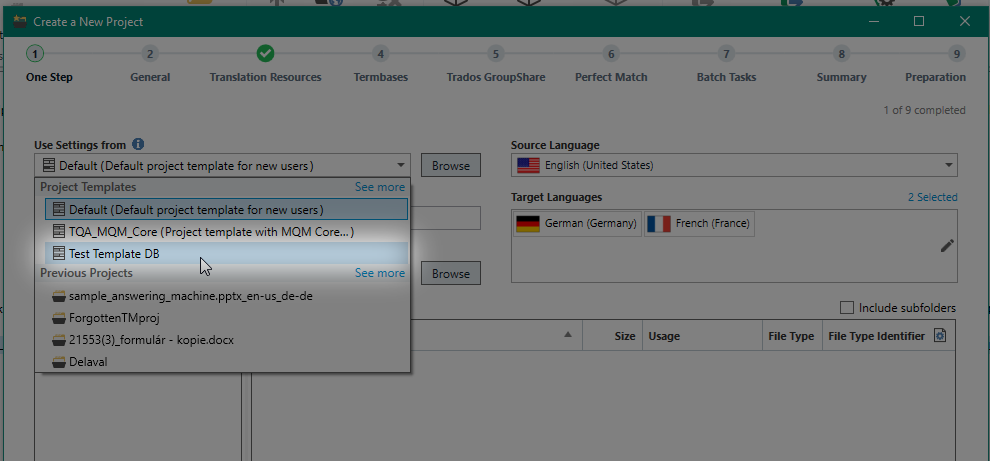
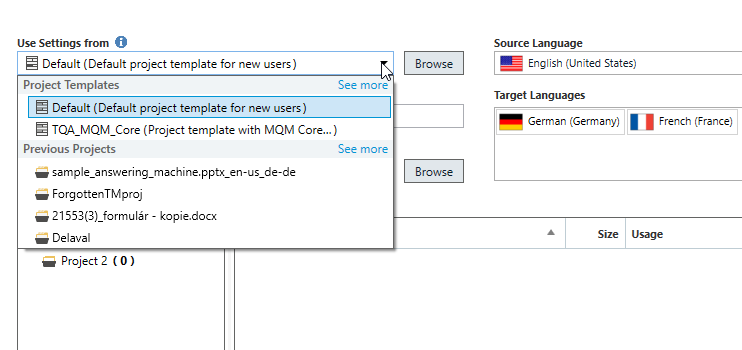
  • Additional info: I just found out that the New Project wizard shows templates in the "Use Settings From" menu which I have already deleted. If I try to select the deleted templates, I get an error message, but they are not removed from the list. The templates on the list seem to be the same that I cannot edit. How do I remove non-existent template names from this menu?
  • Hello  ,

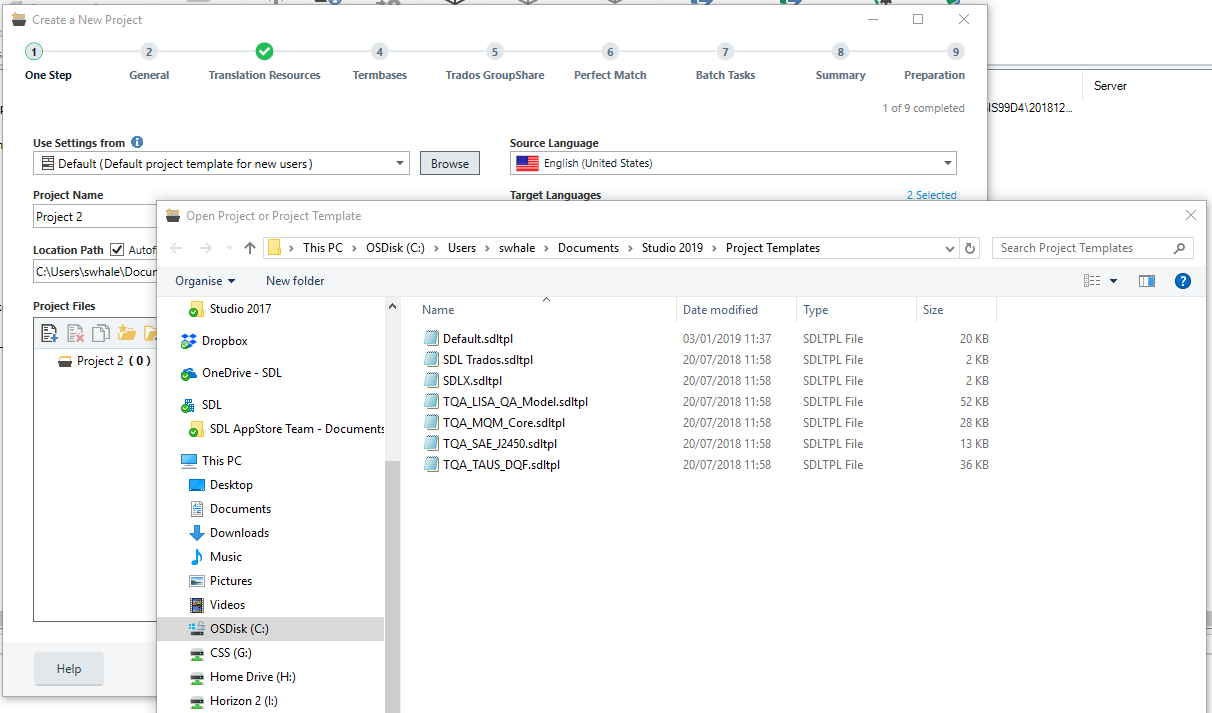
    What happens when you browse to the templates folder and then delete the template from the folder?

    Trados Studio screenshot showing the templates folder with a list of templates including 'Default.sdltpl', 'NAATI.sdltpl', and 'TAS.sdltpl' among others.


    When I do this - it no longer shows in the Use settings from option (you need to close the wizard after deleting the template and then reopen again)

    Trados Studio screenshot after deleting a template, showing the templates folder with remaining templates 'Default.sdltpl' and 'NAATI.sdltpl'.

    Oana Nagy | QA Engineer | RWS Group

    emoji


    Generated Image Alt-Text
    [edited by: Trados AI at 3:02 PM (GMT 0) on 28 Feb 2024]
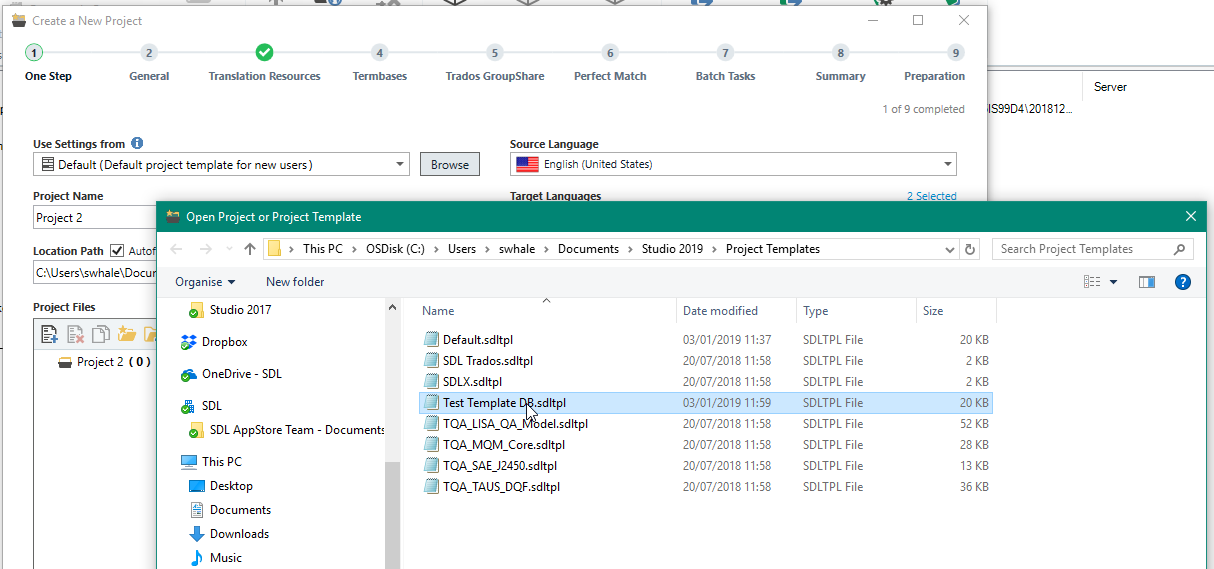
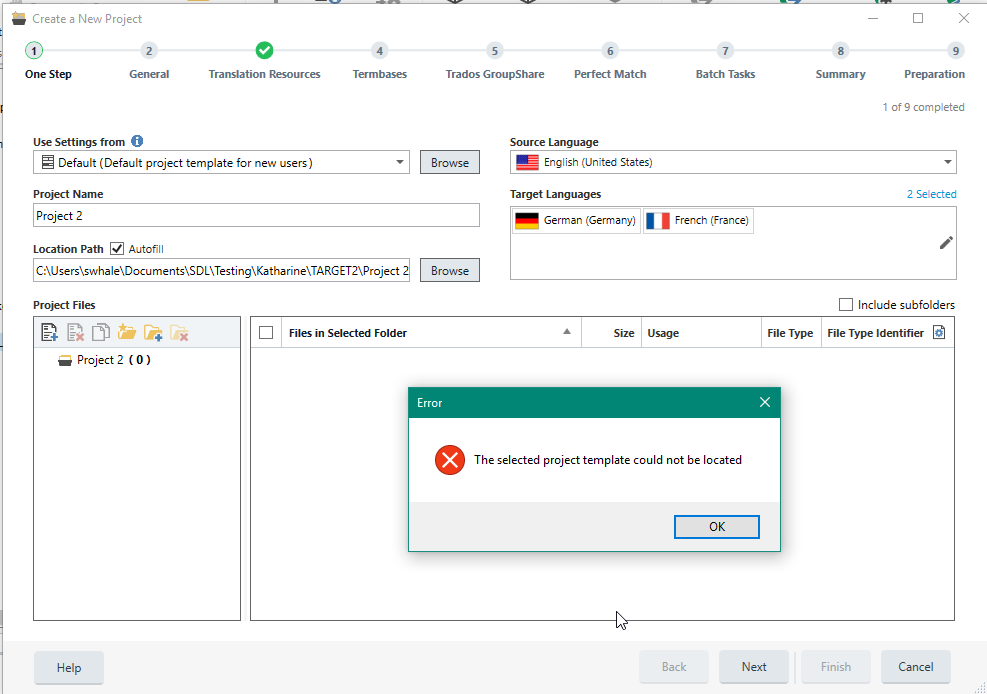
  • I can delete the template files without problems from the templates folder, but they continue to be shown in the Use Settings From option in the New Project wizard, even after closing and re-opening Studio 2019. If I try to select a non-existent template, I get the error message "The selected project template could not be located", but it still remains in the list of available templates.
    If I click on Create Project Template in the Projects view, I can create a template file with the name I wish, but when I then click on one of the settings in the left pane of the Project Template Settings window (eg. Language Pairs), I get the error message "There is already a project template with the specified name".
  • Hello @Dennis Boffy ,

    I think now I have found the resolution after at last being able to replicate the issue.

    I am trying to use the DB test template that I know I deleted earlier-

    So Studio throws the error...

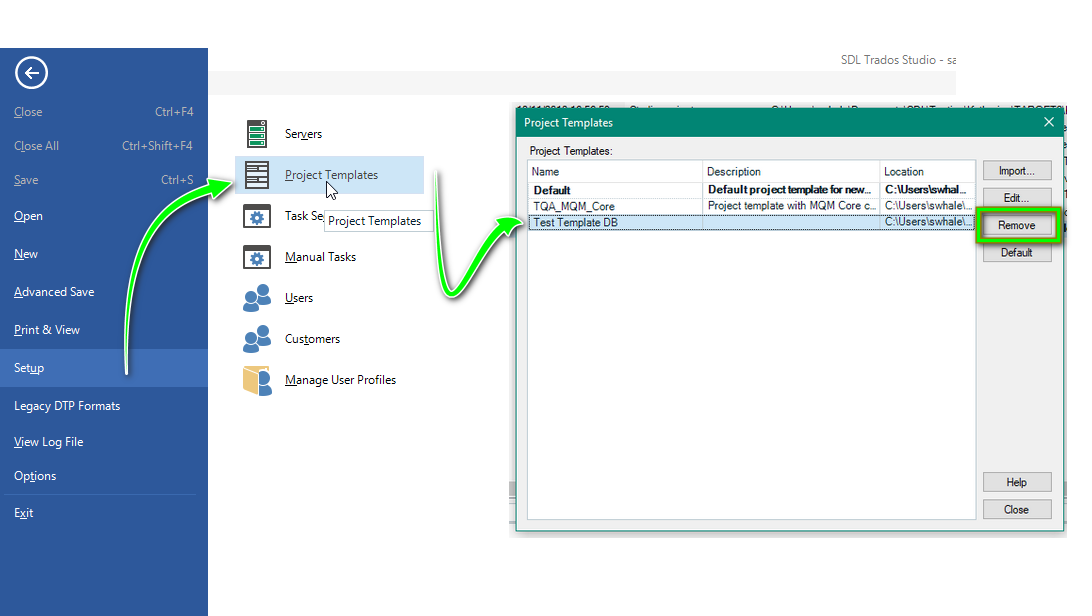
    Studio is remembering the template in the Setup (File-Setup-Templates)

    Now when I delete the offending template leaving just two examples-

    I can no longer select the 'deleted' Template and therefore no longer get the error message.

    This should then also remedy the issue where -

    Dennis Boffy said:
    I get the error message "There is already a project template with the specified name".


    Oana Nagy | QA Engineer | RWS Group

  • Steven Whale said:
    Studio is remembering the template in the Setup (File-Setup-Templates)

    I was just about to write this - templates should have always been managed ONLY via File / Setup / Templates and NEVER in any other way (like deleting/renaming/moving files around on the file system level, without letting Studio know).

    On the other hand, Studio should be made MUCH smarter in handling situations like this (manually deleted, or just temporarily not available, templates).

  • Yep, that solved it - thanks so much! Like Evzen wrote, there is room for improving this process... I believe that Studio 2011 would automatically remove a template name from the list if the template file was gone when you tried to select it in the list.

    Can you say if it's better to create templates "in advance" using the Create Project Template wizard or to save new templates each time I have created a project (from the New Project wizard)? I noticed that when I use the Create Project Template wizard, the settings are based on whichever project happens to be highlighted in the lists of projects in the main window in the Projects view - that may be fine if one wants to create a new template based on a previous one, but there should be a way to create a new template from scratch. Even if I press the "Reset to defaults" button in the Project Template Settings window, it remembers things like TMs from the project which was highlighted in the Projects window when the Create Project Template button was pressed. This creates the risk of leaving behind settings that are not relevant for the new template being created.

    Also, I noticed that there seems to be a significant difference in size of the standard SDL Trados template which is installed with Studio 2019. On my main computer I installed Studio 2019 SR1 from scratch, but on my backup computer I installed the previous version and then updated it when SR1 was released. On my main computer, the template has a size of 18 KB, but on my backup computer it is only 2 KB. This seems strange - I haven't edited either.

    Evzen, might you have a solution for my question about AutoHotKey Manager and/or the problem with Ctrl+Up/Down jumping to next/previous UNCONFIRMED segment rather than just next/previous segment: community.sdl.com/.../20972

    Thanks!
    BR,
    Dennis
  • Dennis Boffy said:
    I believe that Studio 2011 would automatically remove a template name from the list if the template file was gone when you tried to select it in the list.

    That would definitely NOT be a good solution (I mean, if the template would disappear PERMANENTLY from the list) since the template location might be just temporarily unavailable, like a disconnected network share, etc.
    There needs to be more sophisticated logic.

    Dennis Boffy said:
    Evzen, might you have a solution for my question about AutoHotKey Manager and/or the problem with Ctrl+Up/Down jumping to next/previous UNCONFIRMED segment rather than just next/previous segment

    Sorry, being actually an ANTI-AHK person (since all these "solutions" tend to "solve" only consequences instead of pushing on solving the real root causes) and not being a translator (thus not needing/using such movements around segments) I'm afraid I can't help.