You are currently working on UAT 

SDL Trados Studio 2017 crashes down or is slow to process a look-up

I have been a heavy user of SDL Trados Studio 2017 for nearly two years. Lately, I have been experiencing some issues with certain projects.

The TM search takes up to +10 minutes, even just performing a concordance search of certain segments takes ages, if it doesn't crash unexpectedly while doing so. Other times I try to confirm a segment and the whole program shuts down without a warning.

I thought it was because my client's TM was huge, but I created a smaller one and it keeps happening. Both huge and smaller TMs are upgraded.

It is compromising my productivity (and driving me insane), and I have a huge wordcount to finish by Thursday.

What can I do?


Thank you a lot. All suggestions are welcomed.

  • Hi 

    At the risk of sounding like a cracked record, have you tried a Windows Repair of Studio and MultiTerm - after first being sure you've got the latest update of both or the correct inter-compatible build of each (less easy to figure out)?

    To run a Windows Repair of Studio (or MultiTerm, or any other complex software), via Control Panel...
     
    Close all SDL applications.
     
    Open the Control Panel via Windows button>Windows System>Control Panel:
    Windows Vista/7: Start > Control Panel > Programs > Programs and Features.
    Windows 8: Right-click on the screen at bottom-left corner and choose Control Panel > Uninstall a Program.
    Windows 10: Right-click on Start (Windows button) >Windows System > Control Panel > Select View by: Small Icons > Programs and Features.
     
    Click/highlight the relevant SDL product in the list (e.g. SDL Trados Studio 2017...) and click 'Repair' on the top toolbar (or in the right-click context menu).
     
    Restart Studio.
    I actually repair all components of Studio and MultiTerm, periodically. It's worth the time it takes, especially after a Windows automatic update.
    The same goes for other complex software, Microsoft Office for example.
     
    If this doesn't help, there are lots more ideas here:
     
     
    Plus I'm sure other users will have more innovative ideas than I...
    All the best,
    Alison
  • Hi Alison,

    Thanks a lot for your suggestion. I have tried to follow those steps, but it is still slow. It only happens with a certain kind of projects.

    Thank you for taking your time to help me! :)
  • Hi 

    If it is only happening with certain projects, then it is almost certainly the projects that are causing it.

    I recently had to proofread a series of files that were very, very, very slow. I 'turned off' all the functionality that I could, even disconnected from all the termbases and used them to verify at the end instead, which also took a very, very long time. Hours in fact.

    I don't know what differentiated those files from other similar files that caused no speed problem at all. Third-party inserted content, maybe.

    So...

    Turning off the 'new' features (upLIFT/LookAhead/Match Repair/Fragment Matching/Web lookup) improves speed issues.

    So if you don't use online content, settings that access that don't need to be turned on anyway.

    Here are some settings to play with that should speed things up...


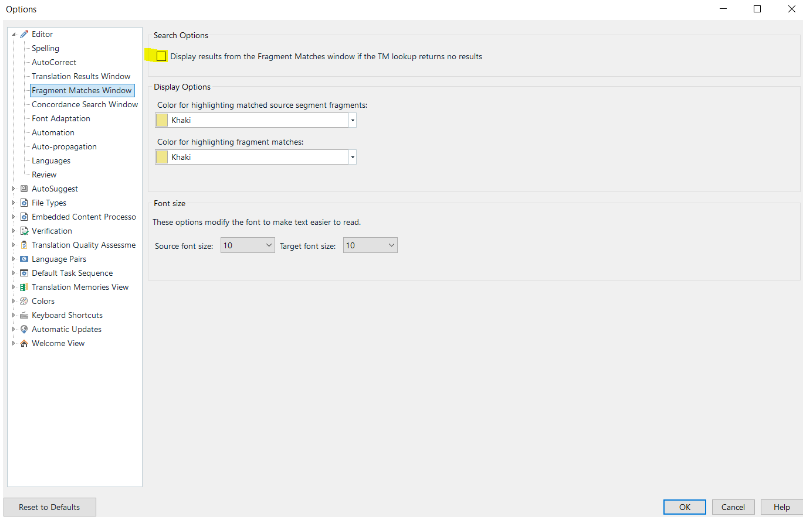
    Turn off Fragment Matches (translators probably prefer to keep this turned on but PMs would do best to turn it off):

    Trados Studio options menu with 'Search Results Window' settings, showing options for color highlighting matched segments.

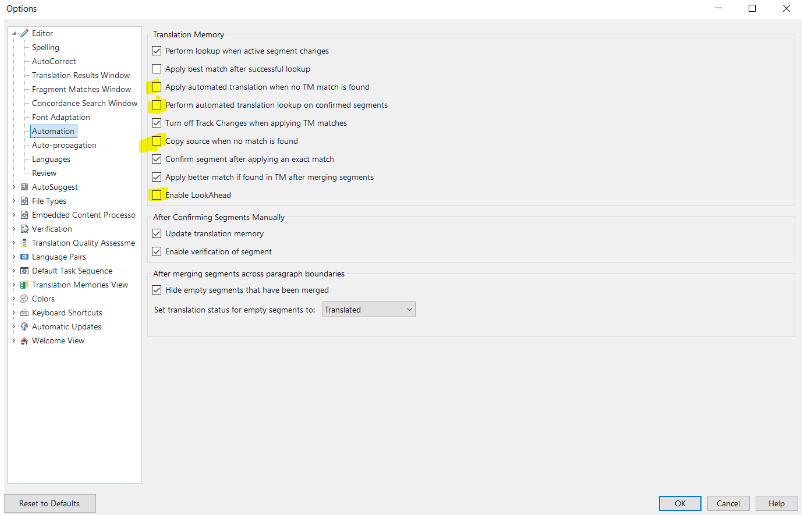
    Turn off 'Enable LookAhead' (this is a tool that searches for the next two segments to the one you're working on to theoretically speed up translation results but some are finding that it slows down work in the active segment so much that it's not worth the time it is supposed to save. I've also ticked other options that might help speed things up:

    Trados Studio options menu with 'Translation Memory' settings, including options for confirming segments and applying penalties to fuzzy matches.

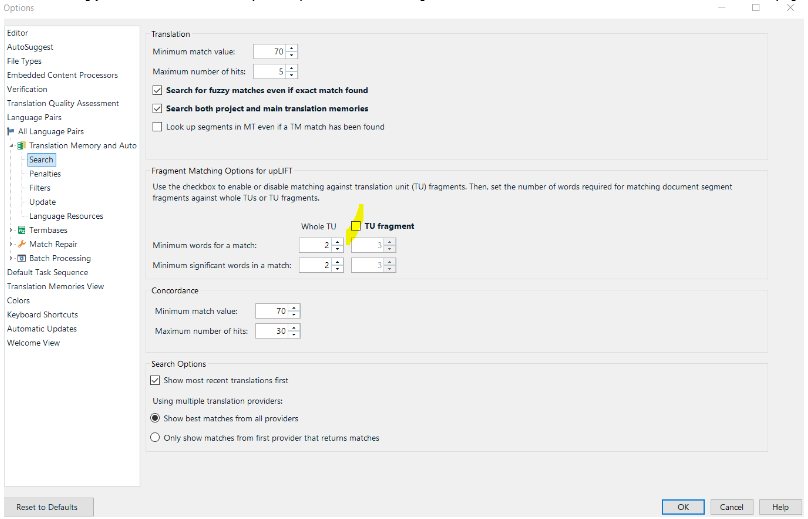
    Another setting you can untick to disable a part of upLIFT, turn off TU fragment in the Translation and Automated Translation > Search page:

    Trados Studio options menu with 'Translation Memory and Automated Translation' settings, showing fragment matching options disabled.

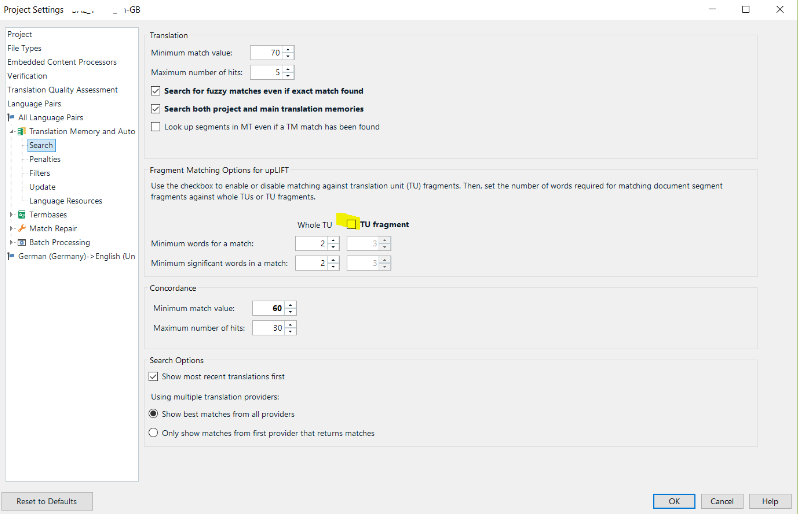
    Same setting, in project settings*:

    Trados Studio project settings menu with 'Translation Memory and Automated Translation' settings, fragment matching options disabled.

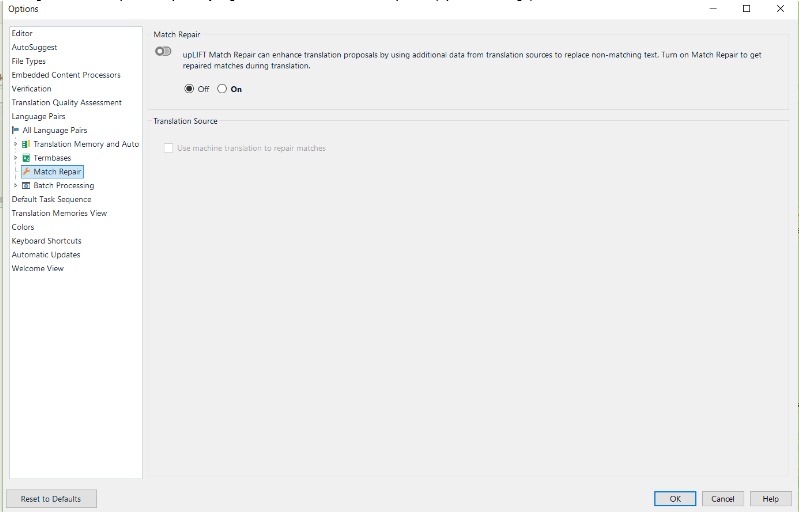
    Turning off Match Repair is especially logical for PM's, here in File>Options (=profile settings):

    Trados Studio options menu with 'Match Repair' settings, showing the option to turn off match repair functionality.

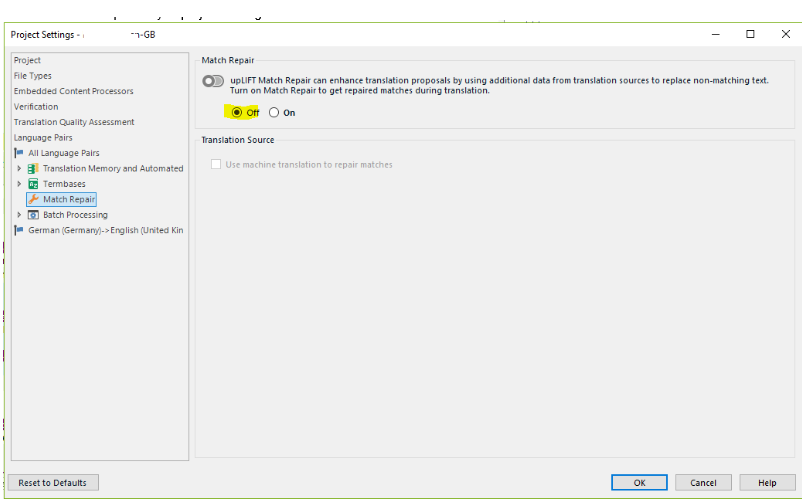
    ALSO and more importantly in project settings*:

    Trados Studio project settings menu with 'Match Repair' settings, showing the option to turn off match repair functionality.

    NB this setting sometimes doesn't 'take' so you need to click OK then open settings up again to check it's taken.


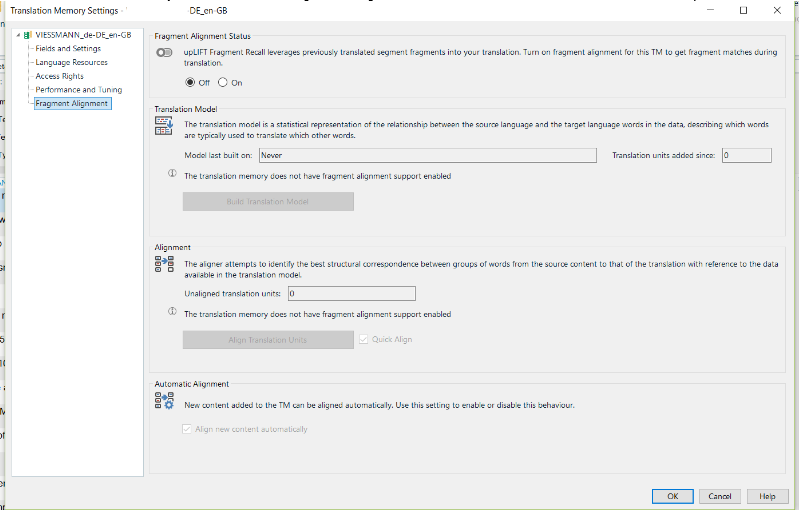
    Also if a TM has been recently created it will have fragment realignment turned on as default so here's where to turn off upLift if it's turned on:

    Trados Studio 'Translation Memory and Automated Translation' settings with 'upLIFT' options, showing where to disable fragment alignment.

    *project settings always overrule profile settings.


    Let me know if any of the above helps!

    All the best,

    Ali :D

    emoji


    Generated Image Alt-Text
    [edited by: Trados AI at 2:57 PM (GMT 0) on 28 Feb 2024]