You are currently working on UAT 

Project disappeared from list, target translations erased, files still intact in folder

Hi Guys,


I had a break from translating a project, and when I returned, the project had disappeared from the Projects-view in Trados. I tried opening the original file, but Trados just made a new empty project. The files of the project are still in the Trados folder on my copmuter (including project file). How can I recover the translations that I already made? Thanks!


Update: I tried opening the SDL Trados Studio Project File with the open project function, but a message saying "An error occured whilst trying to determine file version".

Update 2: I also found there's an SDL XLIFF file in the target language folder in the project folder.

Update 3: I created a new project from the original file, and tried opening the SDL Trados Studio Project File of that new project, and for some reason it work in this new project, but not in the old project.

Update 4: Now I get this message when I try to open the Project file of the disappeared project: "Error processing command line arguments: An error occured whilst trying to determine the file version."


-Joel

  • Hi 

    It looks rather as if the SDLXLIFF file was corrupted on closedown. This would explain all your findings.

    Your best course of action is to create a New Project via the Projects View.

    You can select the previous SDL Trados Studio Project File to base your new project on in the first page of the New Project Wizard, then it should automatically add all the resources used previously in that project apart from the original document/s for translation (i.e. it will add the memory/ies and termbase/s you used before).

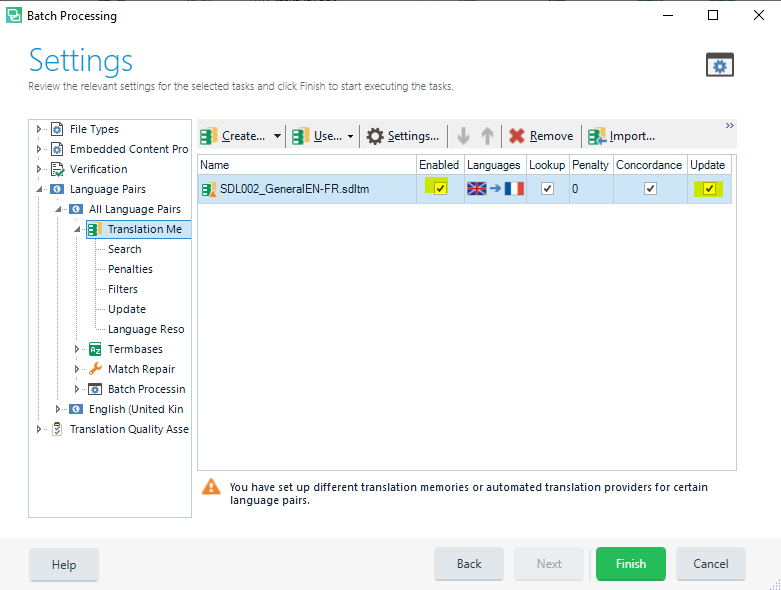
    If you had the TM/s set to 'Enable' and 'Update' in the first project, the Pre-translate Files process of the New Project should automatically populate all your translations to the new target SDLXLIFF file/s created.

    If it doesn't, all you need to do is highlight or right-click the target SDLXLIFF file/s in the Files View and select 'Pre-translate Files' from the batch tasks above or in the right-click dropdown menu.

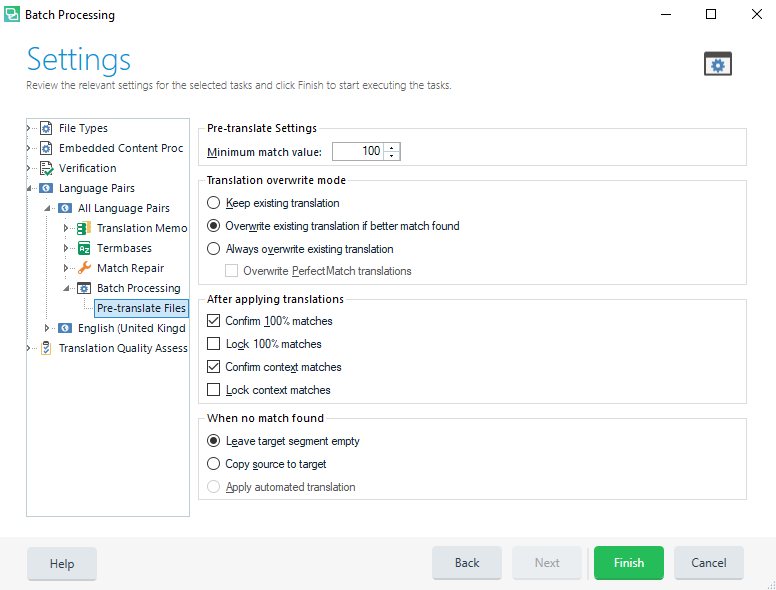
    In the resulting Wizard, you can set how the translate procedure will happen and ensure the correct TM/s is/are selected...

    Trados Studio batch processing settings window showing pre-translate settings with options for translation memory and match types.

    Trados Studio settings window with a warning message about different translation memories or automated translation providers for certain language pairs.

    Then if all goes as it should, you can continue the translation from where you broke off - so long as there was no error introduced into the first SDLXLIFF you were working on... If that happens, I'm sure one of us can help...

    Hope this presents you with the solution,

    All the best,

    Alison

    emoji


    Generated Image Alt-Text
    [edited by: Trados AI at 2:18 PM (GMT 0) on 28 Feb 2024]