You are currently working on UAT 

Cannot include comments for translation in SDL Studio 2019

Dear all, 

I need to translate a PowerPoint file and the comments it contents with SDL Studio 2019. Although I checked the different boxes to do so in the Options for the PowerPoint files, the comments do not appear for translation (it worked fine with SDL Studio 2017). Is there a new subtlety I didn't catch in SDL Studio 2019 ? 

Thanks very much.

Véronique

Parents
  • Hi 

    Just checking that you know the following:

    If you are translating the file via 'Translate single file' then 'File>Options' is the place to make your settings changes.

    If, however you are working in a project, whether it is since you created one via 'Translate single file' or if it's a project you created yourself or opened from a package received from a client, you need to make your settings in 'Project Settings'

    Any setting made in Project settings will override the same setting made under File>Options. The settings made via File>Options only take effect on projects created AFTER the setting is made.

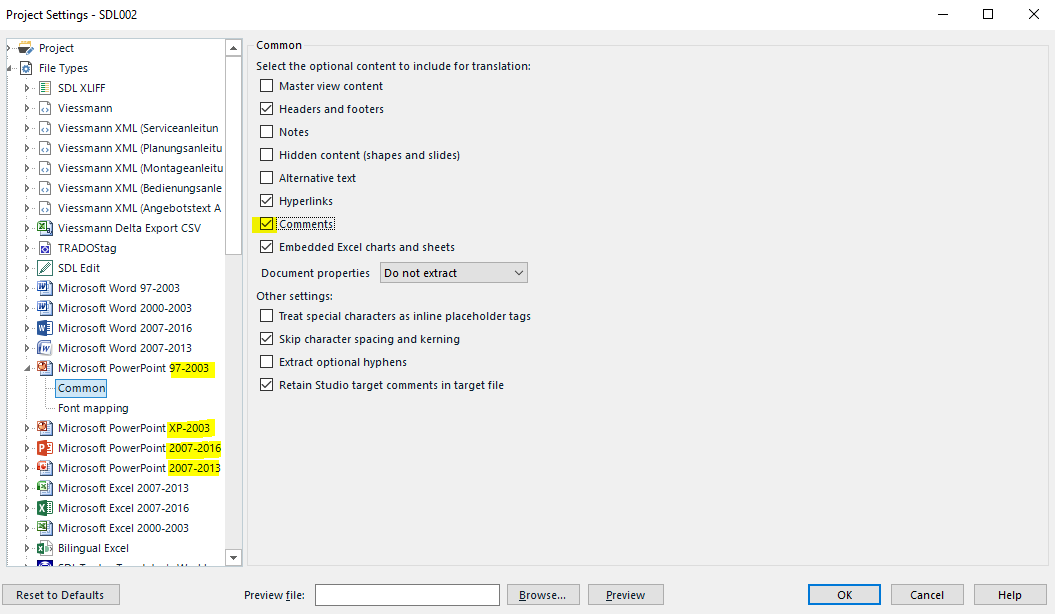
    Also, there are 4 different filetypes for PowerPoint in the filetype settings list by default. Are you sure you've made the change to the filetype version relevant to the PowerPoint you're working on?

    Trados Studio Project Settings window showing file type options for Microsoft PowerPoint with 'Comments' option unticked.

    As the default settings is to have 'Comments' unticked, maybe it's not ticked in the correct version...

    I hope one of my suggestions is appropriate to resolving your issue.

    All the best,

    Ali

    emoji


    Generated Image Alt-Text
    [edited by: Trados AI at 2:31 PM (GMT 0) on 28 Feb 2024]
Reply
  • Hi 

    Just checking that you know the following:

    If you are translating the file via 'Translate single file' then 'File>Options' is the place to make your settings changes.

    If, however you are working in a project, whether it is since you created one via 'Translate single file' or if it's a project you created yourself or opened from a package received from a client, you need to make your settings in 'Project Settings'

    Any setting made in Project settings will override the same setting made under File>Options. The settings made via File>Options only take effect on projects created AFTER the setting is made.

    Also, there are 4 different filetypes for PowerPoint in the filetype settings list by default. Are you sure you've made the change to the filetype version relevant to the PowerPoint you're working on?

    Trados Studio Project Settings window showing file type options for Microsoft PowerPoint with 'Comments' option unticked.

    As the default settings is to have 'Comments' unticked, maybe it's not ticked in the correct version...

    I hope one of my suggestions is appropriate to resolving your issue.

    All the best,

    Ali

    emoji


    Generated Image Alt-Text
    [edited by: Trados AI at 2:31 PM (GMT 0) on 28 Feb 2024]
Children