You are currently working on UAT 

Use of retrofit batch task

Dear everybody,
 

I am trying to carry out an aupdating of my translation through the retrofit batch task from a reviewed target file sent back to me by the customer (.docx file). I am following the instructions as listened from an SDL video (A beginner's guide to SDL Trados Studio 2017 - part 2). When I click on the retrofit task the following message appears:

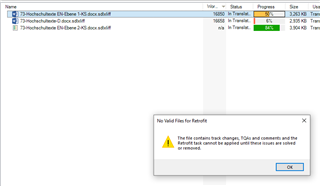
 "the file contains track changes, TQAs and comments and the retrofit task cannot be applied untill these issues are solved or removed". But, which file?  I don't know how to go on because I don't know which "track changes, TQAs and comments" I have to solve or remove. There aren't any in the target file as shown in Editor. I don't understand. Thank you for any help!
 
After writing the above message I read an answer to the same problem, so I have understood that:
1) the "file" concerned is the sdlxliff file, ok, this is what I thought it was
2) I have to remove from it "track changes, TQAs and comments", but I don't see any in the file. Where are they? And if any, how to solve them? If I click on Verify the system says there are no errors at all and I don't see any comment. 
thank You! 
Parents
  • Hi Maria,

    I would have thought this message did refer to the sdlxliff as TQA's can only be in this file. However, this may be a generic message to accommodate the possibility of all three. If you have not put any of these things into the sdlxliff, and you would surely know if you did, then perhaps make sure there are no track changes in the target file you are trying to bring in.

    Regard

    Paul

    Paul Filkin | RWS

    Design your own training!
    You've done the courses and still need to go a little further, or still not clear? 
    Tell us what you need in our Community Solutions Hub

  • Thank you, Paul.
    When you say "make sure there are no track changes in the target file" (as this is the reviewed document, there are of course changes and also comments), you mean I have to accept all the changes tracked, disable Track changes and save the document? I did that way but I obtained in Studio the same message as above when trying to do the retrofit. Then, as I am still convinced, as you are, that this message refers to the sdlxliff file, I did the same with it (accept any change, disable Track changes, if any, and save the file) and at that point the retrofit dialogue window opened and I could proceed with the retrofit-review action by importing the reviewed file, but when I reopened the sdlxliff, only the first segment was updated and the rest remained unchanged. Now, when I try to repeat the retrofit update, I keep on receiving the same message as above (but there are no Track changes, no TQA and no comments in the sdlxliff file). The end is that I cannot update my translation. Thank you for any other idea.
  • Hi Maria,

    I'd be happy to take a look at your file and see if it works for me.  But if this isn't ok perhaps you can do this the long way as the Retrofit essentially carries out a reverse alignment.  So:

    1. Align your original source with your revised target
    2. Create a TM with this alignment
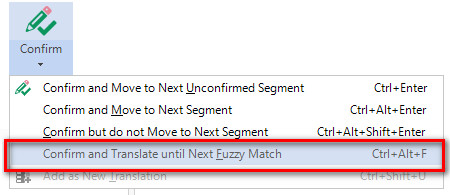
    3. Update your current bilingual file with this new TM.  Probably best to use "Confirm until next fuzzy match" as this will allow you to find the changes more easily:

    Regards

    Paul

    Paul Filkin | RWS

    Design your own training!
    You've done the courses and still need to go a little further, or still not clear? 
    Tell us what you need in our Community Solutions Hub

  • Hi Paul, thank you very much. Unfortunately I cannot send you the files as I am under a confidential agreement with the customer. I therefore applied the procedure according to your suggestions. The result is indeed an sdlxliff file with a project TM more or less updated... but it has been very very long and with many problems: the alignment required a lot of control and quite a lot of TU were missing in the target translation column, so TU were all substantially misaligned, and also the job of updating the bilingual file has been very long. Actually, before doing this procedure I had succeeded also in finally opening that damned dialogue window for the retrofit operation and I proceeded with the update of the sdlxliff file in both modes: one directly and one through the "Review retrofit results in the alignment view before updating". By the first option nothing happened in my original bilingual file. In the second case, I saw all the changes in the alignment according to the review (but I had to control and change all the aligments also here) but after updating the sdlxliff file as required, I couldn't see any of these changes in it. Nothing at all. I am sorry bu I think this function doesn't work, at least on my pc. What shall I do?
Reply
  • Hi Paul, thank you very much. Unfortunately I cannot send you the files as I am under a confidential agreement with the customer. I therefore applied the procedure according to your suggestions. The result is indeed an sdlxliff file with a project TM more or less updated... but it has been very very long and with many problems: the alignment required a lot of control and quite a lot of TU were missing in the target translation column, so TU were all substantially misaligned, and also the job of updating the bilingual file has been very long. Actually, before doing this procedure I had succeeded also in finally opening that damned dialogue window for the retrofit operation and I proceeded with the update of the sdlxliff file in both modes: one directly and one through the "Review retrofit results in the alignment view before updating". By the first option nothing happened in my original bilingual file. In the second case, I saw all the changes in the alignment according to the review (but I had to control and change all the aligments also here) but after updating the sdlxliff file as required, I couldn't see any of these changes in it. Nothing at all. I am sorry bu I think this function doesn't work, at least on my pc. What shall I do?
Children
  • Hi Maria,

    I'm not sure what to suggest.  If we can't see your files I don't really know how to help you now.  It might be a problem local to you and I try it the files work fine... who knows.

    I suppose you could try something a little crazy... I like messing like this, you may not;

    1. open the original source file in Studio
    2. copy source to target and update into a brand new TM
    3. Export to this new TM TMX and use the Glossary Converter to convert your TMX to Excel
    4. open the updated target file (back up the orignal first) and make sure you have no track changes, comments etc
    5. open the updated target file in Studio
    6. copy source to target and update into a brand new TM
    7. Export this new TM to TMX as well and use the Glossary Converter to convert your TMX to Excel
    8. now you have two excel files, one with two columns of the source and one with two columns of the updated target
    9. merge the excel files into one so you have the original source text in the left column and the new updated target in the second column
    10. delete all the rest of the columns and then manually make sure the segments seem to be aligned
    11. Use the Glossary Converter again to convert this excel file to TMX
    12. Upgrade the TMX in Studio and now you have a TM with the original source and updated target
    13. Add this to your original project and use the translate to fuzzy to find the segments that are different

    This isn't going to be clean, and if the file is very taggy you could have quite a bit of work to do.  But it might be reasonable workaround to recover the situation.

    Sorry I can't help more than this... but it's very difficult without the files.

    Regards

    Paul

    Paul Filkin | RWS

    Design your own training!
    You've done the courses and still need to go a little further, or still not clear? 
    Tell us what you need in our Community Solutions Hub

  • Hi,

    You could shorten this procedure a little if you download this app:

    http://appstore.sdl.com/app/export-to-excel/532/

    Then it becomes:

    1. open the original source file in Studio
    2. Run the Batch Tasks -> Export to Excel
    3. open the updated target file (back up the original first) and make sure you have no track changes, comments etc
    4. Run the Batch Tasks -> Export to Excel
    5. now you have two excel files, one with the source and one with the updated target
    6. merge the excel files into one so you have the original source text in the left column and the new updated target in the second column
    7. delete all the rest of the columns and then manually make sure the segments seem to be aligned
    8. Use the Glossary Converter to convert this excel file to TMX
    9. Upgrade the TMX in Studio and now you have a TM with the original source and updated target
    10. Add this to your original project and use the translate to fuzzy to find the segments that are different

    Maybe a little shorter and will achieve the same effect.

    Regards

    Paul

    Paul Filkin | RWS

    Design your own training!
    You've done the courses and still need to go a little further, or still not clear? 
    Tell us what you need in our Community Solutions Hub

  • Thank you very much, your help has been precious. I understand that this could be a matter connected to the type of files and that without a look at them it's difficult to say where is the problem. To tell the truth I haven't had time yet to try your suggested solution, but I'll do it just to see whether it works, even though I would have preferred to solve the issue through the retrofit wizard. Thank you anyhow!!
  • Hello,

    I came across this post earlier today as I encountered the same error message/issue, and I think I can offer a little more insight into the problem (although sadly no solution!)

    To recap:

    I translated a PPT file in Studio (2017), generated and edited the target file in PPT format, then wanted to use the retrofit function to import my changes. The error message reported by Maria in the original post "No valid files for retrofit: The file contains track changes, TQAs and comments and the Retrofit task cannot be applied until these issues are solved or removed" was displayed as soon as I clicked on "Update from Reviewed Target File (Retrofit)" in the Batch Tasks menu. This presumably removes any doubt about which 'file' is being referred to in the error message - I hadn't yet reached the screen to select my reviewed target file, so the error message must surely refer to the Trados file?

    Assuming this was the case, I therefore re-opened my Trados file, opened the Comments pane and deleted all of the comments (there were indeed some comments remaining) and also 'for good measure' clicked "Accept all" in the Track Changes menu (even though I knew I hadn't used Track Changes on the file).

    I then tried "Batch Tasks" > "Update from Reviewed Target File (Retrofit)" again, but got the same error message.

    At this point, I gave up on retrofit and started entering all of my changes manually, and this is where I came across what I think might be the problem here: even though the Comments pane and the Advanced Filter tell me there are no comments in my file, there is still a segment in my file with the yellow 'Comment' highlighting on it. Here are some screenshots to illustrate my point:

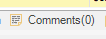
    Comments pane shows ZERO comments


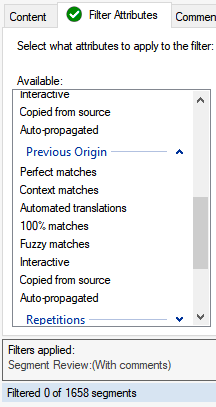
    Advanced Display Filter also shows ZERO comments


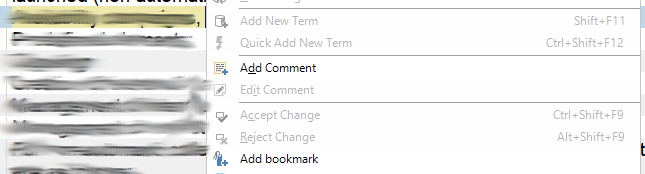
    But there is a nonetheless still a segment with yellow 'Comment' highlighting!! (Note: 'Edit comment' in the menu is also greyed out, implying there is no comment here to edit, despite the highlighting).


    This post covers the same issue with comments (although no solution is given), and one of the answers there sheds some light on what I think might be happening in my file (and perhaps in Maria's originally?):

    Conclusion: From the above, it would appear that this 'accepted' Comment in my Trados file is preventing me from even starting the Retrofit process.

    I wonder if anyone else can confirm this? Or - even better - suggest a solution? Failing that, perhaps this can be noted as a bug to be addressed in the future :-)

    Thanks!

    Hayley


  • Hello,

    I have no solution, sadly. But I also have no comments listed in my file - yet one segment is highlighted as if it has a comment, and I get the same error message when I try to Retrofit (Studio 2015).

    Any ideas how to remove the comment?

    Kim

  • I have temporarily inserted the source into the problem segment, which seems to have removed the 'comment', but unfortunately I still get the error message when I try to retrofit that file!

  • Any chance you can provide a screenshot of exactly what you see?  Perhaps we're missing the obvious since we can't see what you do.

    Paul Filkin | RWS

    Design your own training!
    You've done the courses and still need to go a little further, or still not clear? 
    Tell us what you need in our Community Solutions Hub

  • So not just comments.  Have you use track changes in the sdlxliff files at all, or TQA?

    Paul Filkin | RWS

    Design your own training!
    You've done the courses and still need to go a little further, or still not clear? 
    Tell us what you need in our Community Solutions Hub

  • No, exported to Word for review (sigh). And I am the only person who worked on the xliff. Plus Trados tells me there are no changes tracked or TQAs or comments.