
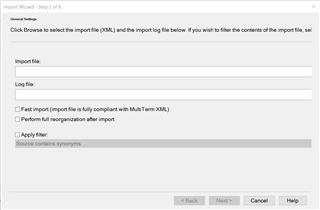
MultiTerm 2019 Import Wizard: "Browse" and "Save As" buttons NOT displaying on the import wizard window

Former Member
Former Member

Trados Studio MultiTerm2019 Import Wizard window with missing 'Browse' and 'Save As' buttons. Displays options for 'Import file' and 'Log file' with checkboxes for 'Fast import' and 'Apply filter'.

I am trying to import an xml file into MultiTerm2019. When I activate the wizard by clicking on "Process", the above window appears, but does not display the "Browse" or "Save As" buttons which (I believe) should be there.

As a result, it is impossible for me to import my xml file into my term base.

I have reinstalled and I have tried every possible display setting Windows 10 allows, all in vain.

I feel like I am missing the obvious here.

Please help.

Chris.


Generated Image Alt-Text
[edited by: Trados AI at 2:11 PM (GMT 0) on 5 Mar 2024]

emoji
Parents Reply
  • Unfortunately we did not find the cause of what causes your issue. We have tried clearing the User Settings, cleaning the registry settings, forcing the window to display properly via a script and nothing worked. As a workaround I would propose that you use the Alt+W and Alt+S shortcuts for that Import Process screen and it will work. The user has also mentioned that he has migrated to another computer and that it works fine but I am sorry we could not find a more permanent solution for the computer in question.

Children
