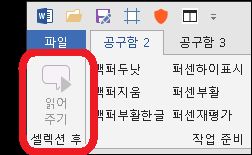
Read selection aloud for comprehension and quality checking

Hi,

I would like to share a simple ahk script which I find helps me with understanding the source easily and then quality checking the target I have written. Its especially useful for long segments.

The script makes use of the immersive reader in Word. To use it you will need to have open the immersive reader in Word (under View) and Trados.

Select the text you want to have read aloud then hit F1 (or your desired hotkey)

F1:: ;read aloud
{

SetTitleMatchMode, 2
clipboard=
Sleep, 50
sendInput, ^c
Sleep, 50
WinActivate, Word
Sleep, 150
sendInput, ^a
Sleep, 50
sendInput, {Enter} ;to avoid the text being obscured by the play dialog box in Word
Sleep, 50
sendInput, ^v
Sleep, 50
sendInput, ^{home}
Sleep, 150
sendInput, ^!{space} ;this tells Word to read the text aloud
Sleep, 150
sendInput, ^!{space} ;for me, I found I need to run this command twice to work stably for both source and target languages
return
}

  • Former Member
    Former Member

    that functionaly is hidden in deep down there, so I spent some time to find it though
    funny enough
    Thanks for the good tip

    Screenshot of Trados Studio interface with a red circle highlighting the 'Quick Access' toolbar icon.

    emoji


    Generated Image Alt-Text
    [edited by: Trados AI at 4:21 AM (GMT 0) on 5 Mar 2024]
  • Former Member
    Former Member in reply to Former Member

    ah... AHK supports this, directly.

    myVariable := "Hello, SDL Trados Studio !!!"
    voiceTesting := ComObjCreate("SAPI.SpVoice")
    voiceTesting.Speak(myVariable, 0x0)

  • Interesting approach to use AHK for this.  I would not of thought about this.  There is actually a plugin for this as well:

    https://appstore.sdl.com/language/app/sdl-tts/1036/

    ah... AHK supports this, directly.

    myVariable := "Hello, SDL Trados Studio !!!"
    voiceTesting := ComObjCreate("SAPI.SpVoice")
    voiceTesting.Speak(myVariable, 0x0)

    What does AHK use for the voice support in this  ?

    Paul Filkin | RWS

    Design your own training!
    You've done the courses and still need to go a little further, or still not clear? 
    Tell us what you need in our Community Solutions Hub

  • Thank you for the replies.

    I looked at the TTS plugin but it seems quite complex to set up.

    The nice thing with the immersive reader is that it highlights the text as it reads it out, so you get a very robust visual and audio aid to comprehension of the source and thorough quality checking of the target.

    Actually if you use the immersive reader in the online version of Word it has a function to highlight different parts of the text (nouns, verbs, adjectives, adverbs) in different colours. This is also surprisingly helpful to make things clearer and easier when dealing with difficult texts. I couldn't see a way to automate it with AHK though, other than using mouse clicks.

  • I made use of Adrian's suggestion. With these two scripts you can read the source and target aloud directly in Trados. This may be an easier method than pasting to Word every time.

    F1:: ;read source
    {
       clipboard=
       sleep, 50
       sendInput, ^c
       sleep, 50
    voice := ComObjCreate("SAPI.SpVoice")
    voice.Voice := voice.GetVoices().Item(0) ;Change the item number here to choose which voice to use (See control panel, ease of access to see which voices you have installed on your computer)
    voice.Rate :=-1 ;make the source a little slower. This can be change between -10 and 10.
    voice.Speak(clipboard)
    return
    }

    F2:: ;read target
    {
       clipboard=
       sleep, 50
       sendInput, ^c
       sleep, 50
    voice := ComObjCreate("SAPI.SpVoice")
    voice.Rate := 3 ;make the target a little quicker
    voice.Voice := voice.GetVoices().Item(1)
    voice.Speak(clipboard)
    return
    }