Transfer Passolo settings from one computer to next

We recently transferred our Passolo 2018 (and license) from an older to a Windows 11 computer. Unfortunately, we did not transfer the application settings at the same time (a note in the lisence migration guide would be helpful docs.rws.com/.../moving-single-user-license-to-another-computer-via-internet-587365 ) and have run into some issues getting the new installation to work. In the File>Options dialog there is a possibility to export/import these settings.

Is there any way to get these settings from the old computer without transferring the license back and forth?

Thank you!

emoji
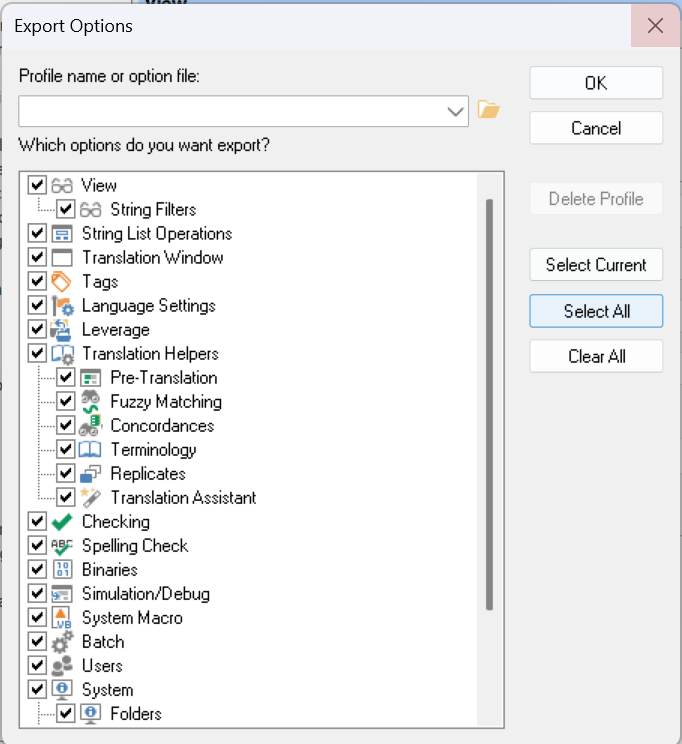
  • It should be described in a little more detail which settings are to be transferred. There are hundreds of different settings, some of which are stored in the registry, while others are stored in user-specific files. There is no function that can save all settings, but there are functions that can easily transfer some of the data. It is therefore important to know which data is involved. Go to File - Options and click on Export. Here you can export selectable settings.

    Export Options window showing a dropdown for profile selection, a list of selectable options with checkboxes, and buttons for OK, Cancel, Select Current, Select All, and Clear All.

    emoji


    Generated Image Alt-Text
    [edited by: RWS Community AI at 6:12 AM (GMT 0) on 8 Jan 2026]