How to translate Ribbon in MFC Project as a part of my dll - File

Hello
I am working with BCG Ribbon in MFC Project.
Is there any way Passolo can recognise my Ribbon as a part of .dll File?
 
When I Click on «String list Settings» and then «Info», I see my Ribbon resource:
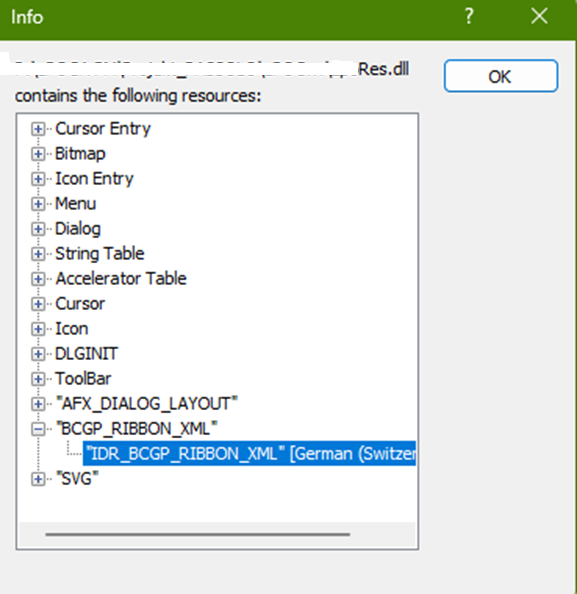
Screenshot of Trados Studio Info dialog showing a list of resources contained in a .dll file including Cursor Entry, Bitmap, Icon Entry, Menu, Dialog, String Table, Accelerator Table, Cursor, Icon, DLGINIT, ToolBar, AFX_DIALOG_LAYOUT, BCGP_RIBBON_XML, and SVG.
 
But when I open String list, I only can see «Menu», «Dialogs», «String Table», «Accelerator Table»,»DLGINIT» and «Recycle Bin».
 
BCG Ribbon hat the same structure as MFC 8.0 Ribbon. So you can simply answer me, if there is a way Passolo recognize an MFC Ribbon out of my DLL or how else you suggest me to translate my Ribbon resources?
 
I would prefer ribbon translation as a part of my .dll over a separate translation of my ribbon.xml – File.
Thank you».


Generated Image Alt-Text
[edited by: Trados AI at 11:08 AM (GMT 1) on 5 Apr 2024]

emoji
Parents
  • I lost my connection... When the resources are imported select them in the resource tree view. My example is from Passolo itself, our ribbon resources are named Ribbon

    Screenshot of Trados Studio showing the Resources tree view with items such as String Table, Accelerator Table, and Ribbon expanded. The Properties window below has Resource Parser set to Add-in XML Parser with an Options button visible.

    Then change the Resource Parser in the Properties window by clicking the small arrow. When the resource parser is selected, click on Options and select the XML parsing rule that should be embedded within the project.

    emoji


    Generated Image Alt-Text
    [edited by: Trados AI at 12:43 PM (GMT 1) on 5 Apr 2024]
Reply
  • I lost my connection... When the resources are imported select them in the resource tree view. My example is from Passolo itself, our ribbon resources are named Ribbon

    Screenshot of Trados Studio showing the Resources tree view with items such as String Table, Accelerator Table, and Ribbon expanded. The Properties window below has Resource Parser set to Add-in XML Parser with an Options button visible.

    Then change the Resource Parser in the Properties window by clicking the small arrow. When the resource parser is selected, click on Options and select the XML parsing rule that should be embedded within the project.

    emoji


    Generated Image Alt-Text
    [edited by: Trados AI at 12:43 PM (GMT 1) on 5 Apr 2024]
Children