Translate


Hello,
I have five Trados Studio licences installed on five different PC.
Four licences are from 2021 and one is from 2022.
They are allocated as follows:
Trados Studio 2021 licence on computer ‘poste2’
Trados Studio 2021 licence on computer ‘poste Ma-1’
Trados Studio 2021 licence on computer ‘poste Ma-2’
Trados Studio 2021 licence on computer ‘3’
Trados Studio 2022 licence on computer ‘4’
I wanted to swap the 2021 and 2022 licences on two computers as follows:
Trados Studio 2022 on computer ‘Ma-2’
Trados Studio 2021 licence on computer ‘4’
-> I managed to reinstall and activate the 2022 licence on computer ‘Ma-2’.
-> However, I failed to activate the 2021 licence on Computer ‘post4’
Instead, the licence on Computer ‘post4’ activated using the licence key from Computer ‘poste 2’ = I now have two computers on the same licence. This activation took place automatically without me being able to prevent it.
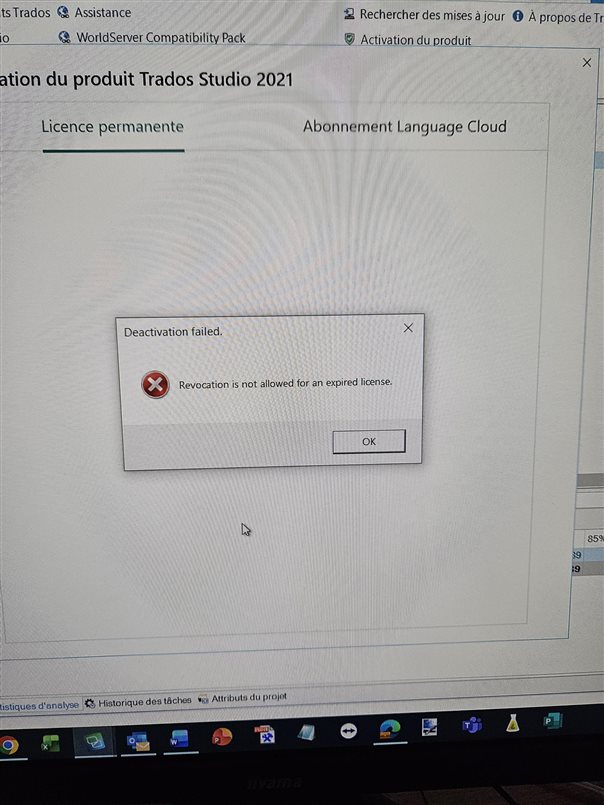
I tried to resolve the issue by deactivating the licence on Computer ‘poste-2’ to permit me to activate licences correctly, but this did not solve the problem as I am not able to desactivate the wrongly activated licence from Post 4.
I hope I have clearly explained the problem.
What should I do?
Thank you in advance.
Malika