Deactivating and activating a Trados Studio 2017 license

I have a Trados Studio 2017 license, installed on my Mac. I would like to deactivate that license and reinstall the software on a Windows laptop. But on the Offline Deactivation Certificate, when I paste the Deactivation Authorization into the deactivation Certificate field and press enter, I get the message: An error has occurred with your offline-deactivation. If you continue to have problems, please Please log a support request.

Could you let me know if there's another step or method?

emoji
Parents Reply
  • Hello: 

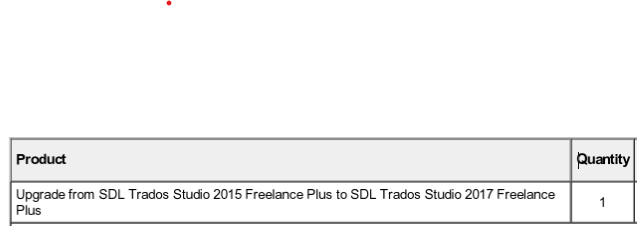
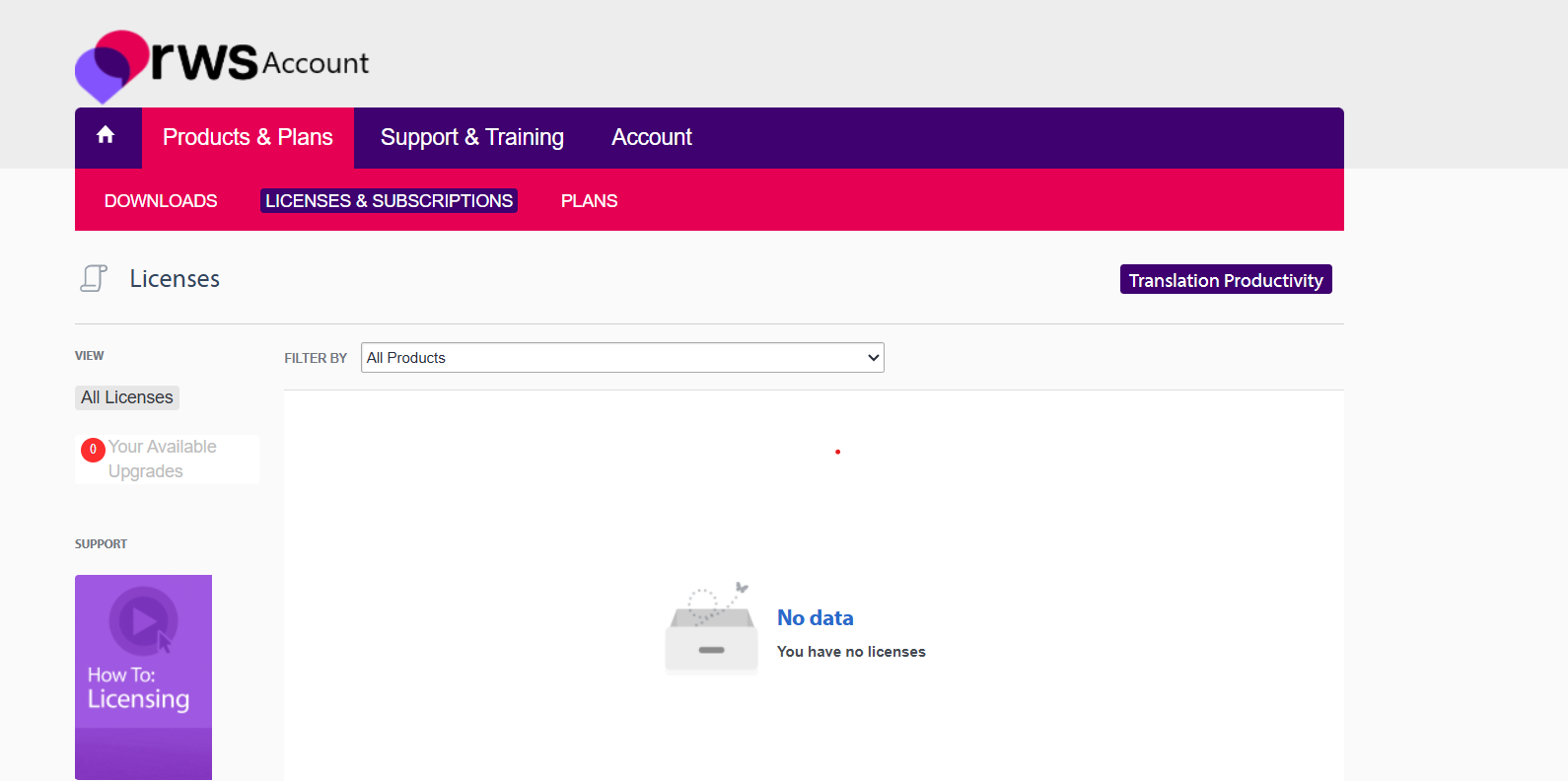
    I completed steps 1-2 to activate my SDL 2017 license on my desktop but it doesn't appear in my RWS account. I'm unable to complete steps 3-4. See screenshots from the SDL invoice and my RWS profile. How can I obtain the activation code or an offline activation certificate?

    1. Open Trados Studio and click on Activate and continue with step 2. If you don`t have the Activate button go to Help > Product Activation to display the Online Activation page and then click Activate.

    2. Click Alternative activation options > Offline Activation 

    3. Copy your activation code (located in Products & Plans > Licenses of your My RWS account) and paste it into the Activation code field.
    NOTE: The moment the activation code is placed in the field the Installation ID will be displayed:

    4. Go to your My RWS account area in Products & Plans > Licenses locate your activation code and press on the right hand side: Can´t activate online? - Get an offline Activation Certificate

    5. Copy & paste the Installation ID from the Production Activation dialog (see Step 3) into the Installation ID* field and press Generate Offline Activation Certificate 

    6. Copy the Activation Certificate: 

    7. Switch back to the Product Activation wizard and paste the Activation Certificate into the dialog using the Paste from the clipboard icon:

    8. Click the Activate button. If the activation code is valid, the Activation Successful message is displayed.

    9. Click OK. Your license has been successfully activated.

    Invoice showing an upgrade from SDL Trados Studio 2015 Freelance Plus to SDL Trados Studio 2017 Freelance Plus with a quantity of 1.

    RWS account Licenses page showing no available licenses under the 'All Licenses' view with a message 'No data - You have no licenses.'

    emoji


    Generated Image Alt-Text
    [edited by: RWS Community AI at 7:30 PM (GMT 1) on 20 May 2026]
Children