Translate


When I try to open Trados 2022, I get the message ‘Unexpected exception when initializing view part Fragment Matches’, and there it stops, because when trying to open a file, I get the massage ‘Key not found’, with a long number.
I did this: Press the Windows and R keys at the same time, enter %temp% in the blank field, and then click on OK. Delete all the files and folders, if possible.
Then I think I did this (in Dutch): 3. (optional) Turn off UAC (User Account Control) by navigating to Control Panel > User Accounts > Change User Account Control Settings, put it to No notification.
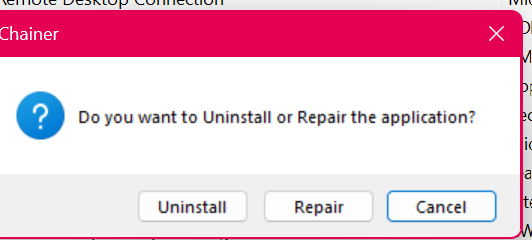
But then comes this: Reset the settings files for Trados Studio and run a repair: https://gateway.sdl.com/apex/communityknowledge?articleName=000001414, and I don’t know how Reset the settings files for Trados Studio works. The repair function still doesn’t work. The message I get is: ‘Setup didn’t complete. The error is: Setup has detected a different version of this product already installed. If you still wish to remove or repair that version, you must use that version’s installer’. ‘That version would be Trados 2017, I presume, because that's still installed? But I want to repair Trados 2022…



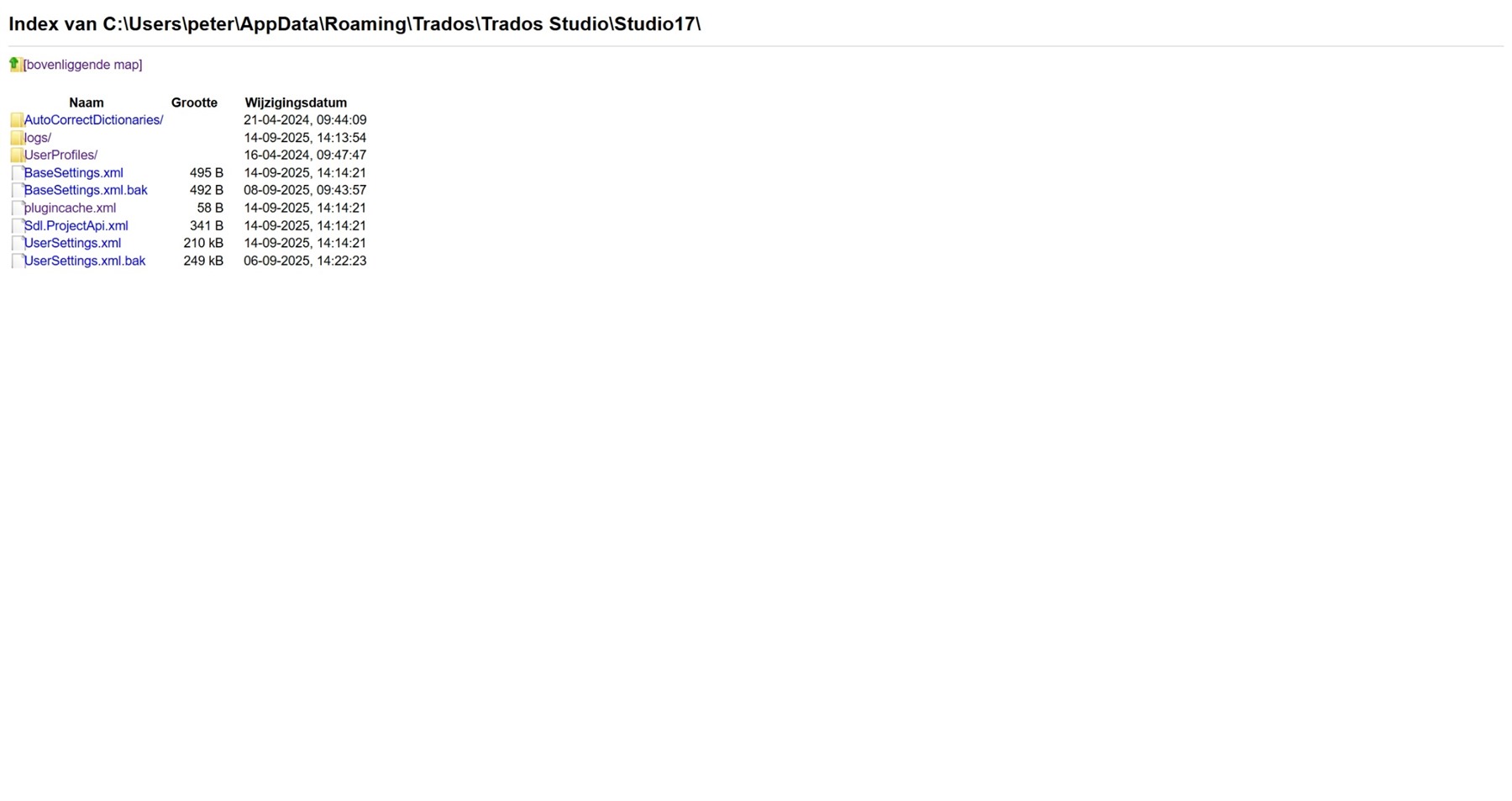 Back from a holiday, hence the late answer, but here’s a screenshot: There’s no Plugins/Packages.