Translate


How can I use the TMs stored in Trados Teams when I create or work on offline projects in Trados Studio?


How can I use the TMs stored in Trados Teams when I create or work on offline projects in Trados Studio?
Hello,
If you are on the latest update of Trados Studio 2024, adding a Translation Engine from your Trados Team account to an offline project should work.
You just need to add the TM/TMs you want to use to a Translation Engine and add the Translation Engine to the offline project from Project Settings - Cloud-based resources...
Let me know if it works.
Kind regards,
Radu
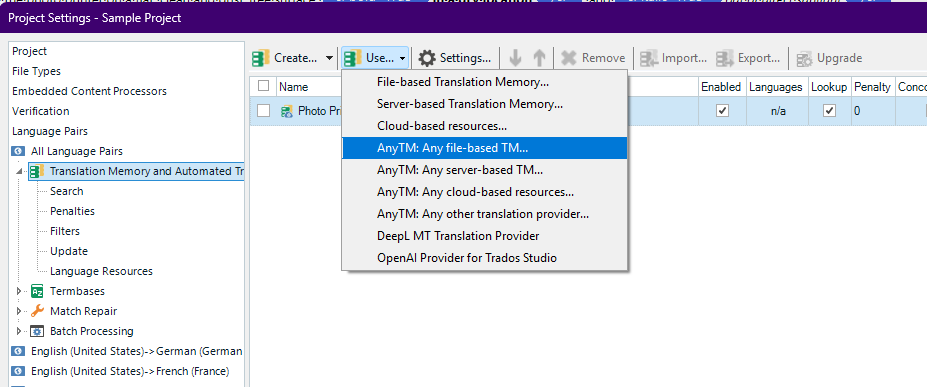


I'm using Trados Studio 2022. My Trados does not have the option you specified. Is there another method?
I'm using Trados Studio 2022. My Trados does not have the option you specified. Is there another method?

Hello,
Please let me know if the below instructions work for you:
To use Translation Memories (TMs) stored in Trados Teams with offline projects in Trados Studio, you’ll need to follow a few key steps to bridge the cloud-based resources with your local environment. Here's how you can do it:
 ️ Step-by-Step Guide
In Trados Teams, create or open the project that contains the TM you want to use.
Use the option to generate an offline package. This package will include the necessary files, including a project TM if configured.
Download the package to your local machine.
Launch Trados Studio and open the downloaded package.
The project TM included in the package will be available for use during translation.
You can also configure Studio to update the TM locally as you work.
If you need the full TM from Trados Teams (not just the project TM), you may need to export the main TM from Trados Teams as a .sdltm file.
Import this file into Trados Studio and attach it to your offline project manually.
Once your offline work is complete, you can re-upload the bilingual files (SDLXLIFF) to Trados Teams.
The main TM in Trados Teams can then be updated with your new translations.
 Notes on Limitations
Batch tasks in Studio may not work directly on cloud files unless they’re opened in the Editor view first.
Offline packages are a workaround to ensure compatibility and local access

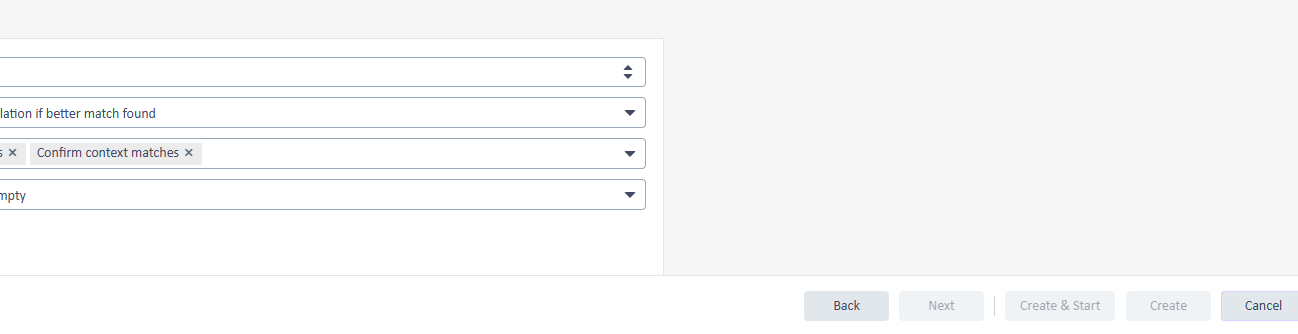
Thank you for your detailed answer. I understand most of the steps. I was just trying to create an online project, but stuck in the step below. Can you please tell me how to do with this step? There are no options to choose from the drop-down list.


Hello Maureen Mo
Please see the Online Help section for this information: https://docs.rws.com/en-US/trados-team-795494/creating-file-type-configurations-748851
You can find there step by step instructions for anything you need to do in Trados Team.
Also, if you encounter errors, you should log a case, if you have Trados Team, then it comes with Support access.
Hope this helps.
Kind regards,
Radu
Hi Radu,
I was almost done with project creation, but was stuck at this step. Can you please advise how to proceed?
Thank you