Can I turn off checking for href's, conref's in Content Importer?

I am using Content Importer 14.0.3.

I exported a publication from Tridion Docs 14, and I am adding metadata values to the .met files for many DITA topics. I want to import a few DITA topics and their .met files back into Tridion Docs.

The import fails if @href's or @conrefs in the DITA files point to GUIDs that are not in the files I am uploading. The GUIDs are all inside of Tridion Docs, so I am not worried that they are missing in the upload. Can I turn this off so Content Importer will import these topics and .met files?

Thanks,

Mark

P.S. Also, how do I change my email address in this forum? Settings will not let me change it.

emoji
  • Hi Mark regarding your PS... Sure we can arrange that for you. Please drop an email to community@rws.com with your before and after email address. At the moment this self-service feature is disabled because there are unfortunately people using it to create spam on our forums. Sorry for the inconvenience, I do hope you enjoy a spam-free forum.

    emoji
  • Thanks for the tip Dave!

    Do you know anything about Content Importer? I'd like it if I did not have to import the entire manual if possible.

    emoji
  • Your welcome Mark.

    I remember that Content Importer got improvements in 14SP4/14.0.4 and 15.0/15.0.0. However, overall I'm not a daily Content Importer user. I do hope that some other people on this forum might be able to help you out on how to achieve your scenario on 14SP3/14.0.3.

    emoji
  • Hey Mark,

    That's a known bug in Content Importer. I reported it to RWS support soon after we upgraded to 14. 

    To get around this issue, I wrote a couple of ISH Remote scripts that comment out all CCMS references, then uncomment them after Content Importer has imported the publication. I figured out that Content Importer doesn't act upon XML comments, so you can avoid href validation errors so long as you comment out the offending code. The only task is then to uncomment the hrefs once the DITA is imported. I know that my solution is a bit hacky, but I didn't see any alternative. 

    I'd be willing to share my scripts if you want them. Just let me know.

    josh

    emoji
  • As said, not the expert on this one.It seems you are using the "Standard" option, rereading your question I would assume you scenario is closer to the "Without conversion" option. Or where you already using that?

    Have a look at https://youtu.be/2oe1MGuq6Y4?t=1794 at the given timestamp. I believe this video might give some input on what to expect or leads to options that can be configured on your Content Importer.

    Best wishes,
    Dave

    emoji
  • Josh, thanks for your tip and I would like to see your scripts if possible, for general info. I have done a lot of scripting with ISHRemote.

    But I figured out what my problem was with Content Importer.

    From the Home page, I click Standard Import.

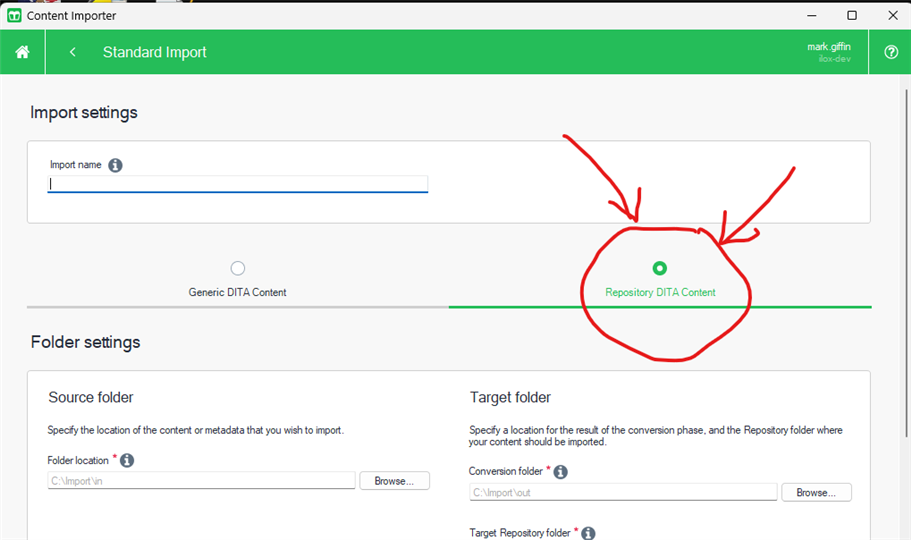
    On the Standard Import page, there are 2 tabs that I had been ignoring: Generic DITA Content and Repository DITA Content. I had always used Generic DITA Content. But when I tried using the Repository DITA Content tab, it solved all my problems! It let me upload exported DITA files with missing target href topics, missing conref target topics, etc, without errors. I can upload just a couple of topics, or a whole publication.

    Screenshot of Content Importer's Standard Import page with two tabs: 'Generic DITA Content' and 'Repository DITA Content'. The 'Repository DITA Content' tab is circled in red with arrows pointing to it.

    These tabs were not mentioned in the Content Importer help, that I could find. In the command line docs there was one little mention of an option for repository content, that was it. I guess the tabs in the UI were too subtle for me.

    Something else I discovered: All I wanted to change were a bunch of .met files, but I could not upload .met files by themselves. I had to also upload the topic .xml file that the .met file was associated with, and then Content Importer was happy and would import them.

    Dave, thanks for the tip and the video. The video does cover what I discovered above, and it would have helped. From the video, I also learned that there is a Content Importer config file that might help with this problem also:

    C:\Users\<username>\AppData\Local\SDL\InfoShare Client\14.0\Trisoft.ContentImporter.config

    There is a validateReferences option with a few settings that might help. I have not tried it yet. The video covers it.

    https://www.youtube.com/watch?v=2oe1MGuq6Y4&t=1794s

    Mark

    emoji


    Generated Image Alt-Text
    [edited by: RWS Community AI at 8:21 PM (GMT 1) on 7 Jun 2024]
  • Hey Mark,

    Thanks for all the information.

    Unfortunately, the UI options that you indicated are not available to us with the exception of the config file (obviously). We are using the 14.0 version and it looks like RWS dev must have patched the issue in a subsequent service pack. The solution does look really nice though and I'm looking forward to using it after we upgrade to 15.1.

    Turning off validation makes me uneasy as doing so would permit import of bad references. Troubleshooting the aftermath might be more costly than if we just comment out/in the problematic refs. 

    It sounds like you found your way around this one without scripting a workaround, so I'll forgo posting the files.

    Thanks again and glad you found a (considerably) less complicated solution!
    josh

    emoji