MS Word: Can't open file - xml parsing error

 I have completed a translation and am trying to save the target file and view it. It won't open and shows this error message: We're sorry. We can't open XXX file because we found a problem with its contents. Details: Xml parsing error. Location: Part:/word/document.xml, Line:2, Column: 3278


Can anyone help please?

  • Hi Ellie,

    I think three things are worth trying. First make sure you can actually open the original source file in Word?

    Next, make sure you have entered all the tags correctly in the Studio bilingual file. So run a verification and ensure nothing is missing. If there are missing tags then fix this and try again.

    If that doesn't help, try opening the source file from scratch as if it was a new job and try to save the target file immediately and open that in Word. If it fails then there is a problem with this file for Studio and you need to try something else. If it works then add your TM and pretranslate the file then try again.

    If nothing here helps then save the DOC as a DOCX and then pretranslate the DOCX, save the target, open that in Word and downsave it to DOC.  You could also try using a different Word filetype?  So change the order of th4ese filetypes, or uncheck the docx that is highest in your list, then process the file from the beginning again using this other word filetype:

    Studio will use the first suitable filoetype it comes to normally.  So in my case it will use the 2007 - 2016 DOCX filetype.  In your case it might be different?  The 2007 - 2016 version tends to be more forgiving, but sometimes the older one works better.

    Regards

    Paul

    Paul Filkin | RWS

    Design your own training!
    You've done the courses and still need to go a little further, or still not clear? 
    Tell us what you need in our Community Solutions Hub

  • Thanks Paul. I have tried to create a new project with the same file but the same thing happens. I tried it as .doc and .docx. I have tried with a different file completely, and it works with that. I guess there is a problem with the source file. It opens in Word normally, it is just when it goes through Studio that there is the problem.
  • Hi Ellie,

    Can I see the source file and maybe your sdlxliff too? It would be good to find out what the problem is in case we need to fix something to handle whatever may be causing the problem in your file. If so you can email them to pfilkin@sdl.com

    Regards

    Paul

    Paul Filkin | RWS

    Design your own training!
    You've done the courses and still need to go a little further, or still not clear? 
    Tell us what you need in our Community Solutions Hub

  • I've experienced the same problem and I've always had to reimport the file and pretranslate it with my TM, the only problem is that the file had lots of numbers which I'd given format in Spanish and I had to re-do that, which made me spend extra hours on my project.

    It happens everytime I add new translations to that file and save the target, it makes me do this whole thing again.
  • Hi Fernán,

    Send me your file and I can take a look.

    Thanks

    Paul

    Paul Filkin | RWS

    Design your own training!
    You've done the courses and still need to go a little further, or still not clear? 
    Tell us what you need in our Community Solutions Hub

  • Hi Ellie,

    I have experienced this same issue, and for my situation it was due to extended characters within the footer. Because of this, I see this as being due to MS Word limitations rather than a Studio bug. Here's how I was able to fix it:

    1) Unzip the DOCX file. There should be a number of files contained within the DOCX. Inside the 'word' subfolder, you should see a document.xml file.

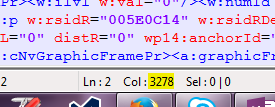
    2) Open document.xml inside a text editor, preferably something like Notepad++. Go to Line: 2, Col: 3278. You can see what Column you are in in the bottom right-hand corner of the interface. This is shown here from Notepad++:


    3) If there is an extended character at this location, replace it with a non-extended EN character.

    4) Zip all files back up and change the extension from .zip to .docx

    5) If you have replaced any characters, replace them back to the extended characters in Word.

    Please let me know if this works.


    Thank you
    Luke

  • Hello Paul,

    I've had the same problem and I've read your suggestions above. I've solved it opening a new file from scratch and then adding the previous project TM.

    Now, the problem is that although I've translated the previous malfunctioning documents, the translations for the past 3 days haven't been saved to the project TM and they don't show when applying it to the new file. This means that my work is still stuck, and my client (and I) is going crazy. Do you have any ideas about this?
    Thanks!
  • A solution I came up with is to open the file in WordPad and save it in RTF, then open it again in Word 2016 and save it in DOCX.
  • I like your answer because it addresses the fact that there's some problem with the XML. I do believe, though, it's a STUDIO PROBLEM, because their parser should be careful not to spoil the tags. In my case, it's the very first time I've had this error, and it has happened after activating the "Allow Source Editing" option to correct some segments that were incorrectly separated. I loved having the ability to merge and split at will, but now I'm stuck with this file which contains an xml error I cannot figure how to fix.

    As every file is different, instead of telling us the column in which you found YOUR error, would you mind telling us what tag or kind of info was that? I assume it's now obvious in the picture.

    Thanks a lot for yor help.